阅读视图

发现新文章,点击刷新页面。
🔲 ☆

Lofi - 极简、纯粹、黑白风格的 Hexo 博客主题

好久没写博客了,各位好久不见。这一年真的有好多话想说,期待我今年的午马年度总结吧,把今年一年的事情,都和大家聊一聊。

原本的博客程序,使用的是我毕业论文开发的 DaRM,现在回过头来看,当年这个项目写的跟屎一样,我已经彻底的放弃维护这个项目,转投 Hexo 的阵营了。

好久没写博客,希望带来点变化,花了半天时间写出来这个主题,总体来说还是比较满意的,别的没什么话说,希望2026年,能对我好一些。

一个新的主题新的主题,希望能带来新的开始。

Lofi

极简、纯粹、黑白风格的 Hexo 博客主题。

A minimalist, black & white theme for Hexo.

项目地址:Lofi

介绍 (Introduction)

Lofi 是一款专为专注于写作的人设计的 Hexo 主题。它剥离了所有不必要的装饰,只保留最核心的阅读体验。

核心特点:

  • 极简黑白设计:经典的报纸风格,耐看且不干扰阅读。
  • 超快加载:体积小巧,没有复杂的动画和沉重的库。
  • 响应式布局:在手机、平板和电脑上都有完美的阅读体验。
  • PJAX 支持:页面切换无刷新,体验丝般顺滑。
  • 评论系统:内置 Artalk 评论系统支持(自托管的隐私友好评论系统)。
  • 站内搜索:原生支持本地搜索功能。

安装指南 (Installation)

就像给手机换壁纸一样简单,只需三步即可使用。

第一步:下载主题

进入你的 Hexo 博客目录,打开终端(命令行),运行以下命令:

1
git clone https://github.com/spatiostu/lofi.git themes/lofi

或者,你也可以点击 Lofi 进入仓库,直接点击右上角的 Code -> Download ZIP,下载后解压,把文件夹改名为 lofi,然后放入博客的 themes 目录下。

第二步:启用主题

打开博客根目录下的 _config.yml 文件(不是主题目录下的那个),找到 theme 这一行,修改为:

1
theme: lofi

第三步:安装必要插件

为了让主题的搜索和渲染功能正常工作,你需要安装几个小插件。在博客根目录下运行:

1
npm install hexo-renderer-ejs hexo-generator-searchdb --save

配置指南 (Configuration)

主题的配置文件位于 themes/lofi/_config.yml。你可以根据需要修改它。

1. 菜单设置 (Menu)

设置导航栏的链接。

1
2
3
4
5
menu:
首页: /
归档: /archives
友链: /friends
关于: /about

需在source目录下创建两个页面文档:about/index.mdfriends/index.md。每个文档的内容可以自定义,例如:

1
2
3
4
5
6
7
8
9
10
---
title: 友情链接
date: 2024-03-20 12:00:00
type: friends
---
<div class="grid grid-cols-1 md:grid-cols-2 lg:grid-cols-3 gap-6">
<a href="https://www.FriendDomain.com/" target="_blank" class="friend-card">
<div class="font-bold text-lg mb-2">FriendName</div>
<div class="text-xs font-mono opacity-60">FriendDescription</div>
</a>

2. 个人信息 (Profile)

设置你的头像和社交媒体链接。

1
2
3
4
5
avatar: /images/avatar.jpg  # 头像路径
favicon: /images/favicon.png # 网站图标
description: "这里写一句你的座右铭"
social:
github: https://github.com/yourname

3. 评论系统 (Comments)

本主题内置了 Artalk 评论系统。如果你部署了 Artalk Server,可以在这里配置:

1
2
3
4
artalk:
enable: true
server: 'https://your-artalk-server.com'
site: '你的站点名称'

如果不需要评论功能,将 enable 改为 false 即可。

4. 底部信息 (Footer)

自定义页面底部的版权信息。

1
2
footer:
copyright: "© 2025 你的名字"

5. CDN 配置

为了加速主题静态资源加载,你可以配置 CDN。

1
2
3
cdn:
enable: true
url: https://res.your-domain.com/

如不需要 CDN 加速,将 enable 改为 false 即可。


如果有什么功能需求,也可以在评论区留言一下,如果是不错的提议,我会给主题加上!

🔲 ⭐

Hexo NexT 添加友链页面

关于如何给 NexT 主题添加友链页面,在网上能够搜到很多,但是基本上都已经过时了。

要么是没有把数据文件和主题分离,还在修改主题中的文件(而且是旧版的文件,新版的主题结构和内容都有变化);要么是给出的代码还依赖 jQuery。

而新版的 NexT 主题除了 Fancybox 外,其它功能都已经不再依赖 jQuery 了。由于 Fancybox 和我的 WebP 检测代码冲突,所以我切换到了 medium-zoom,这样就不再引入 jQuery 了。

因此,网上找到的代码就不能拿过来直接用了。

这里主要需要修改的是 link.js 文件。

1. 涉及到的文件

1
2
3
4
5
6
7
8
9
10
11
12
.
├── _config.next.yml
└── source
├── _data
│ └── body-end.njk
├── css
│ └── link.css
├── js
│ └── link.js
└── links
├── index.md
└── linklist.json

2. 步骤

2.1. 建立页面

运行

1
hexo new page links

这会创建 source/links/index.md 文件。

文件示例:

1
2
3
4
5
6
7
8
9
10
11
12
13
14
15
16
17
18
19
20
21
22
23
24
25
26
27
28
29
30
31
32
33
34
35
36
37
38
39
40
---
title: 友情链接
type: links
toc:
enable: false
---

<link rel="stylesheet" href="/css/link.css">

{% note info %}

排名不分先后,每次刷新会随机排列。

{% endnote %}

<div>
<div class="links-content">
<div class="link-navigation" id="links1"></div>
</div>
</div>

------

<div style="text-align:center;">
<span class="with-love" id="animate1"><i class="fa fa-heart"></i></span>
留言互换友链 o ((>ω<)) o
<span class="with-love" id="animate2"><i class="fa fa-heart"></i></span>
</div>

------

{% note success %}

## 友链格式

- 名称:如鱼饮水,冷暖自知
- 网址:[https://wangjiezhe.com](https://wangjiezhe.com)
- 头像:[https://gravatar.loli.net/avatar/e09cf54e933e5a690716e68961ff3b1c?s=512](https://gravatar.loli.net//avatar/e09cf54e933e5a690716e68961ff3b1c?s=512)

{% endnote %}

注意在 Front-Matter 里一定要有 type: links

这里我还关闭了侧边栏的目录。

2.2. 存储数据

所有友链的数据都放在 source/links/linklist.json 里,其格式为:

1
2
3
4
5
6
7
8
9
10
11
12
[
{
"name": "",
"site": "",
"avatar": ""
},
{
"name": "",
"site": "",
"avatar": ""
}
]

其中 name 为网站的名字,site 为网址,avatar 为头像。

头像可以使用 Gravatar,这样可以保证始终可用的。

2.3. 渲染页面

source/_data/body-end.njk 中,引入 link.js

1
2
3
{% if page.type === 'links' %}
{{- next_js('link.js', true) }}
{% endif %}

其中 source/js/link.js 的内容为

1
2
3
4
5
6
7
8
9
10
11
12
13
14
15
16
17
18
19
20
21
22
23
24
25
26
// 随机排列
function shuffle(arr) {
let i = arr.length;
while (i) {
let j = Math.floor(Math.random() * i--);
[arr[j], arr[i]] = [arr[i], arr[j]];
}
}

// 渲染数据
function renderlink(data) {
var name, avatar, site, li = "";
shuffle(data);
for (var i = 0; i < data.length; i++) {
name = data[i].name;
avatar = data[i].avatar;
site = data[i].site;
li += '<div class="card">' + '<a href="' + site + '" target="_blank">' + '<div class="thumb" style="background: url( ' + avatar + ');">' + '</div>' + '</a>' + '<div class="card-header">' + '<div><a href="' + site + '" target="_blank">' + name + '</a></div>' + '</div>' + '</div>';
}
document.querySelector(".link-navigation").innerHTML = li;
}

// 获取 json 文件
fetch('/links/linklist.json')
.then(response => response.json())
.then(res => renderlink(res));

2.4. 创建样式

创建 source/css/link.css,其内容为(这个文件完全来自于网络):

1
2
3
4
5
6
7
8
9
10
11
12
13
14
15
16
17
18
19
20
21
22
23
24
25
26
27
28
29
30
31
32
33
34
35
36
37
38
39
40
41
42
43
44
45
46
47
48
49
50
51
52
53
54
55
56
57
58
59
60
61
62
63
64
65
66
67
68
69
70
71
72
73
74
75
76
77
78
79
80
81
82
83
84
85
86
87
88
89
90
91
92
93
94
95
96
97
98
99
100
101
102
103
104
105
106
107
108
109
110
111
112
113
114
115
116
117
118
119
120
121
122
123
124
125
126
127
.links-content {
margin-top: 1rem
}

.link-navigation::after {
content: " ";
display: block;
clear: both
}

.card {
width: 130px;
font-size: 1rem;
padding: 0;
border-radius: 4px;
transition-duration: .15s;
margin-bottom: 1rem;
display: block;
float: left;
box-shadow: 0 2px 6px 0 rgba(0,0,0,.12);
background: #f5f5f5
}

.card {
margin-left: 16px
}

@media(max-width:567px) {
.card {
margin-left: 16px;
width: calc((100% - 16px)/2)
}

.card:nth-child(2n+1) {
margin-left: 0
}

.card:not(:nth-child(2n+1)) {
margin-left: 16px
}
}

@media(min-width:567px) {
.card {
margin-left: 16px;
width: calc((100% - 32px)/3)
}

.card:nth-child(3n+1) {
margin-left: 0
}

.card:not(:nth-child(3n+1)) {
margin-left: 16px
}
}

@media(min-width:768px) {
.card {
margin-left: 16px;
width: calc((100% - 48px)/4)
}

.card:nth-child(4n+1) {
margin-left: 0
}

.card:not(:nth-child(4n+1)) {
margin-left: 16px
}
}

@media(min-width:1200px) {
.card {
margin-left: 16px;
width: calc((100% - 64px)/5)
}

.card:nth-child(5n+1) {
margin-left: 0
}

.card:not(:nth-child(5n+1)) {
margin-left: 16px
}
}

.card:hover {
transform: scale(1.1);
box-shadow: 0 2px 6px 0 rgba(0,0,0,.12),0 0 6px 0 rgba(0,0,0,.04)
}

.card .thumb {
width: 100%;
height: 0;
padding-bottom: 100%;
background-size: 100% 100%!important
}

.posts-expand .post-body img {
margin: 0;
padding: 0;
border: 0
}

.card .card-header {
display: block;
text-align: center;
padding: 1rem .25rem;
font-weight: 500;
color: #333;
white-space: normal
}

.card .card-header a {
font-style: normal;
color: #2bbc8a;
font-weight: 700;
text-decoration: none;
border: 0
}

.card .card-header a:hover {
color: #d480aa;
text-decoration: none;
border: 0
}

2.5. 添加侧栏

在主题的配置文件(目前默认为 _config.next.yml)中,添加

1
2
3
4
5
6
menu:
home: / || fa fa-home
tags: /tags/ || fa fa-tags
categories: /categories/ || fa fa-th
archives: /archives/ || fa fa-archive
+ links: /links/ || fa fa-link

大功告成!


参考:

  • Hexo-NexT 新增友链
  • You (Might) Don't Need jQuery
🔲 ☆

一款基于 webstack 的 hexo 主题

一款基于WebStackPage的 Hexo 主题。Demo
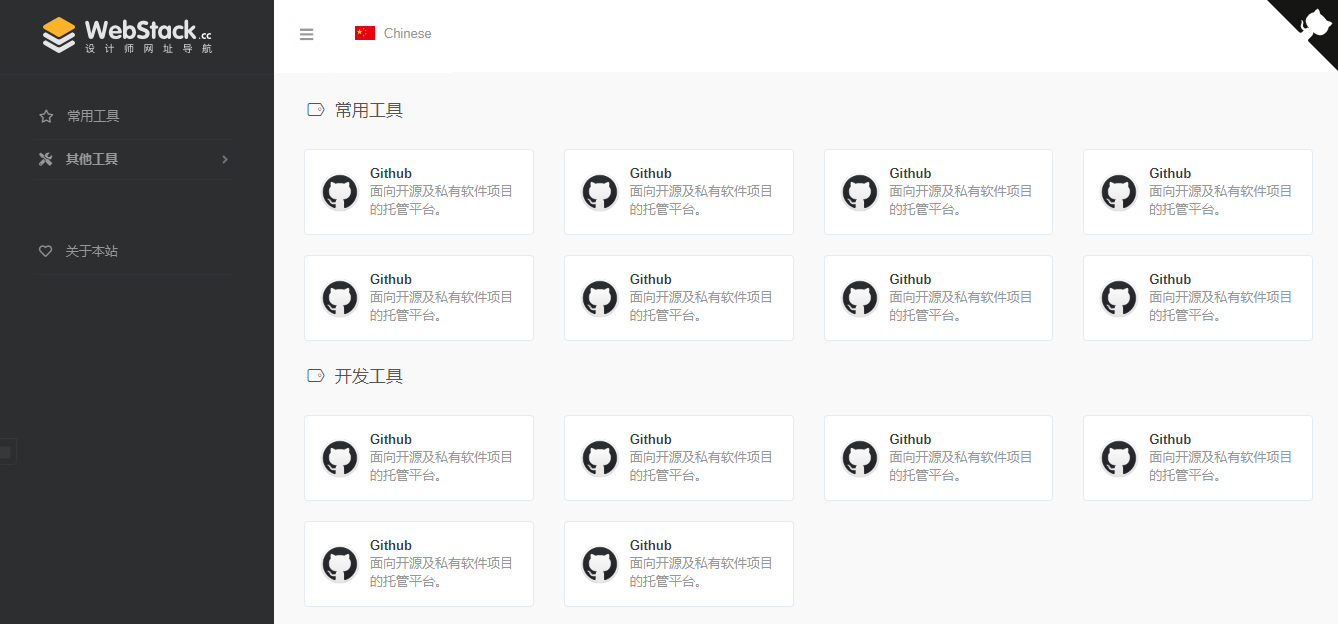
screenshot

安装

git clone https://github.com/HCLonely/hexo-theme-webstack themes/webstack

配置

favicon

网站图标

示例:

favicon: /favicon.ico

banner

[可选]分享网站到 twitter 和 facebook 时的图片。

示例:

banner: /images/webstack_banner_cn.png

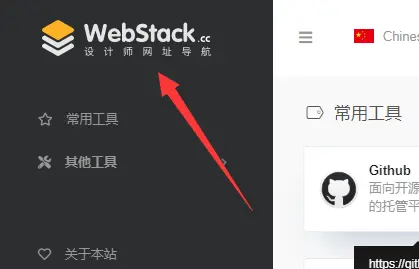
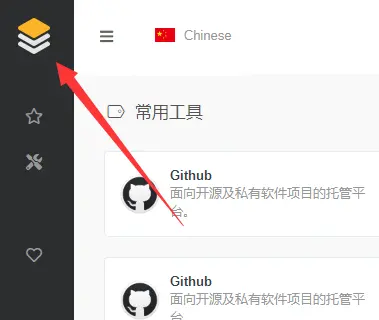
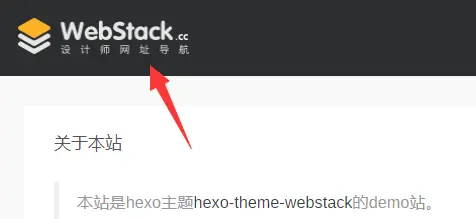
logo

网站 logo

  • expanded: 侧边栏展开时左上角的 logo
    expanded
  • collapsed: 侧边栏收起时左上角的 logo
    collapsed
  • dark: 顶栏为暗色时左上角的 logo, 仅 about 页面生效
    dark

示例:

logo:  expanded: /images/logo@2x.png  collapsed: /images/logo-collapsed@2x.png  dark: /images/logo_dark@2x.png

flag

语言标识,多语言请配合子页面使用

  • icon: 语言图标,默认仅有flag-cnflag-us, 其他图标自行寻找存放于主题目录/source/images/flags/
  • name: 语言名称
  • default: 该语言是否为默认语言
  • index: 页面链接

示例:

flag:  - name: Chinese    default: true    icon: flag-cn    index: /index.html
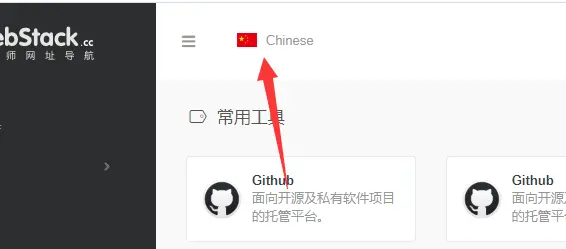
flag

search

是否显示搜索框

示例:

search: true

userDefinedSearchData

自定义搜索引擎

  • custom: 是否启用自定义配置
  • thisSearch: 当前搜索引擎的搜索链接
  • thisSearchIcon: 当前搜索引擎的图标链接,格式为url(图片链接)
  • hotStatus: 是否启用搜热词功能
  • data: 多搜索引擎配置
    • name: 搜索引擎名字
      img: 搜索引擎的搜索链接
      url: 搜索引擎的图标链接,格式为url(图片链接)

示例:

userDefinedSearchData:  custom: true  thisSearch: https://www.baidu.com/s?wd=  thisSearchIcon: url(https://www.baidu.com/favicon.ico)  hotStatus: true  data:    - name: 百度      img: url(https://www.baidu.com/favicon.ico)      url: https://www.baidu.com/s?wd=    - name: 谷歌      img: url(https://www.google.com/favicon.ico)      url: https://www.google.com/search?q=

githubCorner

右上角的 github corner

示例:

githubCorner: '<a href="https://github.com/HCLonely/hexo-theme-webstack" class="github-corner" aria-label="View source on GitHub"><svg width="80" height="80" viewBox="0 0 250 250" style="fill:#151513; color:#fff; position: absolute; top: 0; border: 0; right: 0;" aria-hidden="true"><path d="M0,0 L115,115 L130,115 L142,142 L250,250 L250,0 Z"></path><path d="M128.3,109.0 C113.8,99.7 119.0,89.6 119.0,89.6 C122.0,82.7 120.5,78.6 120.5,78.6 C119.2,72.0 123.4,76.3 123.4,76.3 C127.3,80.9 125.5,87.3 125.5,87.3 C122.9,97.6 130.6,101.9 134.4,103.2" fill="currentColor" style="transform-origin: 130px 106px;" class="octo-arm"></path><path d="M115.0,115.0 C114.9,115.1 118.7,116.5 119.8,115.4 L133.7,101.6 C136.9,99.2 139.9,98.4 142.2,98.6 C133.8,88.0 127.5,74.4 143.8,58.0 C148.5,53.4 154.0,51.2 159.7,51.0 C160.3,49.4 163.2,43.6 171.4,40.1 C171.4,40.1 176.1,42.5 178.8,56.2 C183.1,58.6 187.2,61.8 190.9,65.4 C194.5,69.0 197.7,73.2 200.1,77.6 C213.8,80.2 216.3,84.9 216.3,84.9 C212.7,93.1 206.9,96.0 205.4,96.6 C205.1,102.4 203.0,107.8 198.3,112.5 C181.9,128.9 168.3,122.5 157.7,114.1 C157.9,116.9 156.7,120.9 152.7,124.9 L141.0,136.5 C139.8,137.7 141.6,141.9 141.8,141.8 Z" fill="currentColor" class="octo-body"></path></svg></a><style>.github-corner:hover .octo-arm{animation:octocat-wave 560ms ease-in-out}@keyframes octocat-wave{0%,100%{transform:rotate(0)}20%,60%{transform:rotate(-25deg)}40%,80%{transform:rotate(10deg)}}@media (max-width:500px){.github-corner:hover .octo-arm{animation:none}.github-corner .octo-arm{animation:octocat-wave 560ms ease-in-out}}</style>'

github

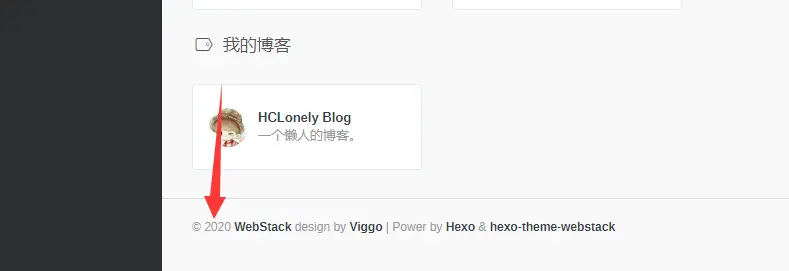
since

建站年份,显示在页面底部

示例:

since: 2020

since

menu

[主要]侧边栏菜单设置

  • name: 分组名
  • icon: 分组图标
  • config: [主要]分组内容(详细设置查看Config),如果有二级菜单则不需要此项!
  • submenu: 二级菜单,如果有二级菜单则不需要config, 此选项内容包含name, icon, config选项

示例:

menu:  - name: 常用工具    icon: far fa-star    config: hotTools  - name: 其他工具    icon: fas fa-tools    submenu:      - name: 开发工具        icon: fas fa-tools        config: devTools      - name: 我的博客        icon: fas fa-blog        config: myBlog
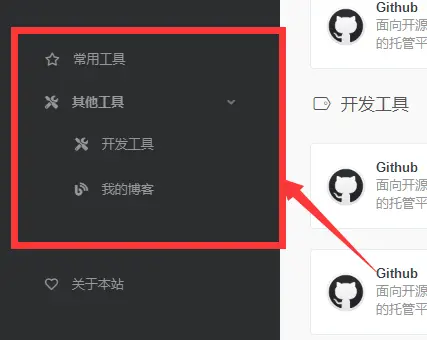
menu

expandAll

是否将侧边栏全部展开

示例:

expandAll: true

about

侧边栏的关于本站

  • url: 关于页面链接
  • name: 在侧边栏显示的文字
  • icon: 图标

示例:

about:  url: /about/  icon: far fa-heart  name: 关于本站
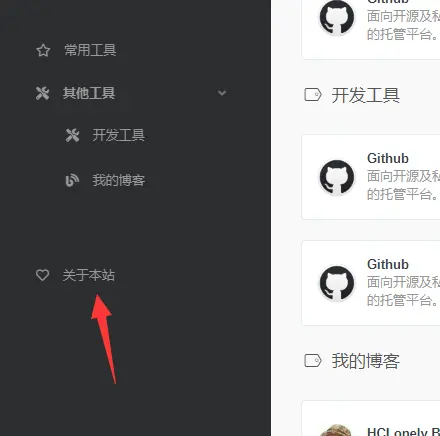
about

aboutPage

关于页面设置

  1. 生成关于页面
hexo new page about
  1. 编辑source/about/index.md, 添加type: 'about'
---title: aboutdate: 2020-06-04 18:11:54type: 'about'---
  1. 编辑主题配置文件的aboutPage
  • website: 关于本站内容
    • head: 标题
    • html: 内容,支持html语法
  • webmaster: 关于站长内容
    • head: 标题
    • name: 站长名字
    • url: 链接
    • img: 头像
    • description: 描述
    • html: 其他内容,支持html语法

示例:

aboutPage:  website:    head: 关于本站    html: '<blockquote><p>本站是hexo主题<a href="https://github.com/HCLonely/hexo-theme-webstack">hexo-theme-webstack</a>的demo站。</p></blockquote>'  webmaster:    head: 关于站长    name: HCLonely    url: https://blog.hclonely.com/    img: /images/logos/myblog.png    description: 懒人一个    html: '<br /><blockquote><p>本站是<a href="https://github.com/HCLonely">HCLonely</a>基于<a href="https://github.com/WebStackPage/WebStackPage.github.io">WebStackPage</a>项目做的一款<a href="https://hexo.io/">Hexo</a>主题。</p></blockquote>'
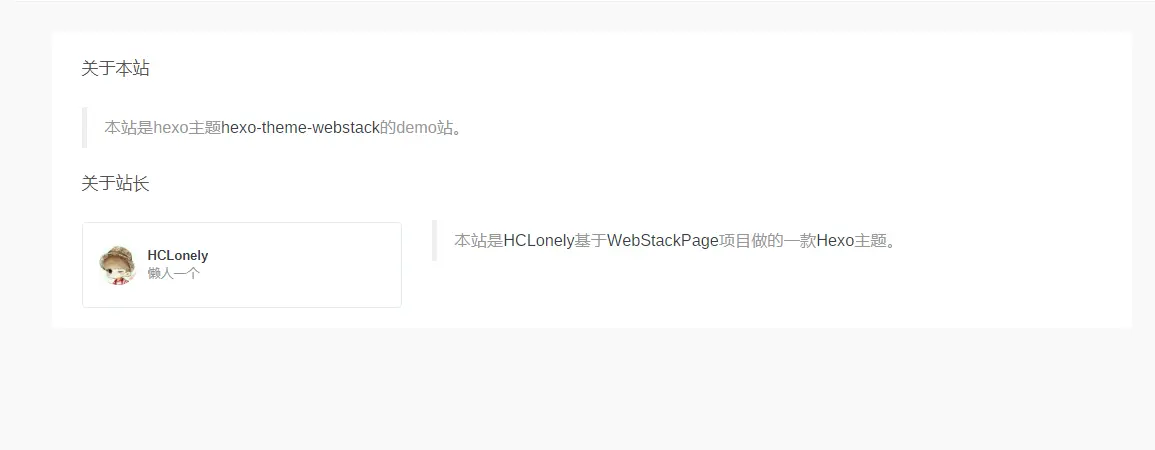
aboutPage

busuanzi

不蒜子统计

  • enable: 是否启用不蒜子统计
  • position: 访问量显示位置, footer显示在页脚, sidebar显示在侧边栏
  • pv: 访问量显示的内容, $pv会被替换为访问量
  • uv: 访客数显示的内容, $uv会被替换为访客数

示例:

busuanzi:  enable: true  position: sidebar  pv: 本站总访问量$pv  uv: 本站总访客数$uv
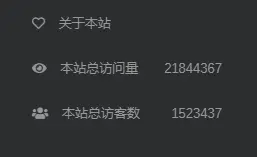
sidebar
footer

custom

自定义html内容

  • head: 插入到<head></head>标签内的内容
  • body: 插入到</body>标签之前的内容

示例:

custom:  head: |- # 以下内容插入到<head></head>标签内,可设置多行,注意每行开头至少四个空格    <link rel="stylesheet" type="text/css" href="custom.css">    <script src="custom.js"></script>  body: |- # 以下内容插入到</body>标签之前,可设置多行,注意每行开头至少四个空格    <div>custom text</div>    <script src="custom.js"></script>

config

[主要]网站内容设置

参数

  • name: 网站名称
  • url: 网站链接
  • img: 网站图标
  • description: 网站描述

示例:

- name: HCLonely Blog  url: https://blog.hclonely.com/  img: /images/logos/myBlog.png  description: 一个懒人的博客。

关联设置名称并添加网站

menusubmenu中设置的config的内容为此选项的名称。

menu

menu:  - name: 常用工具    icon: far fa-star    config: hotTools

常用工具分组里的网站有以下两种添加方式:

  • 在主题的_config.yml里添加:
hotTools:  - name: HCLonely Blog    url: https://blog.hclonely.com/    img: /images/logos/myBlog.png    description: 一个懒人的博客。  - name: Github    url: https://github.com/    img: /images/logos/github.png    description: 面向开源及私有软件项目的托管平台。
  • 站点根目录/source/_data/(没有自行创建)内新建hotTools.yml文件,文件内容如下:
- name: HCLonely Blog  url: https://blog.hclonely.com/  img: /images/logos/myBlog.png  description: 一个懒人的博客。- name: Github  url: https://github.com/  img: /images/logos/github.png  description: 面向开源及私有软件项目的托管平台。

以上两种方式任选一种即可,建议使用第二种。

子页面配置

创建子页面

使用hexo new page xxx创建子页面,这里包括下面的说明都以hexo new page child为例。

修改子页面配置文件

使用上面的命令生成子页面后,打开根目录/source/child/index.md文件(子页面配置文件),在两个---之间添加一行type: 'child'使此配置文件生效,子页面默认使用主页的配置,子页面优先使用子页面配置文件两个---之间的配置,各配置项和主页的配置功能相同。

示例请看https://github.com/HCLonely/hexo-theme-webstack/tree/gh-pages/source/child/index.md

由于子页面在很久之前就基本做完了,后来比较忙就鸽了,可能有些配置或 bug 给忘了,有问题请及时反馈!

❌