普通视图

发现新文章,点击刷新页面。
昨天以前Librehat's Blog

Install Citrix Receiver for Linux in Toolbox

作者 librehat
2025年12月29日 19:01

In the era of LLM AI chat bots, this was suggested by ChatGPT as a solution for me to upgrade from Fedora 42 to 43. See this discussion for the context.

TL;DR. I moved my Citrix application from native to toolbox (Fedora’s version of distrobox), and it works well!

Here is how I did it in a step by step guide.

Install Citrix in a Toolbox Container

In the terminal console (Konsole?).

  1. toolbox create --release 22.04 --distro ubuntu
  2. toolbox enter ubuntu-toolbox-22.04

This creates a new container with Ubuntu 22.04 as the base. I chose this over Fedora because Ubuntu in general has better support with commercial partners such as Citrix. Besides, Ubuntu LTS enjoys a longer support than Fedora. Since my whole point here is to have a working Citrix receiver application (or Citrix Workspace Launcher), I need a container that is not going to be EOL anytime soon.

The second command enters the container, note that toolbox mounts the home directory and it is bidirectional. This works fine in my use case. If you don’t like that, you are better off using distrobox.

Now we can install the ICA client (assume that you’ve already downloaded the DEB package from Citrix website yourself).

sudo apt update
sudo dpkg -i Downloads/icaclient_<VERSION>_amd64.deb
sudo apt --fix-broken install
sudo dpkg-reconfigure locales

The last step here is important, especially if your language and keyboard layout is not English (US).

If the only thing you need is the receiver, run /opt/Citrix/ICAClient/wfica and fix any broken/missing dependencies with apt (it seems Citrix doesn’t declare the full dependencies in its package metadata). If you need the workspace launcher, then do the same, but for /opt/Citrix/ICAClient/selfservice.

You should be able to see the GUI dialog (it should work, out-of-the-box).

Setup Desktop Launcher

Taking KDE Plasma Desktop as an example, you can add desktop launchers by right clicking the Application Launcher (Linux’s version of Start menu) -> Edit Applications…

This launches KDE Menu Editor, now click New -> New Item… in the toolbar, and add a launcher for Citrix Receiver manually:

FieldValue
NameCitrix Receiver
Programtoolbox
Command-line argumentsrun --container ubuntu-toolbox-22.04 /opt/Citrix/ICAClient/wfica %u

You should adjust these based on your setup if you use distrobox other than toolbox, and if you use a different Linux distro or version.

Use selfservice other than wfica if you want a launcher for the workspace launcher instead of (or in addition to) the receiver.

Lastly, let’s associate the .ica files with the receiver. Once you have an .ica file downloaded, right click and choose to open it with other application.

Click “Show All Installed Applications” if you don’t see Citrix in the list. Tick “Set as default app to open Citrix ICA settings file files”, then click Citrix Receiver.

If you want to use the stock icons from Citrix (as shown in the screenshot above), you can find them inside toolbox -> /opt/Citrix/ICAClient/icons, though to use them in the host (Fedora), you’ll need to copy them out.

Post Installation

Now I can remove ICAClient from the host, and do an upgrade from Fedora 42 to Fedora 43 (Kinoite):

sudo rpm-ostree remove ICAClient
sudo rpm-ostree rebase fedora:fedora/43/x86_64/kinoite

Soft AP on Linux with WPS

作者 librehat
2025年2月17日 23:18

I’ve recently upgraded my home WiFi setup with Ubiquiti (UniFi) access points (I bought a U7 Pro AP). All is good, except that UniFi doesn’t support WPS. On the other hand, my old Canon TS3150 printer can only be setup using WPS. Now, it wouldn’t have been an issue, had I not changed the SSID. The easiest workaround seems to be setting up a WiFi that has the same SSID and password, and supports WPS (so the printer can connect to it).

Some people on the Internet have suggested buying a cheap router/AP that supports WPS, which seems like a waste to me. Not only it costs minimally £30 or so, but also it’ll literally become an e-waste one minute later. Bad for the environment!

With the help of Gemini 2.0, and this post on StackExchange, I’ve managed to open a Hotspot by using SoftAP via hostapd that supports WPS (WiFi Protected Setup), and my printer is now happily connected to the WiFi network created by my UniFi AP.

I’m using Fedora Kinoite on my desktop, and hostapd is not Flatpak’d, therefore rpm-ostree is needed to get hostapd installed:

sudo rpm-ostree install hostapd

Then create this hostapd.conf file:

interface=wlo1  # check the actual device name, ip link
ieee80211d=1  # make sure the frequency conforms to the regulation
country_code=GB  # United Kingdom
eap_server=1
ap_setup_locked=1
ssid=&lt;ACTUAL SSID>
channel=1
hw_mode=g
wpa=2
wpa_key_mgmt=WPA-PSK
rsn_pairwise=CCMP
wpa_passphrase=&lt;ACTUAL PASSWORD>
wps_state=2
ap_max_inactivity=300
auth_algs=3
ctrl_interface=/var/run/hostapd
config_methods=label virtual_display virtual_push_button keypad

Now you need to first switch off the AP/WiFi so there is no conflict. Then stop NetworkManager and start hostapd,

sudo systemctl stop NetworkManager
sudo hostapd hostapd.conf

In a different Terminal window/tab,

sudo hostapd_cli wps_pbc

Immediately, press the WPS button on the printer (or other devices that need to be setup in this way). You can query whether WPS has been successful by running

sudo hostapd_cli wps_get_status

A successful setup should have a message like:

Selected interface 'wlo1'
PBC Status: Disabled
Last WPS result: Success
Peer Address: 34:XX:XX:XX:XX:00

Once it’s done, you can turn off the SoftAP (pressing Ctrl+C in the terminal window where hostapd is running), switch back the normal AP/WiFi, and start NetworkManager again – sudo systemctl start NetworkManager

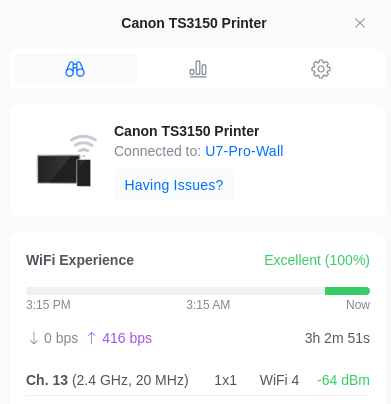
A screenshot showing now my printer is now happily connected to the Ubiquiti U7 AP

Citrix Receiver UK Keyboard Layout Issue on Linux and Chrome OS

作者 librehat
2024年5月10日 21:56

I have this weird issue where my employer’s remote virtual desktop is configured in English (UK), and it works well in Windows with UK keyboard layout. However, if I try to connect to the same instance from Linux (or Chrome OS), with the same hardware, it would appear as if I’m typing from a US keyboard. To make it more bizarre, if I configure a US keyboard in the remote Windows session and switch to it, it would appear as if I’m typing with the UK keyboard layout.

Googling this yields a few frustrating customers, but probably the combination of using a UK keyboard in Linux and accessing a Windows VDA is not that common? I’m surprised that hacks need to be applied… The bizarre symptoms made me wonder what if I just tell the Citrix receiver (or workspace) application to simply use whatever the keyboard layout the remote VDA configured? Bingo! That solves the problem (for me at least). Changing the keyboard layout to (Server Default) in the [WFClient] configuration section did the trick for me in Linux. The configuration file should be in ~/.ICAClient/wfclient.ini

However, I have yet to find where the configuration is stored for Chrome App (in Chrome OS), nor whether it’s even possible to update the default setting there. In the meantime, I found a workaround by editing the ICA file. Open it with a text editor, and add

KeyboardLayout=(Server Default)

to the [WFClient] section.

Reference: https://support.citrix.com/article/CTX328177/keyboardlayoutserver-default-cannot-take-effect-on-citrix-workspace-app-for-linux

Home Assistant Core Setup on Banana Pi M5

作者 librehat
2024年4月20日 03:09

There is no support for BananaPi M5 from Home Assistant OS, which leaves me either the container or the core version. Originally I was going to use the container image, however, it needs too much disk space (7GB was not enough as it maxed out my onboard storage). I went for Home Assistant Core instead, and this post records my journey setting it up.

  1. Install uv (a Python environment manager)
  2. Install latest Python (3.13 at the time of writing), because Home Assistant Core has deprecated the support for older versions of Python
  3. Install Home Assistant Core (official documentation as a reference). I’m using uv to manage the virtual environment (note that I’ll enable ISAL for better performance).
cd /srv/homeassistant/
uv venv pyenv --python 3.13
source pyenv/bin/activate
uv pip install homeassistant==2024.12.3
uv pip install isal  # ISAL for faster gzip and zlib
  1. Install and configure Cloudflare Zero Trust Tunnel (official documentation for remote tunnel). To expose my Home Assistant access to the public Internet, so that I can access it everywhere. Besides, some cloud-based services require that access because they use callbacks (the alternative is to pay for Nabu Casa which is a subscription-based service). Configure the access control in Cloudflare Zero Trust so that only verified emails from a restricted list have access (additional policies can be set for a new application that bypasses any control for cloud services callbacks)
    • Worth noting that the cloudflared add-on cannot be used because Home Assistant Core doesn’t support add-ons.
  2. Setup a new service in systemd for Home Assistant’s hass so that it starts on boot and restarts on failures. I created this file /etc/systemd/system/ha@homeassistant.service (systemctl enable and systemctl start afterwards):
[Unit]
Description=Home Assistant
After=network-online.target
After=network.target

[Service]
Type=simple
User=homeassistant
ExecStart=/srv/homeassistant/pyenv/bin/hass
Restart=on-failure
RestartSec=5s

[Install]
WantedBy=multi-user.target

Chrome OS, Linux Containers and Application Launchers

作者 librehat
2022年11月24日 02:30

So I installed the great brunch framework on my laptop after a hiatus of a couple of months. I still dislike the fact that the Linux containers are running under a VM on Chrome OS. Sure it is more secure as the containers won’t be able to access the host hardware directly etc. It is also slightly inefficient. So I tried both chromebrew and brioche. Note that brioche only supports brunch (thus half of this post won’t apply to official Chrome OS builds).

Chromebrew is like brew.sh (Homebrew for Mac) but for Chrome OS. It works for any developer mode-enabled Chrome OS environment. In other words, it is a package manager, like apt/dnf/zypper. There is no virtualisation here at all, the software distributed via Chromebrew runs directly in Chrome OS. Theoretically, this is the fastest given zero penalties from virtualisation. It’s also plagued by the restrictions of Chrome OS and its non-standard setup.

Brioche, on the other hand, relies on the brunch toolchains and sets up containers via LXC. Those containers are running directly in Chrome OS (as opposed to under the termina VM like in the official method from Chrome OS). Supposedly this option gives the balance between compatibility and efficiency, at the cost of security (the containers have full access to the host hardware).

My personal experiment is a bit of a mixed bag, especially when it comes to Linux GUI application launchers. Most users should simply go with the officially supported way to run Linux applications.

Now, if you’re geeky or feel nerdy today, let’s dig a bit deeper into how Chrome OS manages the application launchers for Linux applications.

In Chrome OS, there is a bridge service (or guest tool) called garcon (given the prevalence of French words in the repository, I bet this should be pronounced as the French origin garçon). According to the documentation from the link, garcon binary is shipped as part of Chrome OS (more specifically, part of the VM termina). It is bind-mounted to be available from the running containers, and then it uses gRPC to have bi-directional communication with the Chrome OS host. This is the service that is responsible for creating and maintaining the Linux application launchers in Chrome OS (and a lot of other nifty features). Essentially, garcon runs as a daemon and makes sure the .desktop files in the containers will have the relevant launchers in Chrome OS.

That’s how it works in the official method. What about chromebrew and brioche? Chromebrew runs directly in the host environment, so they come up with an idea to create PWAs that would then launch the Linux applications via RESTful HTTP calls to a service called crew-launcher. To streamline the installation process, crew-launcher uses D-Bus to open a new Chrome tab (the Chrome from Chrome OS) for the wrapper PWA so that it can be installed as a Chrome OS launcher.

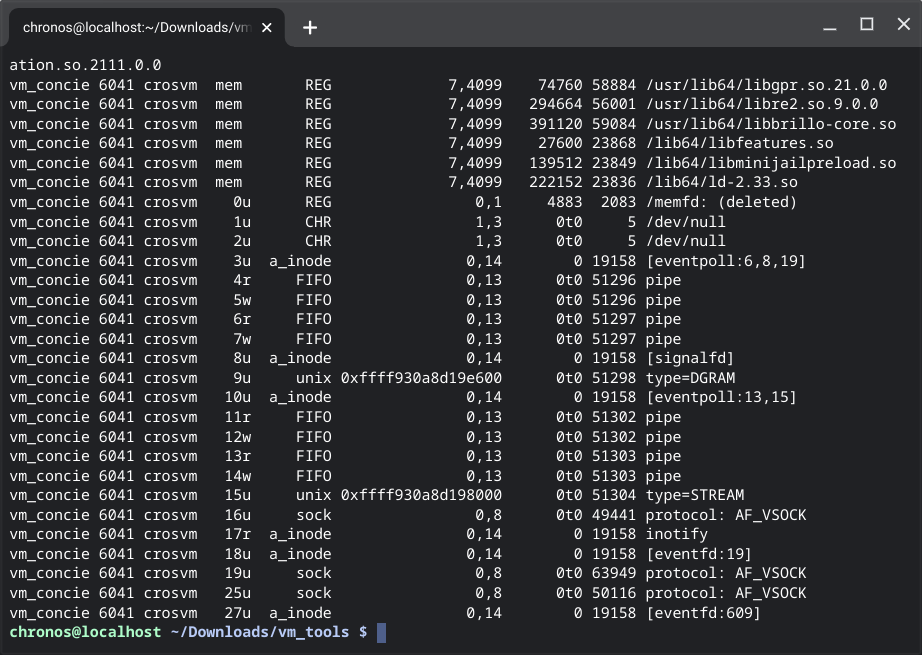
Brioche? At the moment, there isn’t such a solution. I thought to myself, how hard can it be? Now I dug a hole for myself, I’m aiming to have something working, hopefully before the new year. I experimented with both approaches, using gRPC like garcon, and creating wrapper PWAs with a Web server. The former failed as soon as I found out that I can’t connect to the gRPC port opened by vm_concierge. In fact, there is no more port (garcon used to listen on 8889), Chrome OS has its own forked gRPC that supports VSOCK. They’re using VSOCK to communicate between the VM host and the guest. Heck, they even mentioned in this issue my idea which was to exploit the very security risk.

The second solution (akin to crew-launcher) worked in my proof of concept. Similar but it’ll have to be a slightly different approach because we can’t send D-Bus to the Chrome OS host to open any new tabs. My line of thoughts is to then make a Web App that communicates with the server running in the container to discover installed Linux applications, and then the user will have to manually click and install them as the PWA wrapper in Chrome OS launcher. I’ll make a new post when I have something usable and worth sharing :)

Merge Pandas DataFrame with Nested Dictionary

作者 librehat
2021年12月17日 07:13

Not an avid Pandas or Numpy user myself, but I had to spend some time lately to optimise probably a fairly common process: looking up a nested dictionary (2 or more levels) to find the right values element-wise for a column in a Pandas DataFrame. If it’s not clear, the problem I’m trying to solve here is to optimise a look-up function that can be done with .apply() to something more performant.

You might say, why not using .map()? Because the look-up function is not y = f(x), no, it is more like y = f(x, a) or even y = f(x, a, b), depending on the level of nestedness.

As mentioned earlier, this can be implemented with .apply() by supplying a Python function that does the look-up. However, .apply() is very slow (it’s not vectorised). The solution here is actually straightforward (I’m very new to Pandas and it took me some time to get here so I decided to make a note here for this). We first flatten the nested dictionary to have different levels of keys as tuples, which allows us to create a DataFrame with MultiIndex. With MultiIndex, we can easily apply .merge to join the DataFrame objects.

Hopefully the code snippet is more understandable.

import pandas as pd

nested_dict = {
    "A": {
        "Apple": "Red",
        "Banana": "Green",
    },
    "B": {"Apple": "Green", "Banana": "Yellow"},
}
df = pd.DataFrame.from_dict(
    {
        "Fruit": {0: "Apple", 1: "Banana", 2: "Banana"},
        "Price": {0: 0.911, 1: 1.734, 2: 1.844},
        "Bucket": {0: "A", 1: "B", 2: "A"},
    }
)

# Method 1: .apply()
# Apply Python function element-wise, as slow as a regular for loop
df1 = df.copy()
df1["Color"] = df1.apply(
    lambda row: nested_dict.get(row["Bucket"], {}).get(row["Fruit"]), axis=1
)
print(df1)

# Method 2: .merge()
# Vectorized, much faster (even though the big O is the same)
df2 = df.copy()
# The only overhead is to construct a dataframe with 'MultiIndex'
nested_df = pd.DataFrame.from_dict(
    {
        (inner_key, outer_key): value
        for outer_key, outer_value in nested_dict.items()
        for inner_key, value in outer_value.items()
    },
    orient="index",
)
nested_df.index = pd.MultiIndex.from_tuples(nested_df.index)
nested_df.rename(columns={0: "Color"}, inplace=True)
df2 = df2.merge(nested_df, how="left", left_on=("Fruit", "Bucket"), right_index=True)
print(df2)

Windows 10/11 拼音输入法英式键盘

作者 librehat
2021年7月29日 18:55

很多年前就遇到的难题,最近在知乎找到了解决办法(原po点此)。这里复述一下也作为一个存档备份。

问题概述

使用非美式键盘,使用微软内建的中文输入法,当激活拼音输入法(无论中英文模式)时,键盘布局永远是美式。结果就是输入符号时不符合键盘上的符号(甚至字母都不对,如果用的是非QWERTY的键盘布局)。

解决方案

你需要有管理员权限!

按下Windows键(或者点击开始菜单按钮)输入 regedit,回车或者点击注册表编辑器。进入 HKEY_LOCAL_MACHINE\SYSTEM\CurrentControlSet\Control\Keyboard Layouts 然后一个一个找(可以使用方向键翻,用鼠标点可能会点疯),找到你要修改的语言,例如这里我要改的是简体中文,文件夹00000804对应的就是简体中文的键盘布局 (Layout Text 的值是 Chinese (Simplified) - US Keyboard),双击 Layout File 把值从 KBDUS.DLL 改成 KBDUK.DLL,可以顺便把 Layout Text 的值里面的 US Keyboard 改成 UK Keyboard。修改完成后需要重启电脑(或者登出再登入)生效。

如果你使用的是其他键盘布局,可以挨个找到该原生语言的布局(例如如果你用的是美式 Dvorak 键盘,挨个翻,可以找到 00010409 里面的 Layout Text 写的是 United States-Dvorak),找到正确的 Layout File,然后把中文的 Layout File 修改成对应的值(例如美式 Dvorak 就会是 KBDDV.DLL)。

其他方案

搜狗输入法、QQ输入法等第三方拼音输入法允许设置键盘布局,如果使用这些输入法就直接在设置里更改键盘布局即可。

最后吐槽一下Windows的设计,键盘布局应该是和语言无关、和硬件有关,在某些操作系统(比如Windows)中键盘布局变成和语言输入法耦合在一起就很莫名其妙。这样就算了,竟然没有一个在用户态更改键盘布局的图形界面……

2021年10月5号更新

本方法对Windows 11同样有效,但是从Windows 10升级到Windows 11后相关注册表值会被重置,按照上面的内容再修改一次就可以了。

Building KDE Frameworks on Windows from Source

作者 librehat
2021年6月6日 20:05

Some notes on how to build KDE Frameworks packages from source on Windows using Visual Studio tools.

To do so, you need to first have a version of Qt compiled by MSVC installed. Some system environment variables to be set, using Qt 5.15.2 as an example:

  • PATH needs to add C:\Qt\5.15.2\msvc2019_64\bin
  • Qt_DIR needs to be set to C:\Qt\5.15.2\msvc2019_64

Example instructions for building CMake-based projects (all KDE projects), the command below should be executed in x64 Native Tools Command Prompt.

mkdir build && cd build
cmake .. -G "NMake Makefiles" -DCMAKE_INSTALL_PREFIX="C:\Qt\5.15.2\msvc2019_64"
nmake && nmake install

This will install the compiled KDE module into the Qt installation path. You can install it elsewhere, but if you do, make sure you update PATH environment variable accordingly.

A New Termux Mirror

作者 librehat
2021年6月2日 05:50

TL; DR. https://termux.librehat.com is a new Termux packages mirror! Maintained by me, synchronised every six hours, located in the United Kingdom, hosted by Oracle Cloud.

In the full article below, I’ll write up how to set up a Termux mirror (or in general, a Debian packages repository mirror).

First of all, you need either a dedicated server, a virtual machine, or a VPS. A public mirror could use a lot of bandwidth, I won’t recommend using the same host where your blog is hosted for example.

To host a Debian packages repository mirror, it’d work out the best if you use a Debian-based Linux distribution, e.g. Debian, or Ubuntu. In Oracle Cloud, Ubuntu 20.04 LTS is the only choice in the Platform Images category, so I’ve chosen Ubuntu here.

It is possible to use other Linux distributions such as CentOS, RHEL or so on. However, they don’t have apt-mirror package available and you’ll likely end up with chrooted Debian.

Set up apt-mirror

I’m using apt-mirror here. There are other tools and they all depend on what works and what not for a specific distribution. Termux doesn’t support rsync for example, so any solutions based on rsync wouldn’t be viable.

My configuration for apt-mirror is pasted below. You should have something similar to the config below in your /etc/apt/mirror.list file:

############# config ##################
#
# set base_path    /var/spool/apt-mirror
#
# set mirror_path  $base_path/mirror
# set skel_path    $base_path/skel
# set var_path     $base_path/var
# set cleanscript $var_path/clean.sh
# set defaultarch  <running host architecture>
# set postmirror_script $var_path/postmirror.sh
# set run_postmirror 0
set nthreads     10
set _tilde 0
#
############# end config ##############

# Main
deb-aarch64 https://packages.termux.org/apt/termux-main stable main
deb-arm https://packages.termux.org/apt/termux-main stable main
deb-i686 https://packages.termux.org/apt/termux-main stable main
deb-x86_64 https://packages.termux.org/apt/termux-main stable main
clean https://packages.termux.org/apt/termux-main

# Game packages
deb-aarch64 https://packages.termux.org/apt/termux-games games stable
deb-arm https://packages.termux.org/apt/termux-games games stable
deb-i686 https://packages.termux.org/apt/termux-games games stable
deb-x86_64 https://packages.termux.org/apt/termux-games games stable
clean https://packages.termux.org/apt/termux-games

# Root packages
deb-aarch64 https://packages.termux.org/apt/termux-root root stable
deb-arm https://packages.termux.org/apt/termux-root root stable
deb-i686 https://packages.termux.org/apt/termux-root root stable
deb-x86_64 https://packages.termux.org/apt/termux-root root stable
clean https://packages.termux.org/apt/termux-root

# Science packages
deb-aarch64 https://packages.termux.org/apt/termux-science science stable
deb-arm https://packages.termux.org/apt/termux-science science stable
deb-i686 https://packages.termux.org/apt/termux-science science stable
deb-x86_64 https://packages.termux.org/apt/termux-science science stable
clean https://packages.termux.org/apt/termux-science

# Unstable packages
deb-aarch64 https://packages.termux.org/apt/termux-unstable unstable main
deb-arm https://packages.termux.org/apt/termux-unstable unstable main
deb-i686 https://packages.termux.org/apt/termux-unstable unstable main
deb-x86_64 https://packages.termux.org/apt/termux-unstable unstable main
clean https://packages.termux.org/apt/termux-unstable

# X11 packages
deb-aarch64 https://packages.termux.org/apt/termux-x11 x11 main
deb-arm https://packages.termux.org/apt/termux-x11 x11 main
deb-i686 https://packages.termux.org/apt/termux-x11 x11 main
deb-x86_64 https://packages.termux.org/apt/termux-x11 x11 main
clean https://packages.termux.org/apt/termux-x11

Now, let’s try to manually initialise the mirror as the apt-mirror user and verify whether the apt-mirror configuration is correct.

sudo su apt-mirror -c "apt-mirror"

This can take a long time (depending on the network and disk I/O speed etc.). Once it is finished, you should see the mirrored repositories in /var/spool/apt-mirror/mirror/grimler.se/. If something went wrong, you can find logs in /var/spool/apt-mirror/var/.

Set up HTTP Server

Choose your favourite web server. In my setup, I’ve chosen nginx which is a super fast and lightweight web server. Either the autoindex or the fancyindex module will work.

Alternatively, use Apache and enable the directory listing.

The directory where the repositories are stored by apt-mirror is /var/spool/apt-mirror/mirror/grimler.se/ (the last directory would be different if the upstream is configured to be a different site).

Once this is all done, make sure you’ve opened the HTTP port (80) in the firewall settings (both in the VM and in the infrastructure provider’s control panel).

Now, if everything is set correctly, you can type the public IP address (or the domain if you had one) and check whether you can see the mirrored packages being listed.

You may also want to set up an SSL certificate so this mirror is accessible via HTTPS protocol, for which please check out Let’s Encrypt.

Set up Automatical Synchronisation

Many articles online talk about how to use cron which is the old and trusted management tool for cron jobs. Here, we’ll use systemd to do that (it requires a reasonably recent Linux distribution that is shipped with systemd).

First, let’s create /etc/systemd/system/apt-mirror.service:

[Unit]
Description=Mirror APT repositories
Wants=apt-mirror.timer

[Service]
Type=oneshot
User=apt-mirror
Group=apt-mirror
ExecStart=/usr/bin/apt-mirror

[Install]
WantedBy=multi-user.target

This is the actual systemd service unit. It should look familiar if you’ve seen any systemd services configurations. Next, we need to create the timer unit which will trigger this service repeatedly. Create /etc/systemd/system/apt-mirror.timer:

[Unit]
Description=Periodically run apt-mirror
Requires=apt-mirror.service

[Timer]
Unit=apt-mirror.service
OnUnitInactiveSec=21600

[Install]
WantedBy=timers.target

Here the timer trigger I’ve set is to run the service in 6 hours after the service unit becomes inactive (so it’ll definitely be less frequent than every 6 hours because apt-mirror takes more than 0 seconds to run).

Enable the service and the timer so they’re active when the system boots. To kick start it now, manually start the timer after enabling. Run the commands below in the terminal.

sudo systemctl enable apt-mirror.service
sudo systemctl enable apt-mirror.timer
sudo systemctl start apt-mirror.timer

To check when is the next trigger, simply do

sudo systemctl status apt-mirror.timer

Now you’re all set. The mirror is online and it’ll be synchronised about every six hours.

Update (25 June 2021)

This mirror has been added to the termux-tools package. On the next update, you should be able to use it if you wish by running termux-change-repo.

Building Qt for Termux Android

作者 librehat
2021年5月9日 00:15

This is by all means, not the first blog post about Termux. It serves as a journal for myself, as well for anyone who’s interested in cross building Qt or Qt-related projects for Termux (which is a native Linux environment for Android) from their x86_64 machines.

We already have @xeffyr who has done a great amount of work on building Qt for Termux. The work I’ve done recently would be 10 times harder, if not for what’s achieved by them already.

If you’re new to cross building for Termux, I recommend you to start with Developer Wiki.

Failure is a Stepping Stone

I jumped start with Qt 5.15.2 which is the latest open-source version of Qt 5. However, the last successful build of Qt for Termux was version 5.11.3. There is a huge log of changes committed between these two versions. From my personal point of view, I did one thing better, which is to use qtbase submodule instead of the huge tarball that includes all modules.

I first examined the current patches and realised that most of them are trying to differentiate Termux environment from a regular Android target. Termux is a Linux environment on top of Android, which means it is not a regular desktop Linux environment but by no means it’s close to Android. To find the right spot, there are two approaches, one is what @xeffyr had done by forcing Qt to recognise Termux as a regular Linux environment and then cherry-pick the places where it needs to be treated as Android. The other way is what Sailfish OS did. They’ve defined a new target called Q_OS_ANDROID_EMBEDDED which is similar to what we try to achieve.

I’ve started my effort to go the latter direction, which also required extra patches by the way. Like any marvellous engineering work hack, this process is try and error.

There is a bad system call issue which could be traced by strace and it revealed the shared memory function calls that had to be patched (by either directly invoking dlopen or forcing the library to link against android-shmem).

The qt515 branch was, in fact, able to produce binaries that work on the vnc QPA platform. I was troubled by a mysterious segmentation fault that was diagnosed by GDB to be triggered at Qt HiDPI position conversion function. My hunch told me that shouldn’t be the case as the code looks sane, plus the segmentation fault only happened with the xcb plug-in. After disabling the HiDPI feature, the segmentation fault happened at QCoreApplication, which was even more bizarre. After another day of futile work hacking, I gave up and switched to try my luck with Qt 5.12.10 which is the latest patched version of Qt 5.12 LTS, at the time of writing.

I started to question whether Q_OS_ANDROID_EMBEDDED was the right choice of hacking the way through, which led to a different approach (by pretending to be a regular Linux environment) applied on the Qt 5.12 branch. After another day of try and error, I managed to get to the same spot as my previous attempt with Qt 5.15.

Haunted Segmentation Fault

It felt back to square one with the same segmentation fault again! The only improvement I had over my work on Qt 5.15 branch was that the shared memory is now solved with a single linking flags change in the qmake.conf.

Malo nodo, malus quærendus cuneus

Desiderius Erasmus Roterodamus

Desperate times require desperate measures. I decided to follow my hunch on the xcb plug-in, knowing that wasn’t an issue on Qt 5.11 and that my Qt programs work on the VNC platform. I’ve reverted the whole plugins/platforms/xcb directory to what Qt 5.11.3 has, which by the way says a lot about the modularity of Qt (impressive separation). Yes, that’s how desperate it got.

No luck. Well, not directly.

Success at Last

Qt failed to be built altogether because xinput2 in Qt 5.11 was replaced by xcb-xinput in Qt 5.12. Hmm, what is that xinput thing then? My initial idea was to somehow stitch them so it could compile, which later seemed to be a lot of work hack. Desperate times require desperate measures. I was thinking since xcb-xinput is a new thing, and it doesn’t seem to be useful, if functional at all, in Termux environment. Maybe let’s just explicitly disable it.

🥳

A much needed surprise, it worked! I ran a few example projects provided by Qt and they all looked as expected!

One More Thing

The previous packaging script for Qt 5.11 doesn’t save the binaries produced for the host (this is cross building after all) into a package. That means in order to build any other Qt projects, this needs to be rebuilt, and the only way to trigger a rebuild is to bump the revision number. Let’s say that won’t scale well.

I’ve made some changes (an experience from my meddling with Qt 5.15) so that the host tools are saved into a deb package for the new Qt 5.12 package. With that, Qt projects should be able to be managed and packaged easier for Termux.

Other Things

There are other things that I left out from this post. For example, in Qt 5.15, the sysroot configuration actually works as expected. In Qt 5.12, it would mess up the linker and where to find the libraries (for which I had to add the path to the -L option directly so it gets passed on).

This blog post is only talking about the qtbase module. I’ve started to work hack on other modules to bring them onto Termux. Stay tuned!

调教三星 DeX 的输入法

作者 librehat
2021年4月28日 20:37

不知道有多少人是被 DeX 吸引到三星 Galaxy S 系列中的,DeX 可是其中一个很大的卖点(至少在欧洲和北美市场, DeX 是重点宣传的功能)。连上显示器(现在支援无线 DeX 了),或者平板切换开启 DeX 模式,马上生产力上升了好几倍!

然后马上你就会发现输入法被锁死在三星键盘上了。无论你本来喜爱的是谷歌的 GBoard 还是搜狗拼音,都被三星键盘替代了(退出 DeX 后输入法会变回去)。

三星键盘的中文录入是勉强能用级别,明显的卡顿和超过10个候选词的界面让你觉得这软件就没有 QA 的。搜索了一大圈网络教程,亲测使用 adb 可以修改 DeX 的输入法(Android 11, One UI 3.1)。

比如更改成谷歌 GBoard :

adb shell ime set com.google.android.inputmethod.latin/com.android.inputmethod.latin.LatinIME

当然如果你的设备已经外接到显示器和键鼠了,又怎么通过 PC 或 Mac 来执行 adb 指令呢?好消息是 Android 开发者选项现在打开 WiFi adb debugging 了!更好的消息是你可以安装 Termux 然后下载为 Termux 预编译好的 adb 二进制程序,直接从手机/平板运行 adb 来改输入法。

另一个反人类的默认设置就是键盘候选框会显示在手机(或者平板电脑)上,这在打字的时候要去侧头看另一边来输入汉字简直莫名其妙。好在解决这个问题有个很简单的设置项(埋在了Samsung DeX里)。

设置 -> Samsung DeX -> 键盘 -> 屏幕键盘位置, 改成“电视或显示器”

写到这里, DeX 的中文输入依然不好用(稍微能用一点了),在普通 Android 界面下能够追随光标的 GBoard 在 DeX 下也不能跟随光标了。而且输入习惯和 PC 或 Mac 上的输入法有所区别,也还是只能算勉强能用级别了。

Fedora Linux with MATE Desktop on Android

作者 librehat
2021年4月9日 21:28

I know some of you geeks have already done something like that, running a GNU/Linux distribution on top of an Android device. It’s an interesting time, with projects like proot we don’t need root privilege on our Android devices to run a containerized Linux environment. Here in this post, I’ve written down the steps that I’ve taken to have a usable desktop environment up running on my Galaxy Tab S5e (this blog post has been written up purely within such environment).

Installation

First of all, you must have a device running Android 7.0+, which is a requirement of Termux. If you plan to use graphical environment, I highly recommend you having a big-screen device such as a tablet, or having a USB-C hub that connects to a monitor and other peripherals.

You need to first install Termux from FDroid. Don’t install it from Google Play. The version in Google Play store is outdated and will not receive any updates until the author has figured a way to target newer Android APIs. Once you’ve done that, open Termux and install proot-distro and use it to install Fedora 33 (check other distributions it supports by proot-distro list)

pkg install proot-distro
proot-distro install fedora-33

Now we can log into the proot environment and it is Fedora!

proot-distro login fedora-33
# the commands below are executed in fedora proot
dnf update
dnf install mate-session-manager mate-desktop mate-themes mate-terminal pluma caja marco glibc-langpack-en firefox

Now you’ve installed some packages for MATE desktop environment and should be ready to have a basic graphical desktop up running. Not so fast yet… Android doesn’t have an X11 server nor a wayland compositor. We then have two choices here:

  1. VNC/RDP remote desktop
  2. “Remote” X11

I’m going for the second option here. Mainly because all the VNC clients on Android I’ve tried so far don’t have perfect experience (albeit perfectly usable). To do that, install “XServer XSDL” from Google Play store on the same Android device. Launch it and configure the screen resolution if you need, then we can head back to Termux task and tell Fedora to start a MATE session with a “remote” X server.

export DISPLAY=localhost:0 PULSE_SERVER=tcp:localhost:4713
mate-session

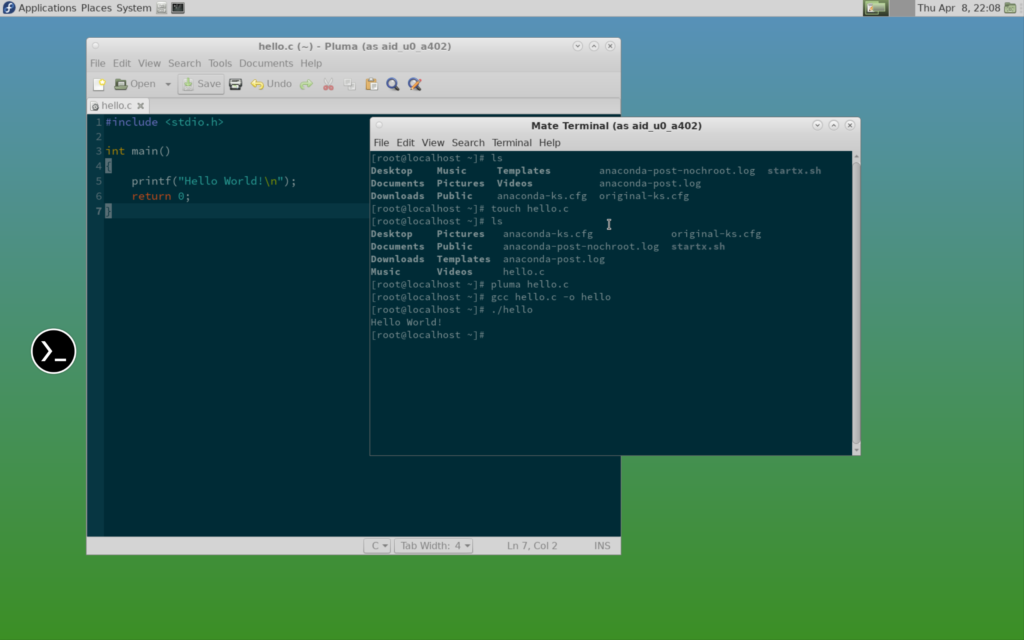
Remember to acquire wakelock for Termux in the notification area, otherwise Android might kill Termux process to save battery. Now you can head to the XServer XSDL task again, wait for a couple of seconds and you should be greeted by a MATE session (as shown in the screenshot below).

Logging as a Non-root User

You might be struck down by a number of applications that refuse to run in privileged mode (by default, proot logins as root). To solve that and login as a non-root user, you need the good old friends useradd and usermod commands to create a new user in the proot environment:

useradd -m user1  # create a new user with login ID user1
groups root  # check what groups we might need to add
usermod -aG aid_inet user1  # add aid_inet group to user1

Now in the future when you want to login as this user, you can do:

proot-distro login fedora-33 --user user1

However it seems that some configuration files are not correctly sorted so you might not be able to use sudo to gain root privilege. The workaround would be to execute those commands in another Termux tab as root.

Locale and Timezone

The system is up running now but it’s been really configured as a bare minimal OS. You might find quite a few things out of the place. Here we’re going to correct the locale and the timezone.

The locale would’ve been configured to the fallback “C”. To make it worse, there is no language pack installed for glibc by default (in the Setup section, we installed English language pack ourselves). Once you’ve installed the language pack you need (and potentially the fonts required), you should be able to see a good candidate in the output of locale -a, pick one and set the LANG environment variable in .bashrc, for example, setting it to British English:

export LANG="en_GB.utf8"

Now let’s look at the timezone which is UTC by default, that’s fine on the CLI but might be confusing in a graphical desktop environment. To fix that, run tzselect and edit .bashrc file to add the environment variable for TZ:

export TZ="Europe/London"

For example, this sets the timezone to London, UK.

Conclusion

It’s not a one-click solution, but GNU/Linux desktop is never going to be used by people who require one-click solutions (not anytime soon).

On the compatibility, the proot solution is almost as good as a regular chroot on a privileged environment (regular Linux PC, or rooted Android). There are a few applications that might freeze, or crash outright, but you should be able to find replacements easily. For example, I couldn’t get Xfce running without major usability issues and that’s why I changed to use MATE.

On the performance side, the proot solution will be a bit slower than chroot. If your Android device has been rooted already, look at chroot solutions such as LinuxDeploy. Either way, you won’t get hardware acceleration on the graphics but chroot should be generally a bit faster as it is a “native” solution.

❌
❌